
Print the bill and take the payment
Who does this: cashiers, managers and the owner at the billing counter.
What you need:
- The billing counter, with you switched in (Switch person and lock the counter).
- A table with an order (Take an order at the counter).
- A printer for bills, if you print them (Set up the billing counter and printers).
Open the bill
Section titled “Open the bill”-
On the Floor, click the table. A panel opens on the right. It shows each KOT with its dishes, and the total.
-
Click Bill (1). If the guests want to order more first, find the dishes in the menu on the left (2), click them and send the KOT before you open the bill.
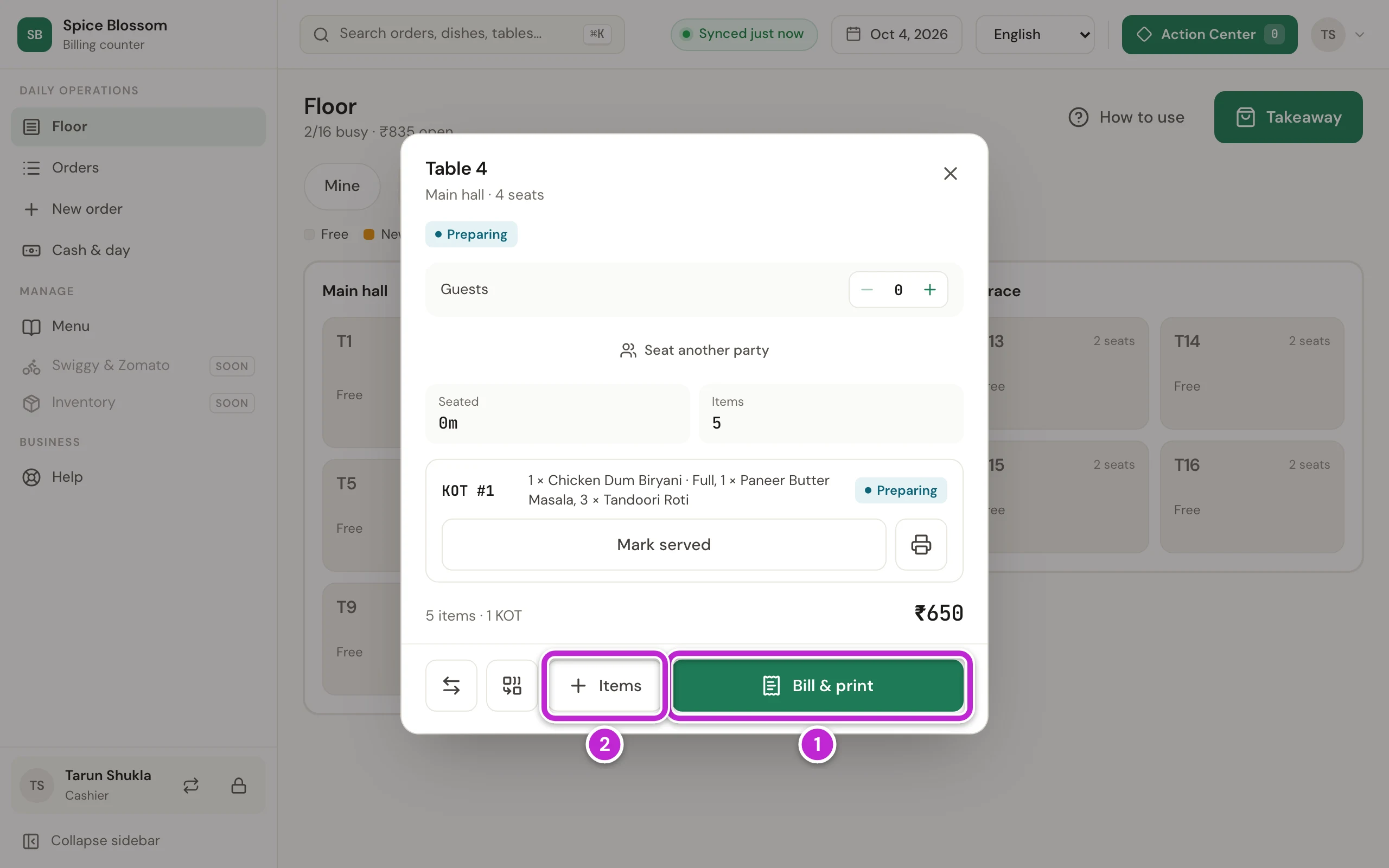
The bill opens. It shows the items, the Discount, the Charges and the Total. To give a discount or cancel a dish, see Discounts, cancellations and approvals. To give the guest coins, add their mobile number under Customer (Customers and coins).
Take a cash payment
Section titled “Take a cash payment”-
Check the items and the Total with the guest.
-
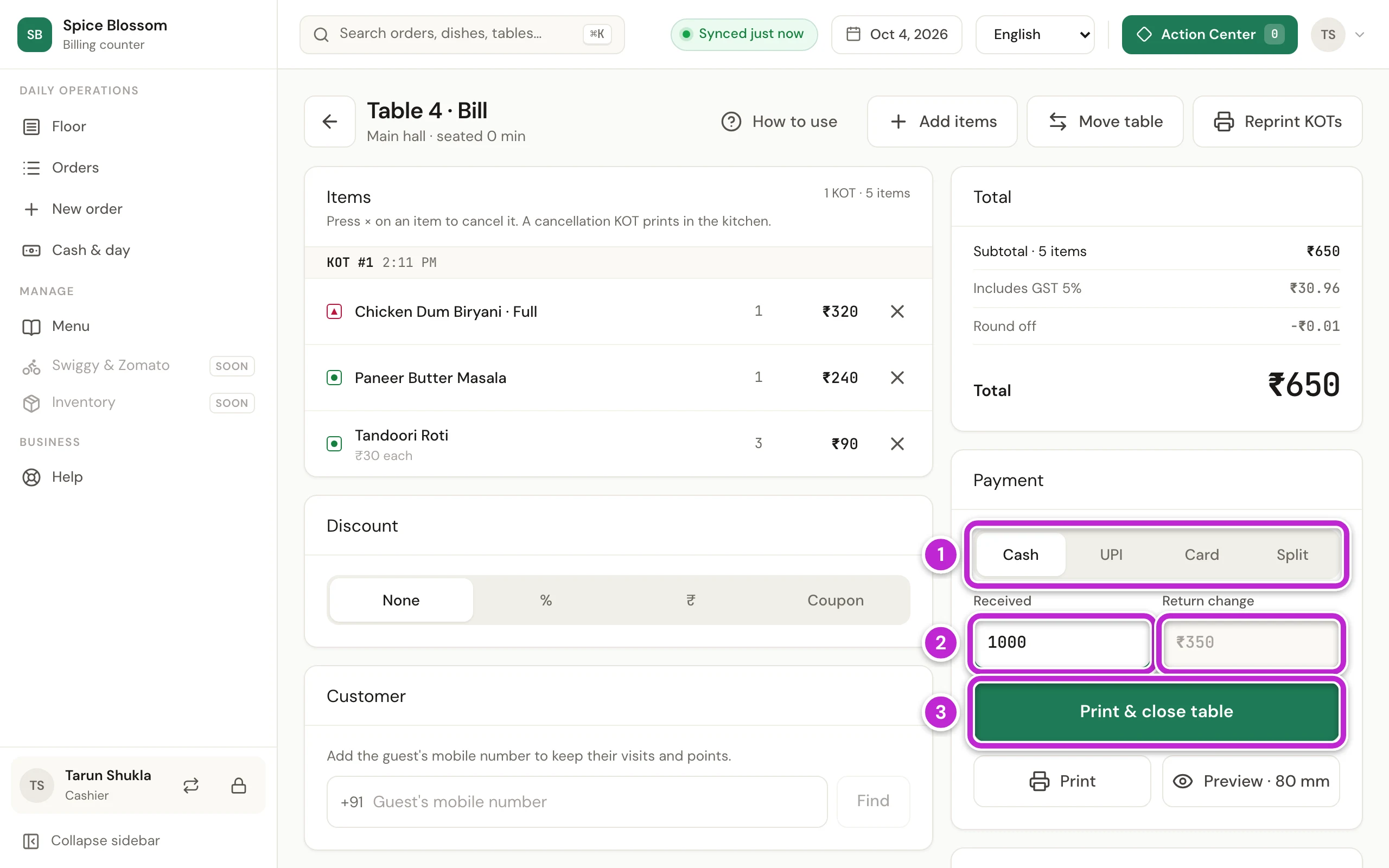
Under Payment, click Cash (1).
-
Type the amount the guest gives you in Received (2). The counter shows how much to give back under Return change. In the picture, the guest gives ₹1000 for a bill of ₹650, so you return ₹350.
-
Click Save & print (3). The bill prints and the table closes.
Take UPI, card or a mix
Section titled “Take UPI, card or a mix”-
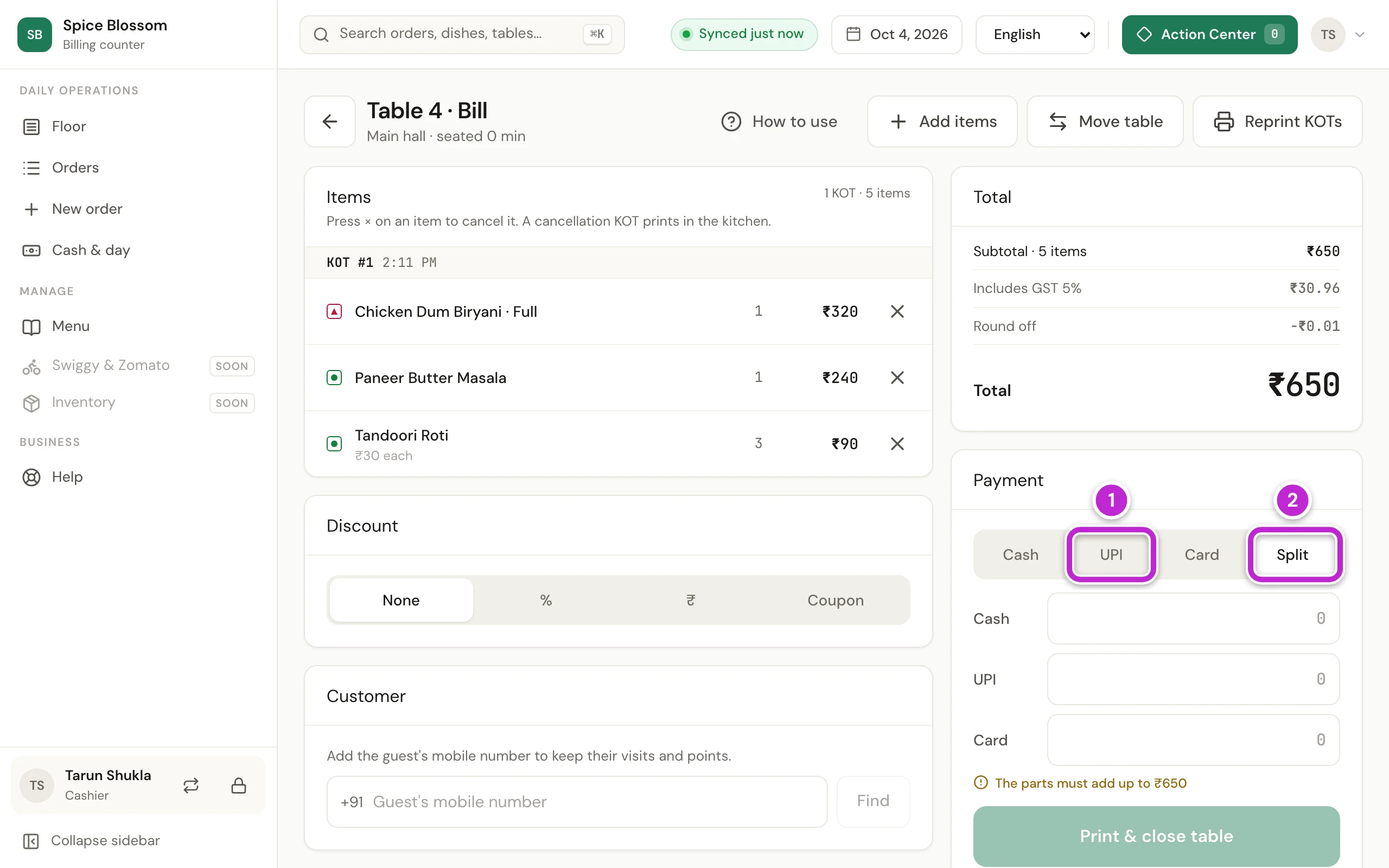
Under Payment, click UPI (1) or Card. Choose it only after the money has reached you.
-
If the guest pays part in cash and part by UPI or card, click Split (2). Type each part in its box. The parts must add up to the total.
-
Click Save & print.
Show a UPI QR for the amount
Section titled “Show a UPI QR for the amount”When the owner has added the restaurant’s UPI ID (GST and bill details), every printed bill carries a QR for its exact amount. The counter can also show one on the screen.
-
Under Payment, click UPI.
-
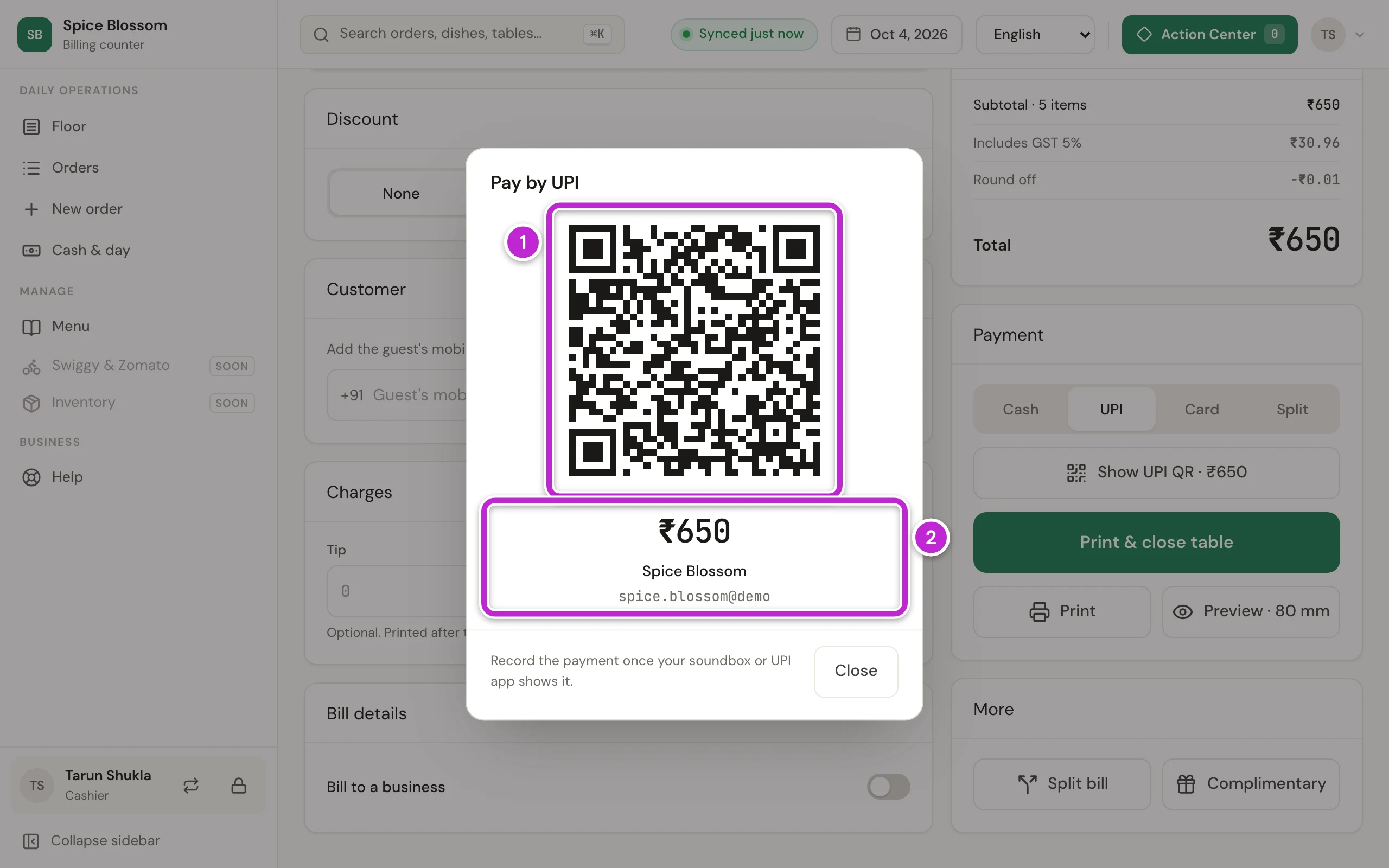
Click the button with the amount, like Show UPI QR · ₹650. A large QR opens (1). Under it you see the amount, the restaurant’s name and the UPI ID (2). The guest scans it with any UPI app, and the amount is already filled in.
-
When your soundbox or UPI app shows the money, close the window and click Save & print.
When a guest pays only part by UPI, choose Split and type the UPI part. The small QR button beside the UPI box shows a QR for that part.
When a guest pays from their phone
Section titled “When a guest pays from their phone”Guests who scan the QR sticker on their table see the bill on their phone as soon as you print it.
-
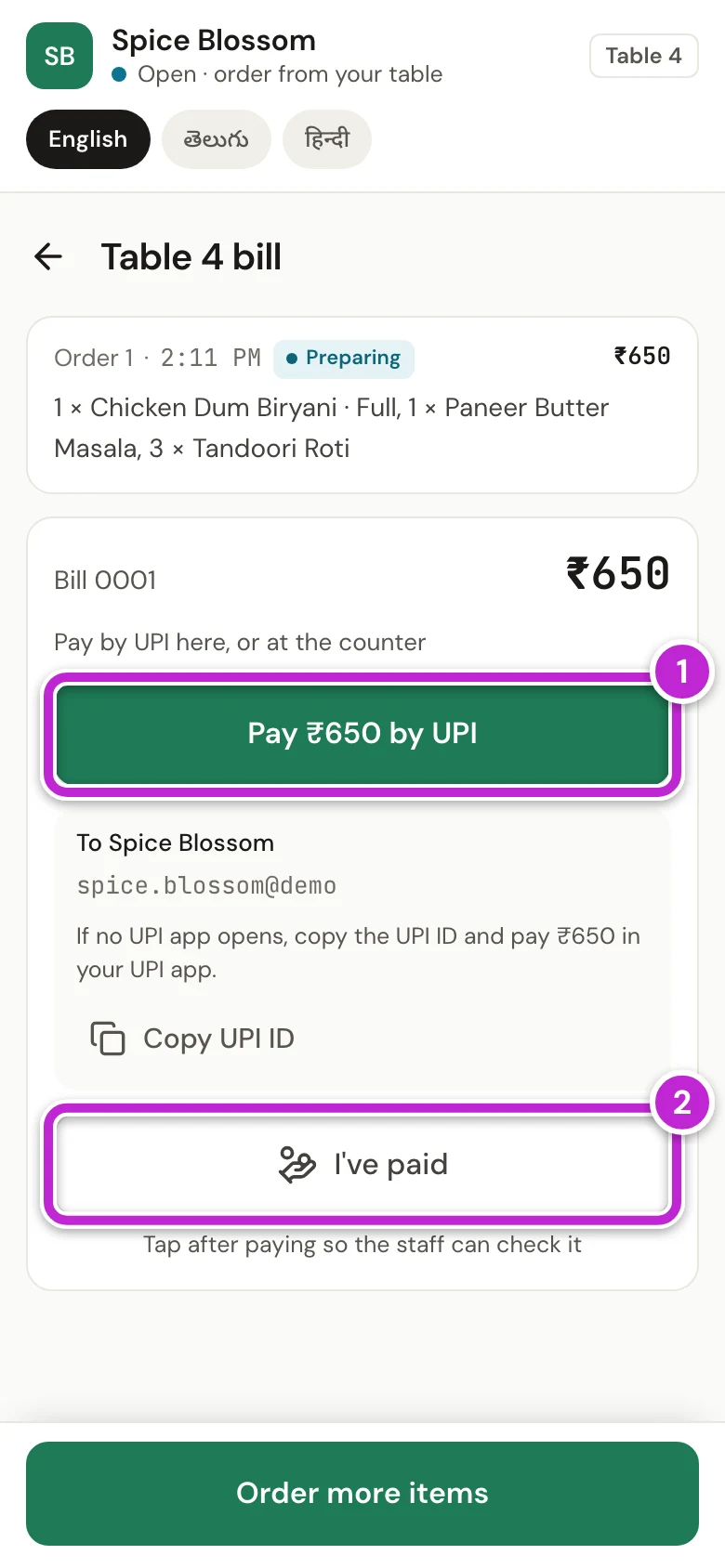
Click Print. The guest’s phone shows the bill with Pay ₹650 by UPI (1). Tapping it opens their UPI app with the amount filled in. After paying, they tap I've paid (2).
-
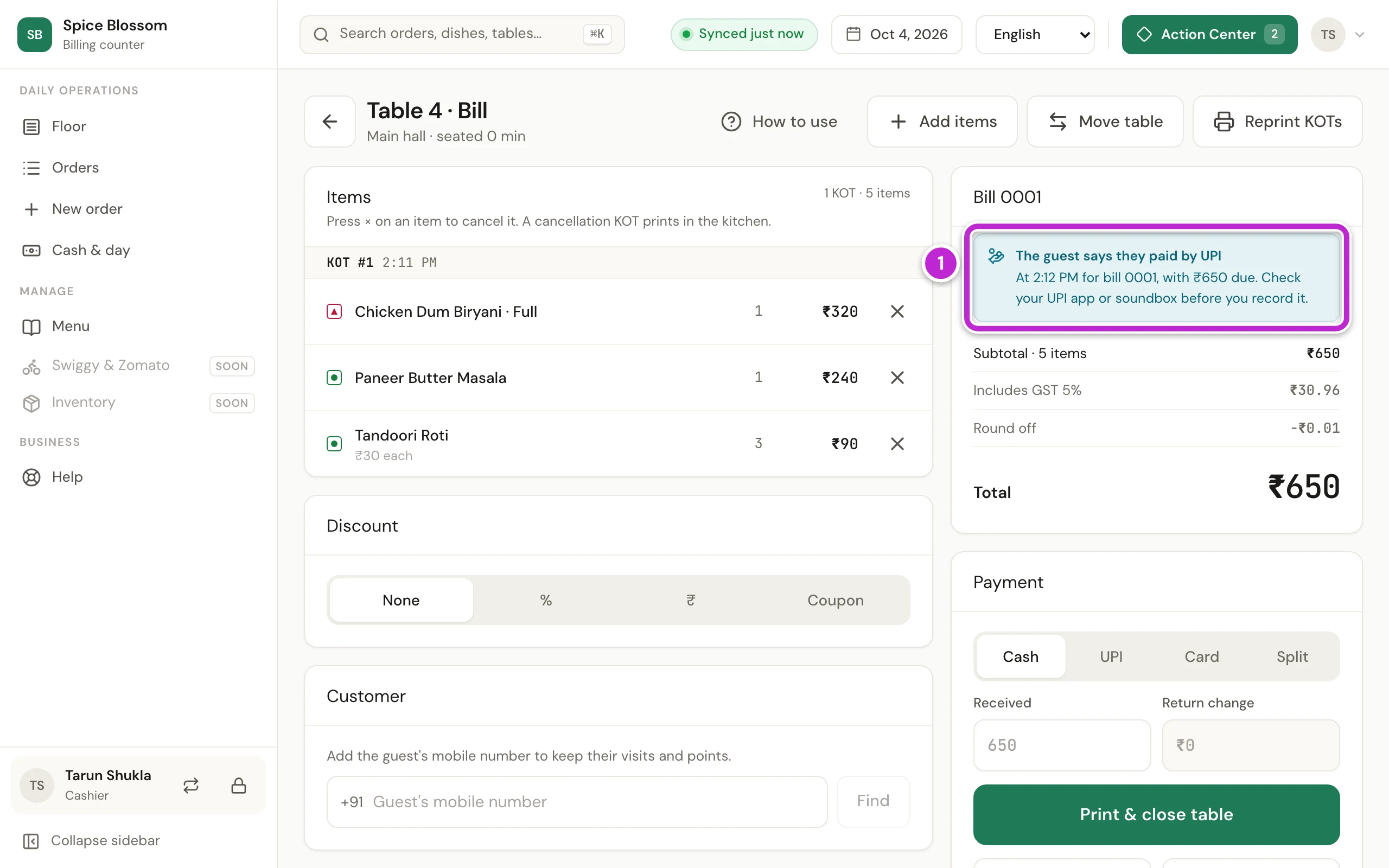
The counter rings. On the Floor, the table shows Says paid, and the bill shows The guest says they paid by UPI (1) with the time and the amount due.
-
Check your soundbox or UPI app. Only when the money is there, choose UPI under Payment and click Save & print. The note goes away once the bill is paid.
Split the bill between guests
Section titled “Split the bill between guests”-
Under More, click Split bill.
-
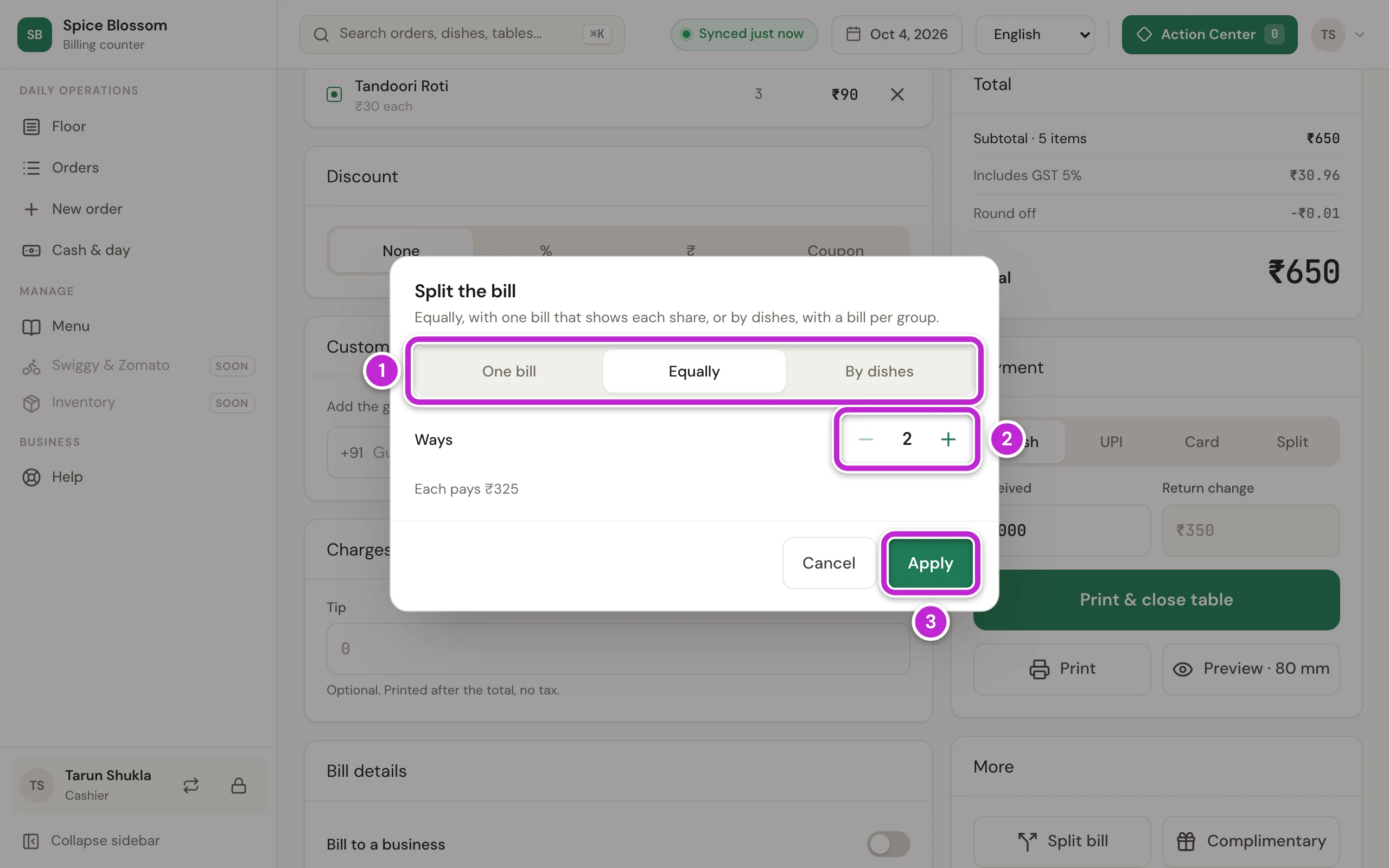
Choose how to split (1):
- Equally: one bill that shows what each person pays.
- By dishes: a separate bill for each group’s dishes.
-
For Equally, set the number of Ways with the plus or minus button (2). The window shows what each person pays, here Each pays ₹325.
-
Click Apply (3).
Then take the payment as above.
Free the table
Section titled “Free the table”After the payment, the counter goes back to the Floor and shows Table 4 is free again.
-
If your restaurant marks tables for cleaning, the table shows Needs cleaning (1). Clean the table.
-
Click Clean on the table (2).
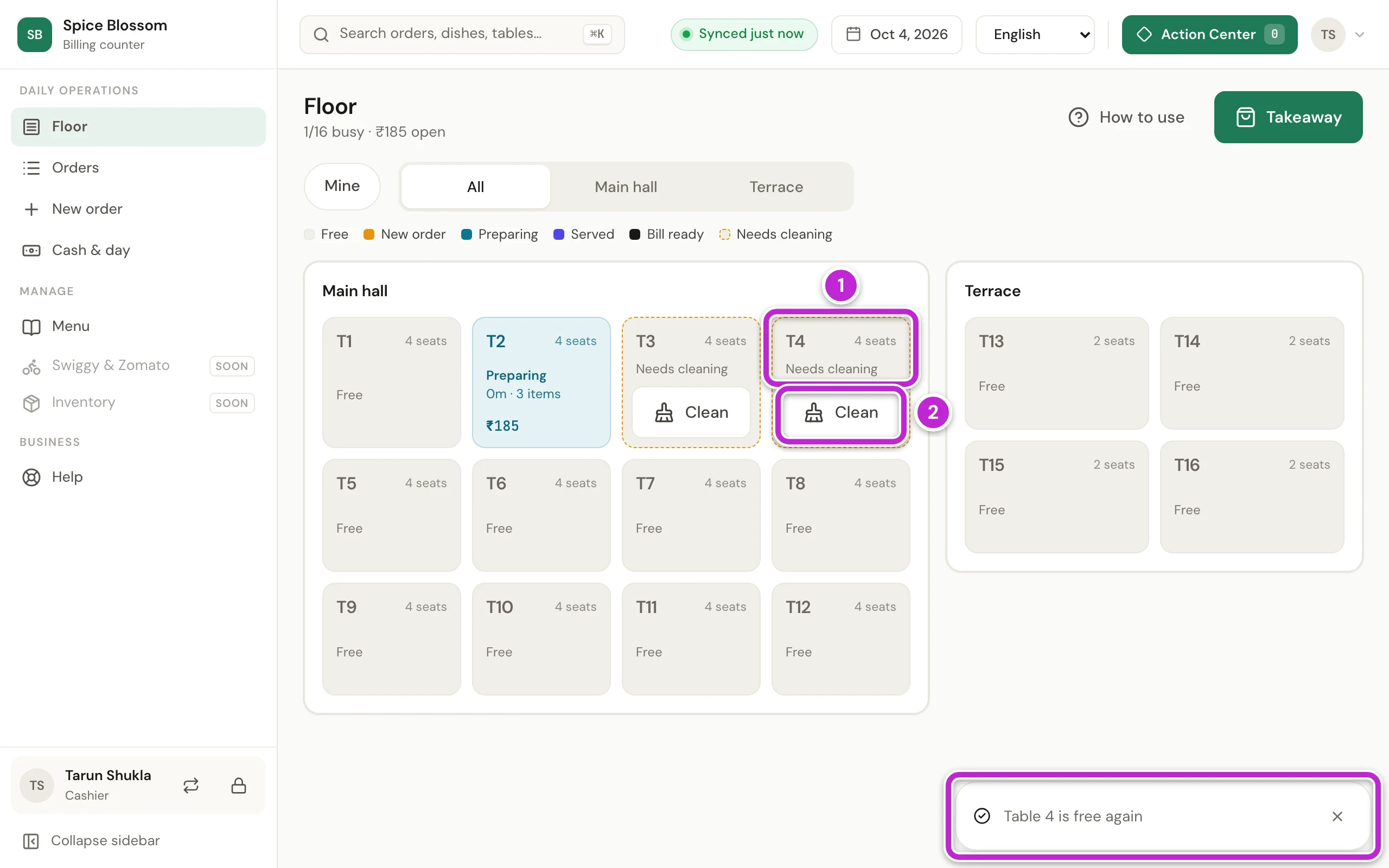
Needs cleaning is only a reminder. You can still seat new guests at the table, and that clears it too. The owner turns it on or off in Settings, Floor.
If a business asks for its GSTIN on the bill, click Bill to a business under Bill details before you print. At the end of the day, count the cash in the drawer (Cash and close the day).
If something goes wrong
Section titled “If something goes wrong”- Collect the payment before closing the table. Choose how the guest paid under Payment, then click Save & print.
- Accept or reject the new orders first. A guest at this table sent a QR order that nobody accepted yet. Accept or reject it in Orders (Accept QR orders), then open the bill again.
- The parts must add up to ₹650 The cash, UPI and card parts do not add up to the total. Change the amounts.
- That is more than the amount due. The amount you typed is more than the bill. Type the right amount. For cash, type what the guest gave you in Received.
- Put at least one dish on every bill. When you split by dishes, every bill needs a dish. Move a dish to the empty bill, or make fewer bills.
- There is nothing to bill on this table. The table has no dishes on it. Check that you opened the right table.
- Bill 0001 not printed at the top of the screen. Check that the bill printer is on, has paper and its cable is in. Then click Retry.
- The guest’s phone shows no pay button. The owner has not added a UPI ID, or turned off Show it on guests' phones (GST and bill details). The guest pays at the counter.
- The guest says no UPI app opens. Some phones do not open a UPI app from the button. The guest copies the UPI ID from the page and pays the amount in their UPI app, or scans the QR on the printed bill.