
Sign in
Who does this: everyone the owner added with a mobile number: the owner, managers, captains and anyone else with a number on the team.
What you need:
- The phone with the mobile number your restaurant added you with, with WhatsApp on it. The code comes to this phone on WhatsApp.
- A computer, tablet or phone with internet, and the Chrome browser.
Sign in with your mobile number
Section titled “Sign in with your mobile number”-
Open Chrome and go to app.dinesure.in. At the billing counter, open the DineSure Counter app instead. The owner installs it once (Set up the billing counter and printers).
-
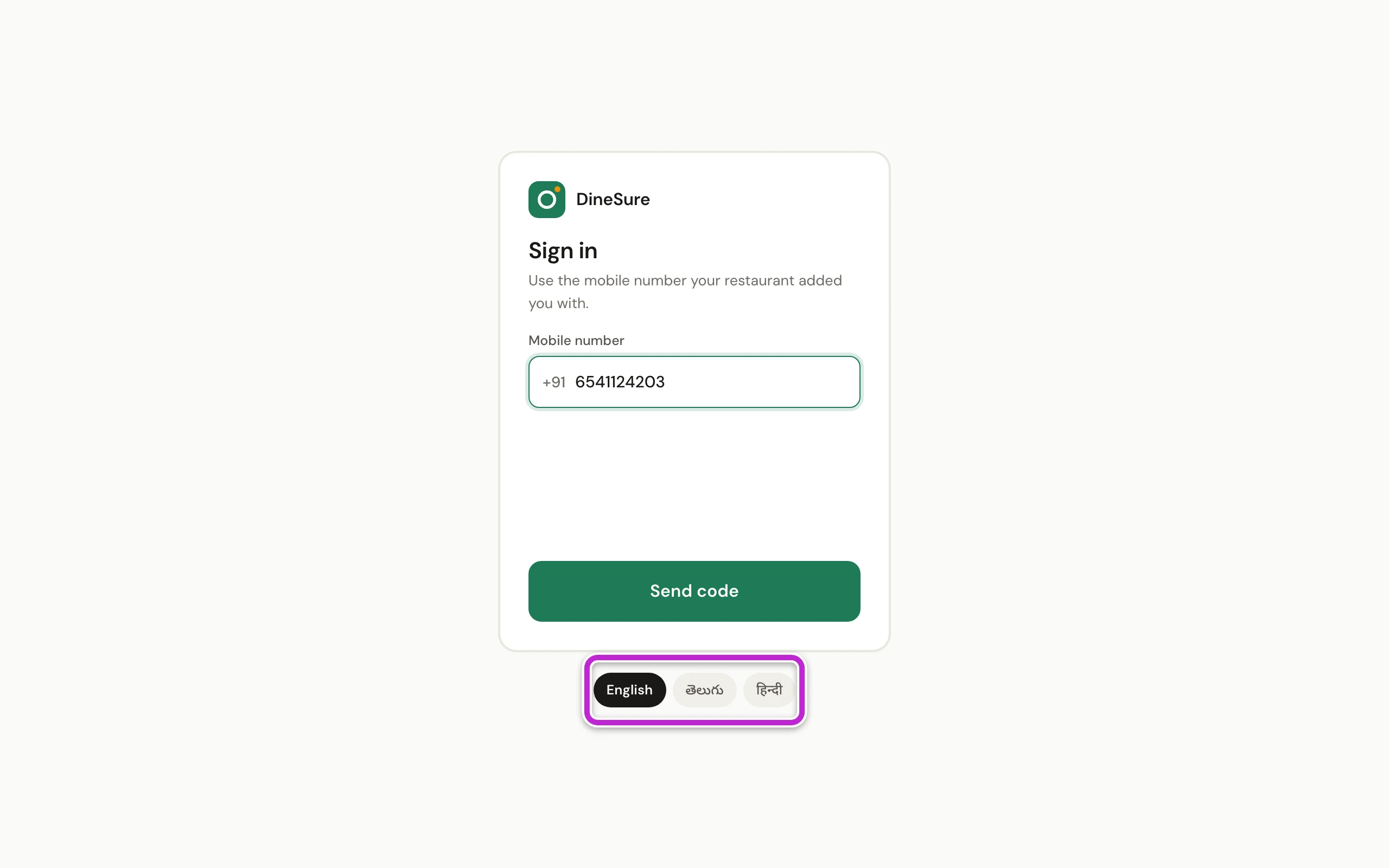
If you read Telugu or Hindi more easily, click తెలుగు or हिन्दी at the bottom of the page. All of DineSure changes to that language. You can change it again at any time.
-
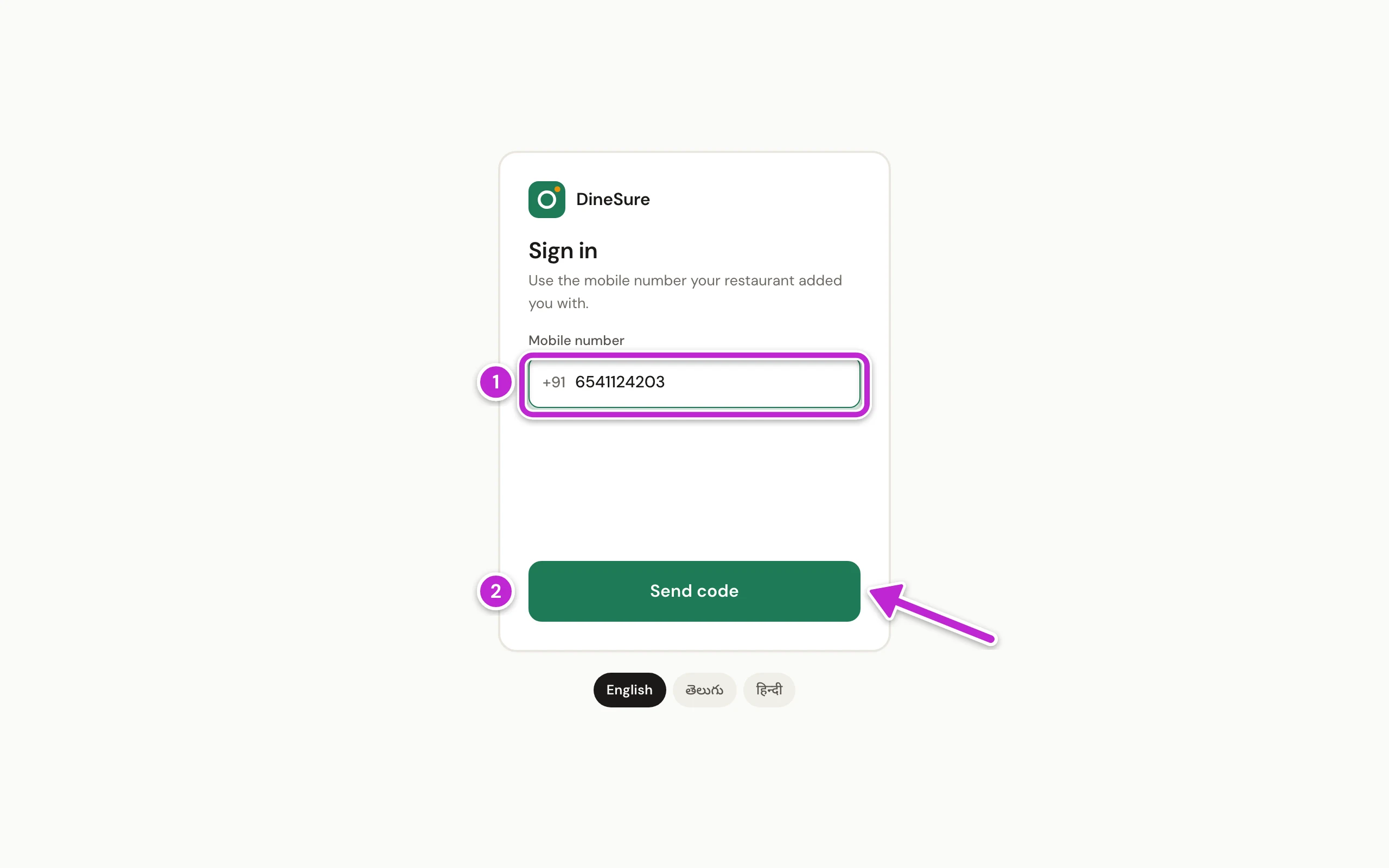
Type your 10-digit mobile number in Mobile number (1). Do not type +91; it is already there.
-
Click Send code (2).
-
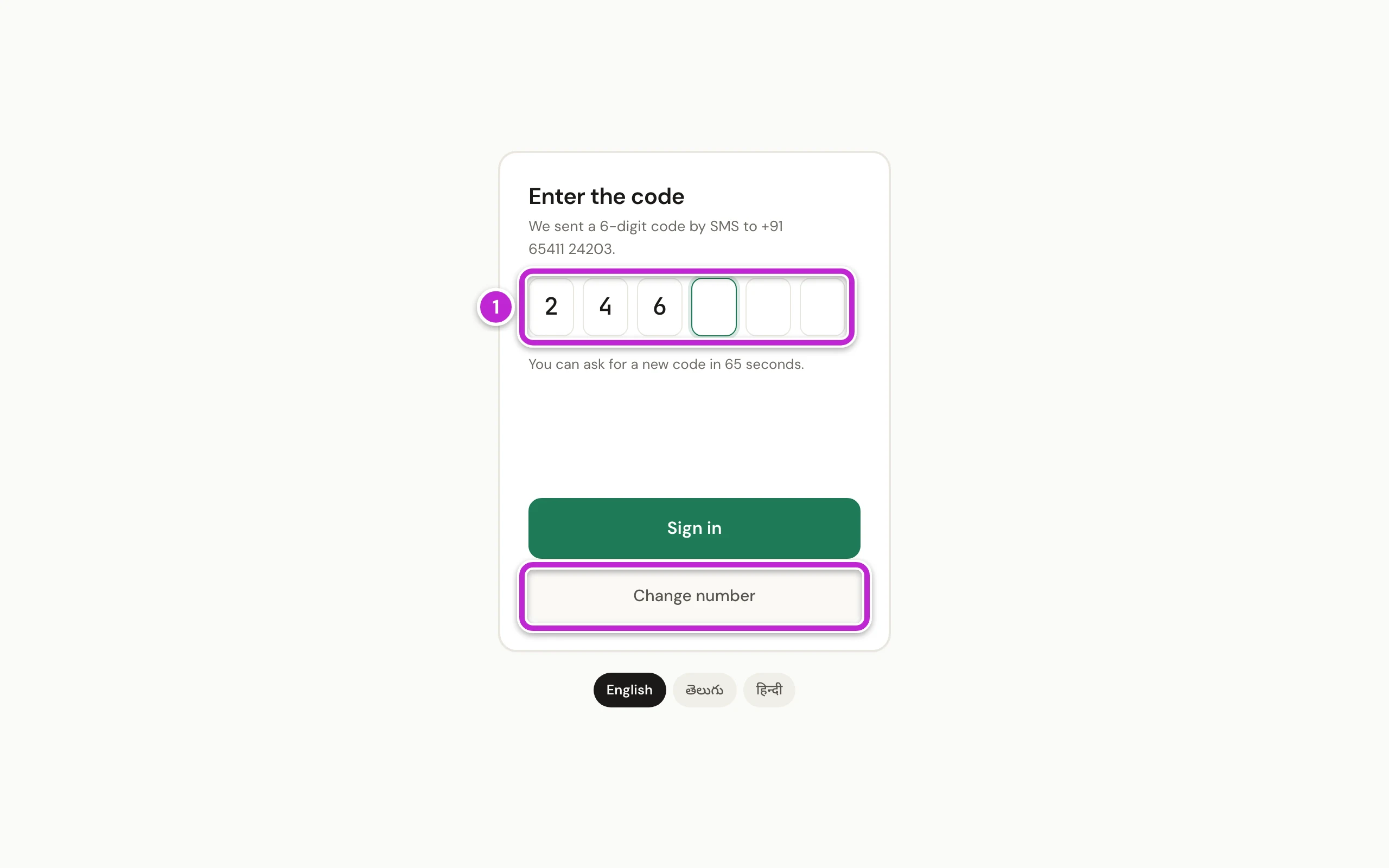
Within a minute a WhatsApp message with a 6-digit code comes to your phone. Type the six digits into the boxes (1). DineSure signs you in as soon as the sixth digit is in. If it does not, click Sign in.
-
If your number works at more than one restaurant, DineSure asks you to Choose a restaurant. Click the restaurant you are working at today.
You are in. The first time the owner signs in, DineSure opens Today with a box to set up the restaurant: go on with Set up your restaurant. Everyone else sees the screen their role uses most, such as the floor of tables.
If something goes wrong
Section titled “If something goes wrong”- No WhatsApp message came. Check that this number has WhatsApp. Wait until the line under the code boxes stops counting down, then click Send a new code. Check the number shown in the message. If it is wrong, click Change number and type it again.
- That code is wrong or has expired. Check WhatsApp or ask for a new code. Type the code from the newest WhatsApp message. Each new code replaces the earlier one.
- Too many codes asked for. Try again in 5 minutes. Wait the minutes the message shows, then try again.
- No restaurant to open. Your number is not on any restaurant’s team. Ask the owner to add you with this number (Add your team).
- The security check could not load. Check the internet connection and reload the page. The internet connection dropped. Check the Wi-Fi or mobile data first.