
Kitchen display and token display
Who does this: the kitchen, the owner and managers. The owner sets up a TV or tablet as a display.
What you need:
- For the kitchen display: the kitchen display add-on, turned on by DineSure for your restaurant. The token display is free.
- A TV, tablet or old phone with Chrome and internet, if you want a screen that stays on in the kitchen or at the takeaway counter.
Work the kitchen display
Section titled “Work the kitchen display”-
Click Kitchen display in the side menu. If your kitchen has more than one station, choose the station at the top, or Every station (pass) to see every dish.
-
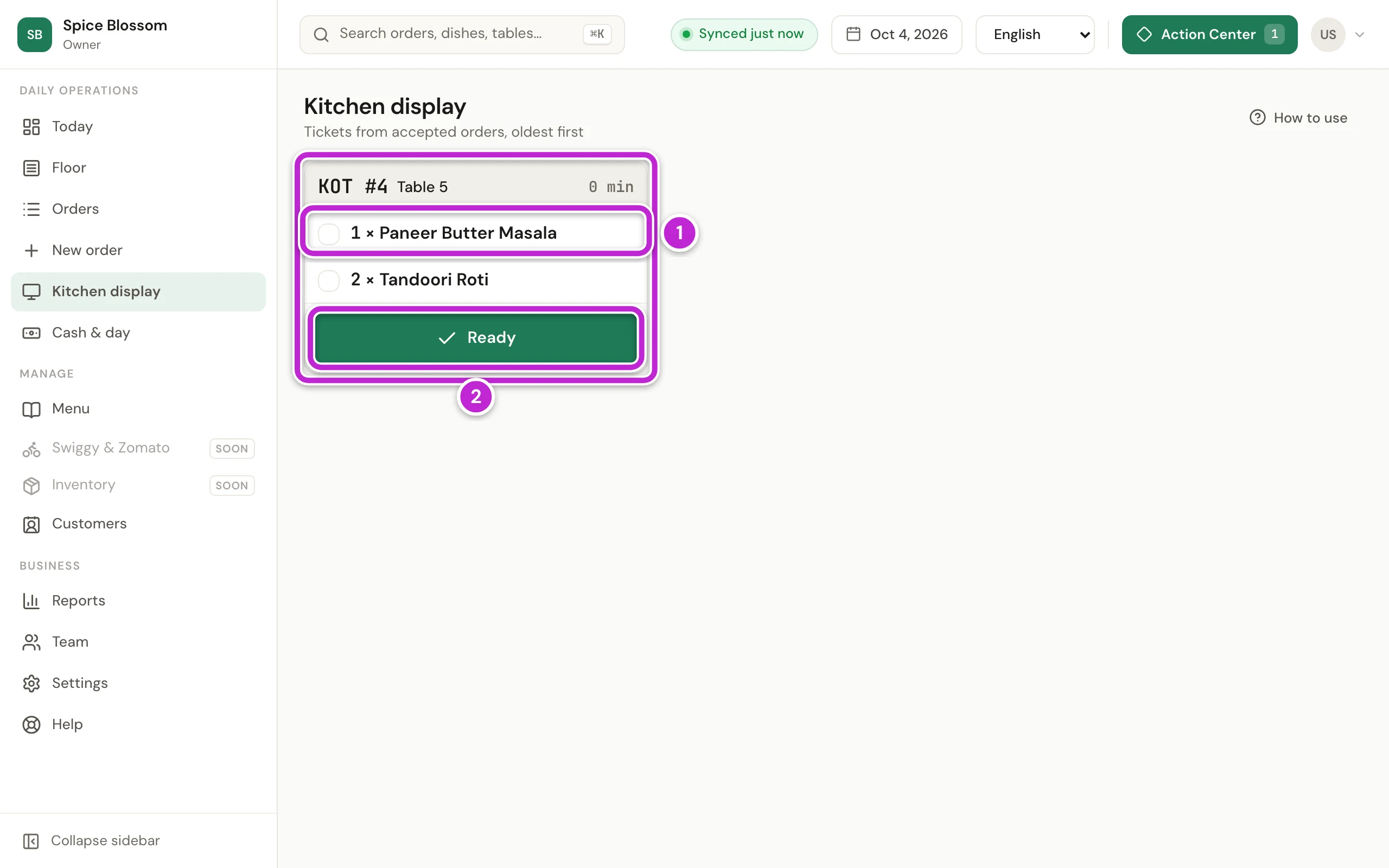
Each accepted order is a ticket with its KOT number, its table and the minutes since it was accepted. The oldest ticket comes first. A ticket that waits longer than your Prep target (15 minutes unless you change it in Settings, Kitchen) turns orange. Each dish is a line on the ticket (1), and Ready (2) marks the whole ticket ready.
-
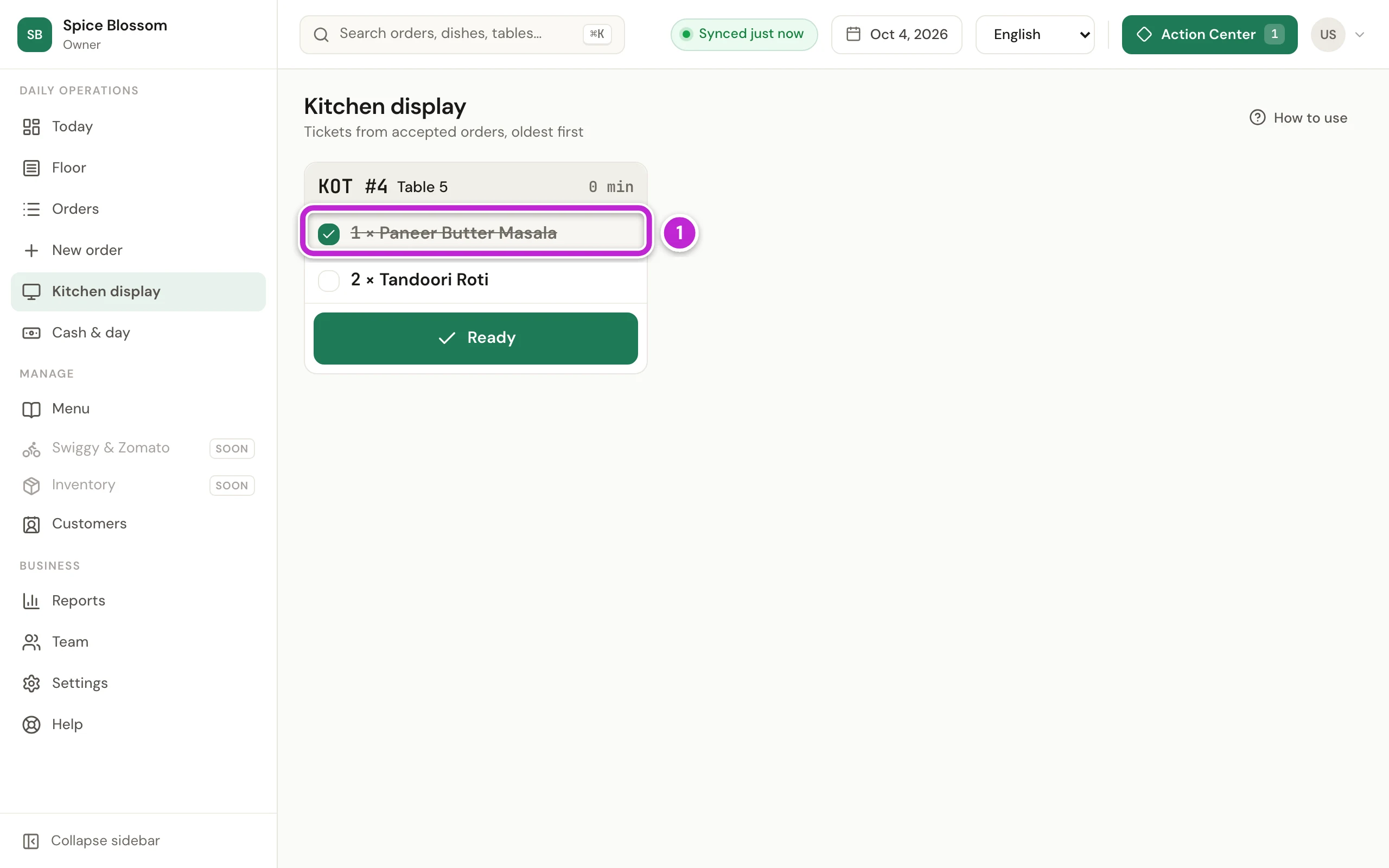
When a dish is cooked, click its line. It gets a tick and is struck through (1). If you clicked the wrong dish, click it again.
-
When the whole ticket is ready, click Ready. When every dish on a ticket is ticked, the ticket is ready by itself.
-
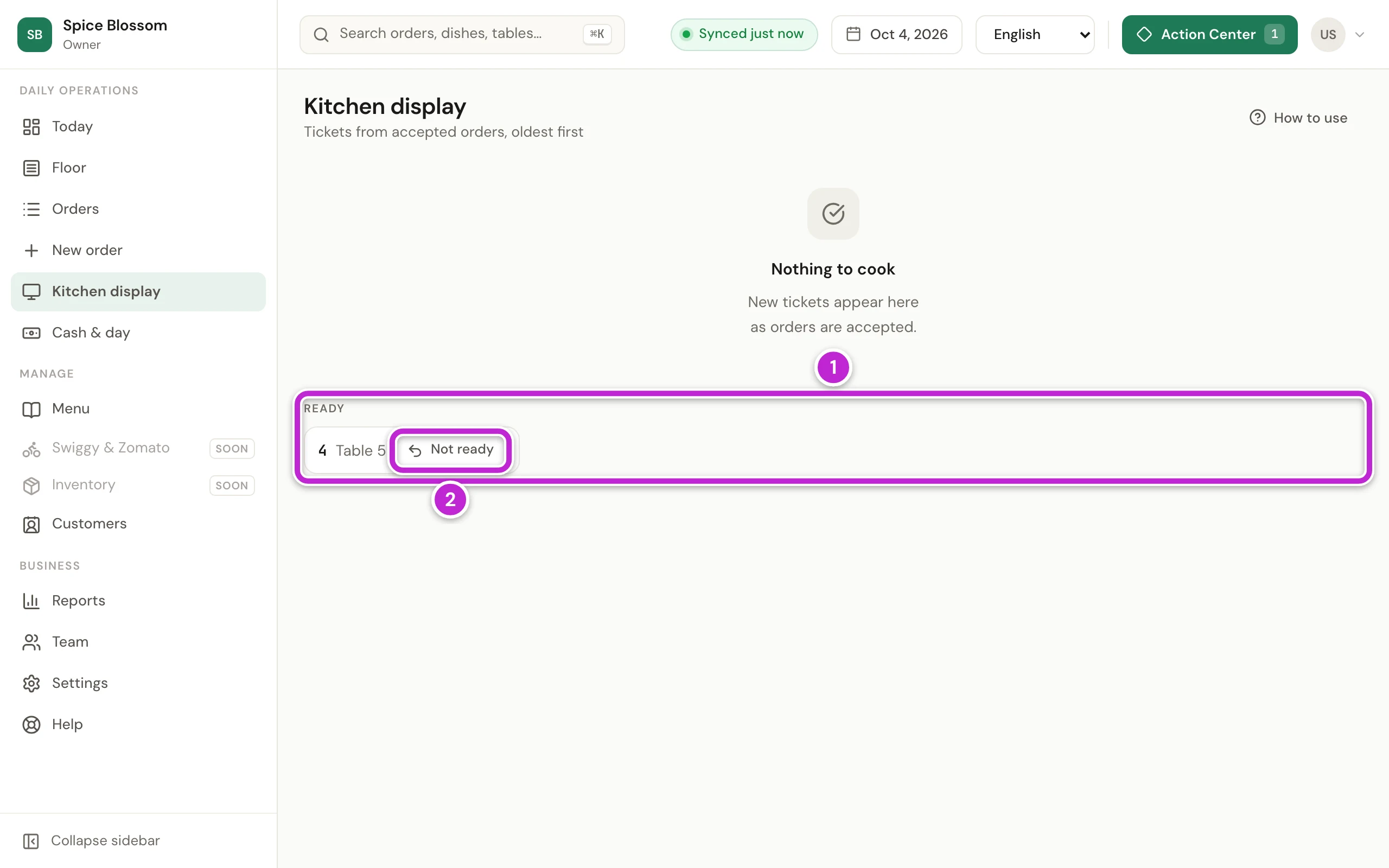
The ticket moves to the Ready row at the bottom (1). The counter and the guest’s phone now show it as ready, so staff can take it to the table. If you marked it ready by mistake, click Not ready (2).
Set up a screen as a kitchen or token display
Section titled “Set up a screen as a kitchen or token display”A display shows only its own screen, without the side menu, and never prints. The owner sets it up once on each TV or tablet.
-
On the TV or tablet, open Chrome and sign in with the owner’s mobile number (Sign in).
-
Click your initials at the top right to open Your account.
-
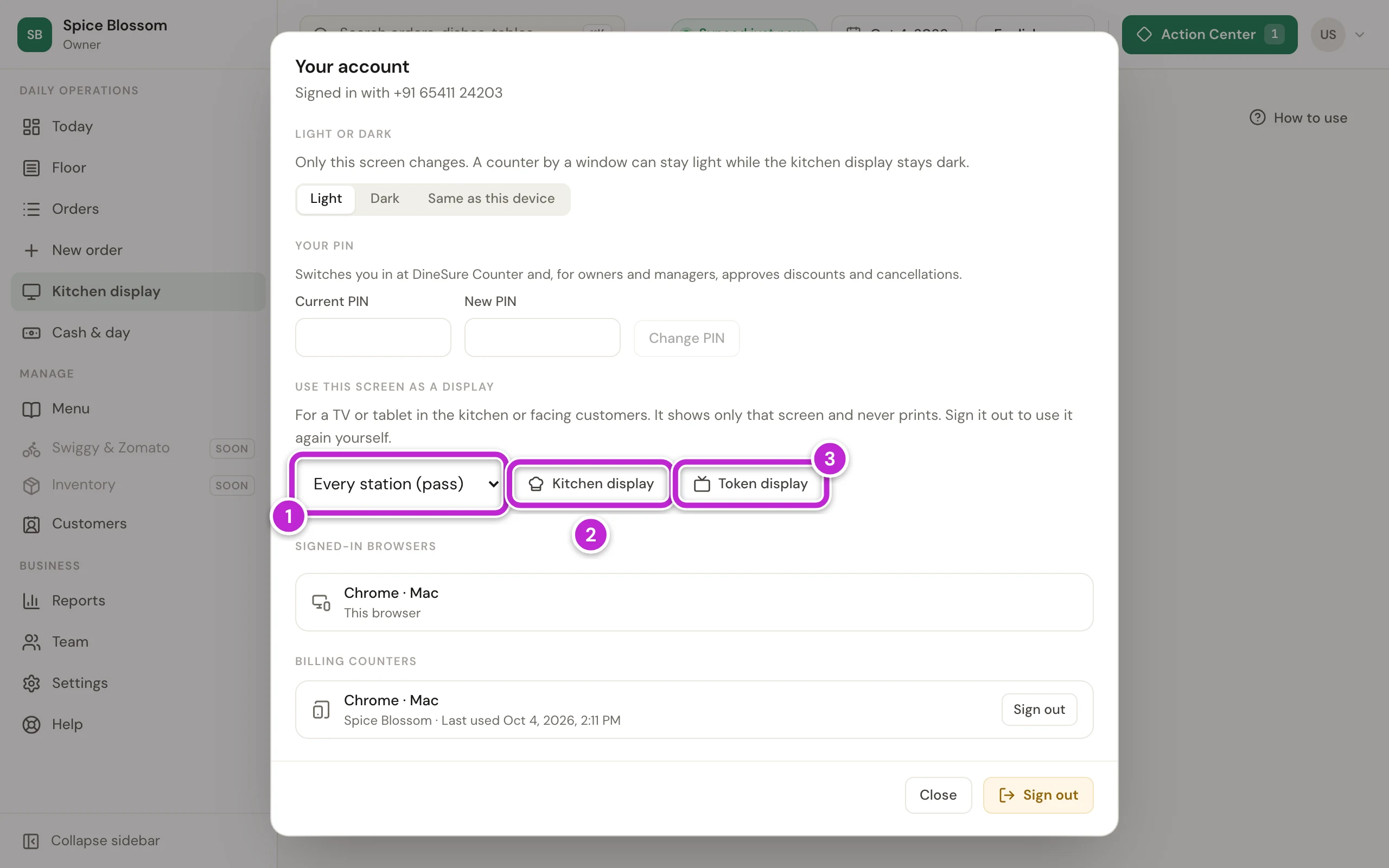
Under Use this screen as a display, choose the station this screen is for (1). Choose Every station (pass) for one screen that shows every dish.
-
Click Kitchen display (2) for a screen in the kitchen. Or click Token display (3) for a screen that faces takeaway customers.
-
The screen changes to the display you chose. The token display shows takeaway tokens under Preparing and Ready to collect. A token leaves the screen when its order is served.
To use the screen for anything else, click the sign-out button at the top right of the display, Sign this display out. The screen goes back to the sign-in page.
If something goes wrong
Section titled “If something goes wrong”- The kitchen display is an add-on. Your restaurant does not have the kitchen display yet. Ask DineSure to turn it on for your restaurant.
- The kitchen tickets did not load. The internet connection dropped. Check the Wi-Fi, then reload the page.
- An order is not on the kitchen display. Only accepted orders show. If it is a QR order, accept it on Orders first (Accept QR orders).
- A ticket shows only some of its dishes. The screen shows one station. The other dishes are on their own station’s screen. Choose Every station (pass) to see every dish.