
Take an order at the counter
Who does this: cashiers, managers and the owner at the billing counter. Captains who take orders on a phone at the table see Take orders at the table.
What you need:
- The billing counter, with you switched in (Switch person and lock the counter).
- Your menu in DineSure (Add your menu).
Choose the table
Section titled “Choose the table”-
Click Floor in the sidebar.
-
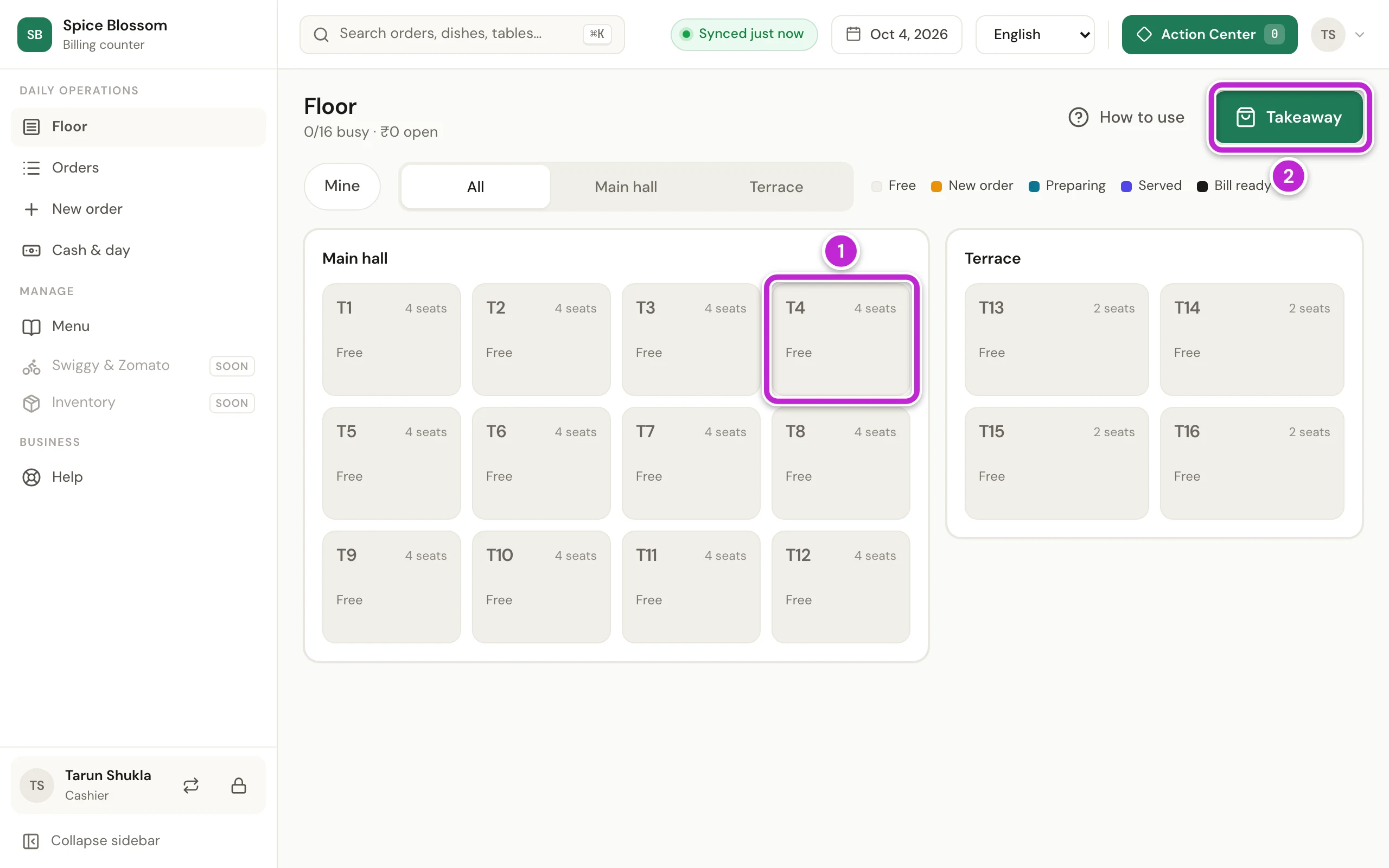
Click the table where the guests sit, for example T4 (1). A free table opens New order with that table already chosen. For a takeaway order, click Takeaway (2) instead.
Add the dishes
Section titled “Add the dishes”-
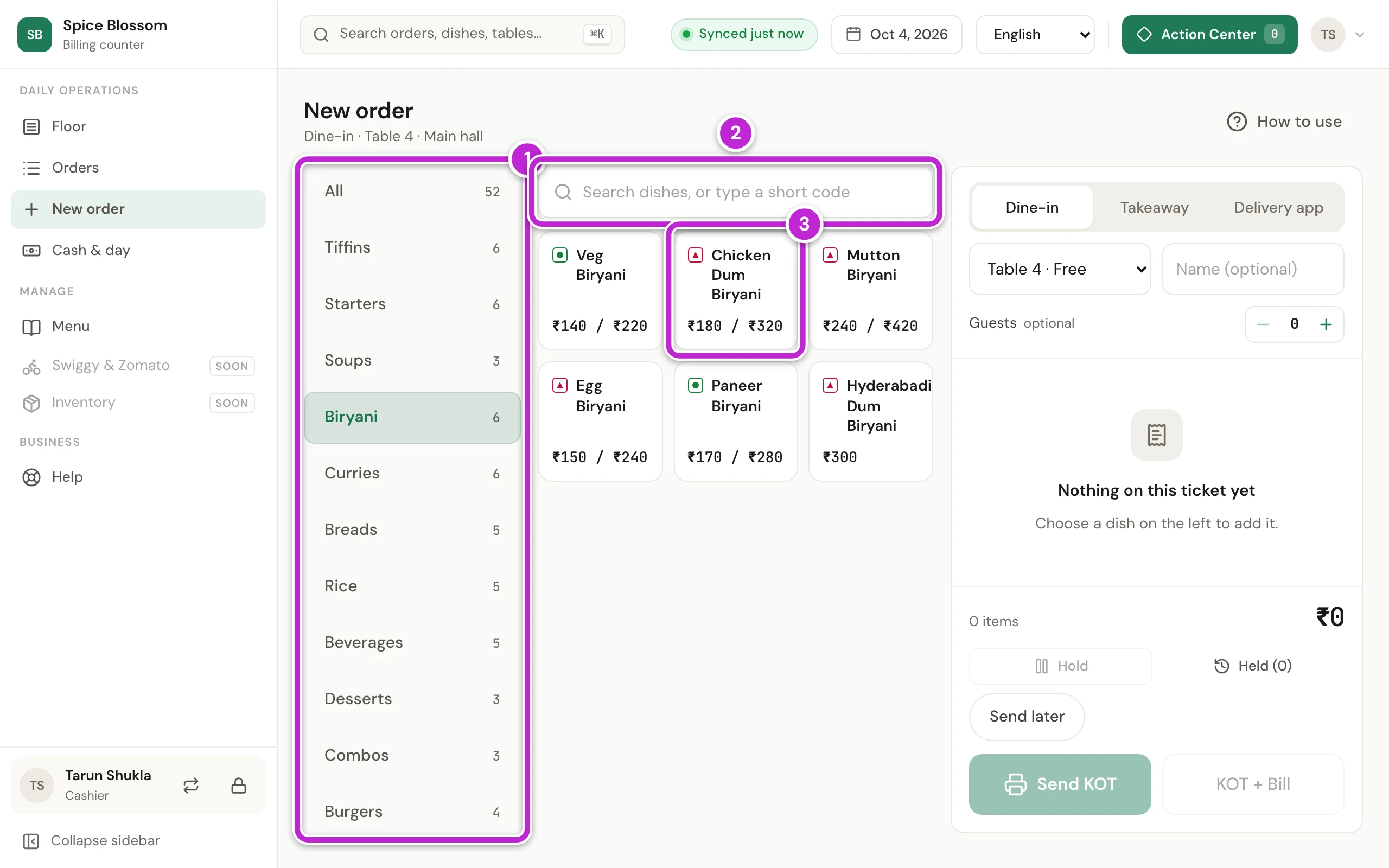
Click a category on the left (1) to see its dishes. To find a dish faster, type its name or short code in the search box (2).
-
Click the dish (3). A dish with no choices goes straight onto the ticket on the right.
-
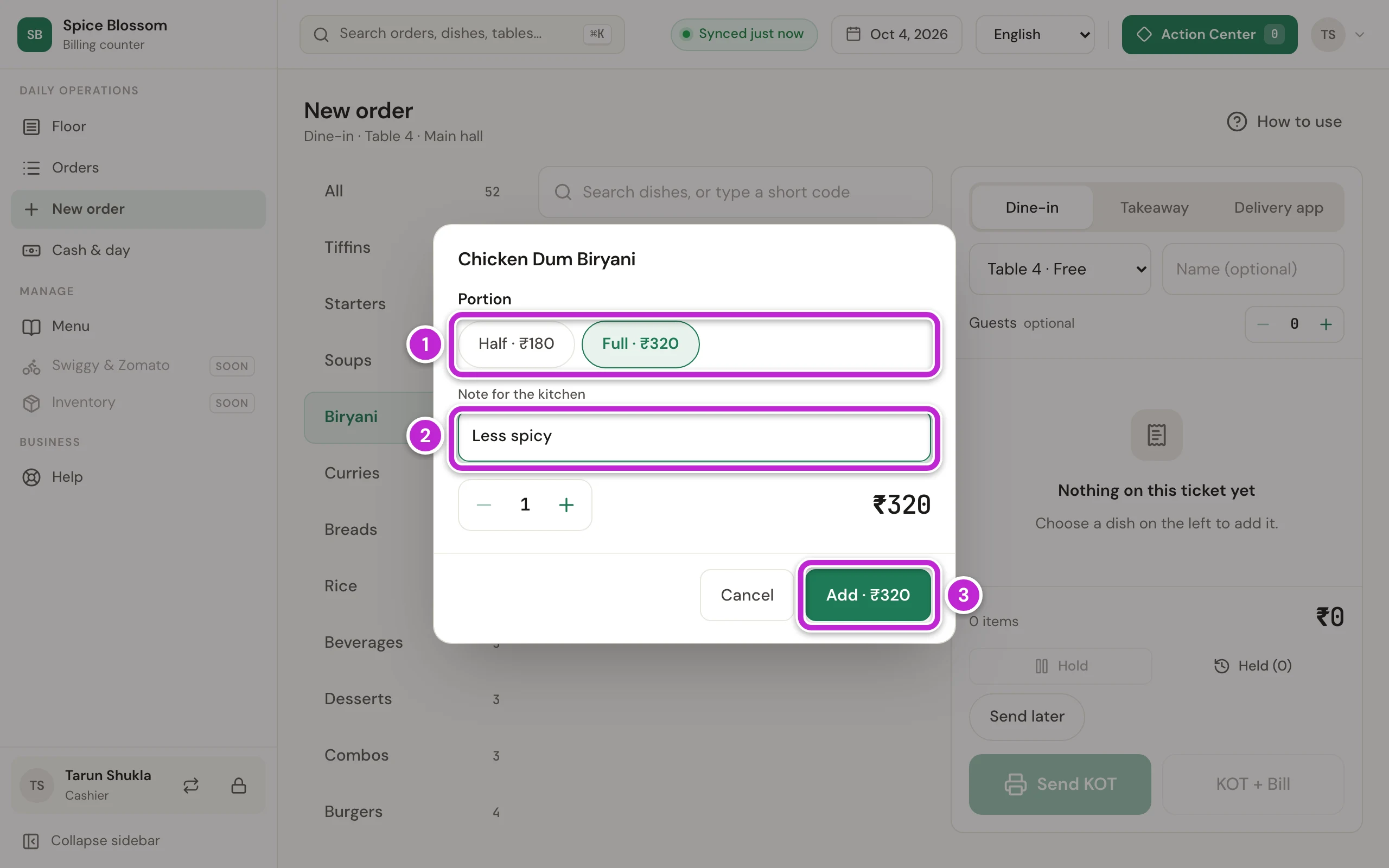
If the dish has portions or add-ons, a window opens. Choose the Portion (1).
-
If the guest asks for something, type it in Note for the kitchen (2), for example Less spicy. It prints on the KOT.
-
Click Add · ₹320 (3).
-
Add the other dishes in the same way.
-
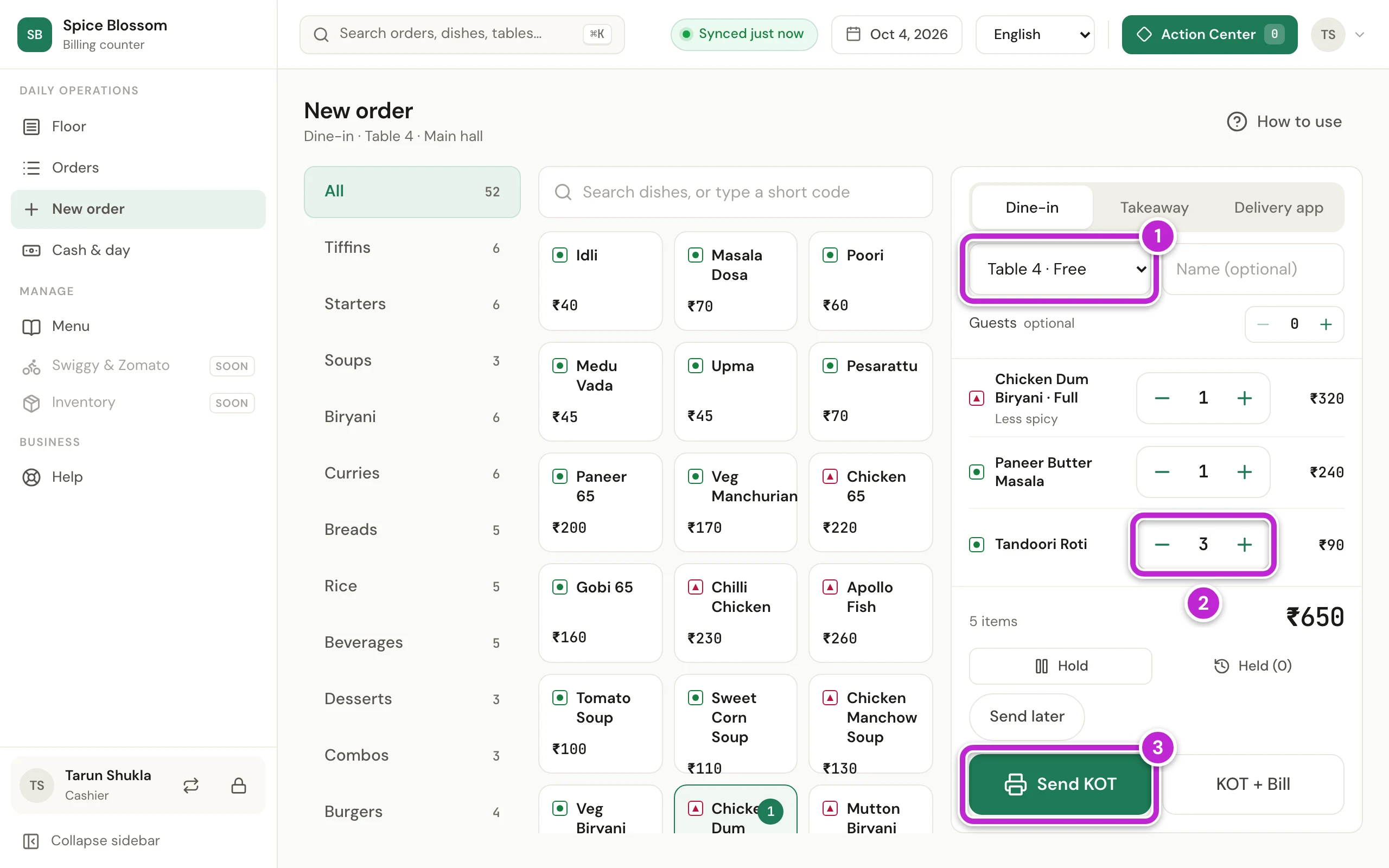
Check the table at the top of the ticket (1). To change it, choose another table in the list.
-
To change how many of a dish, click its plus or minus button (2). The total shows under the dishes.
-
Click KOT & print (3).
-
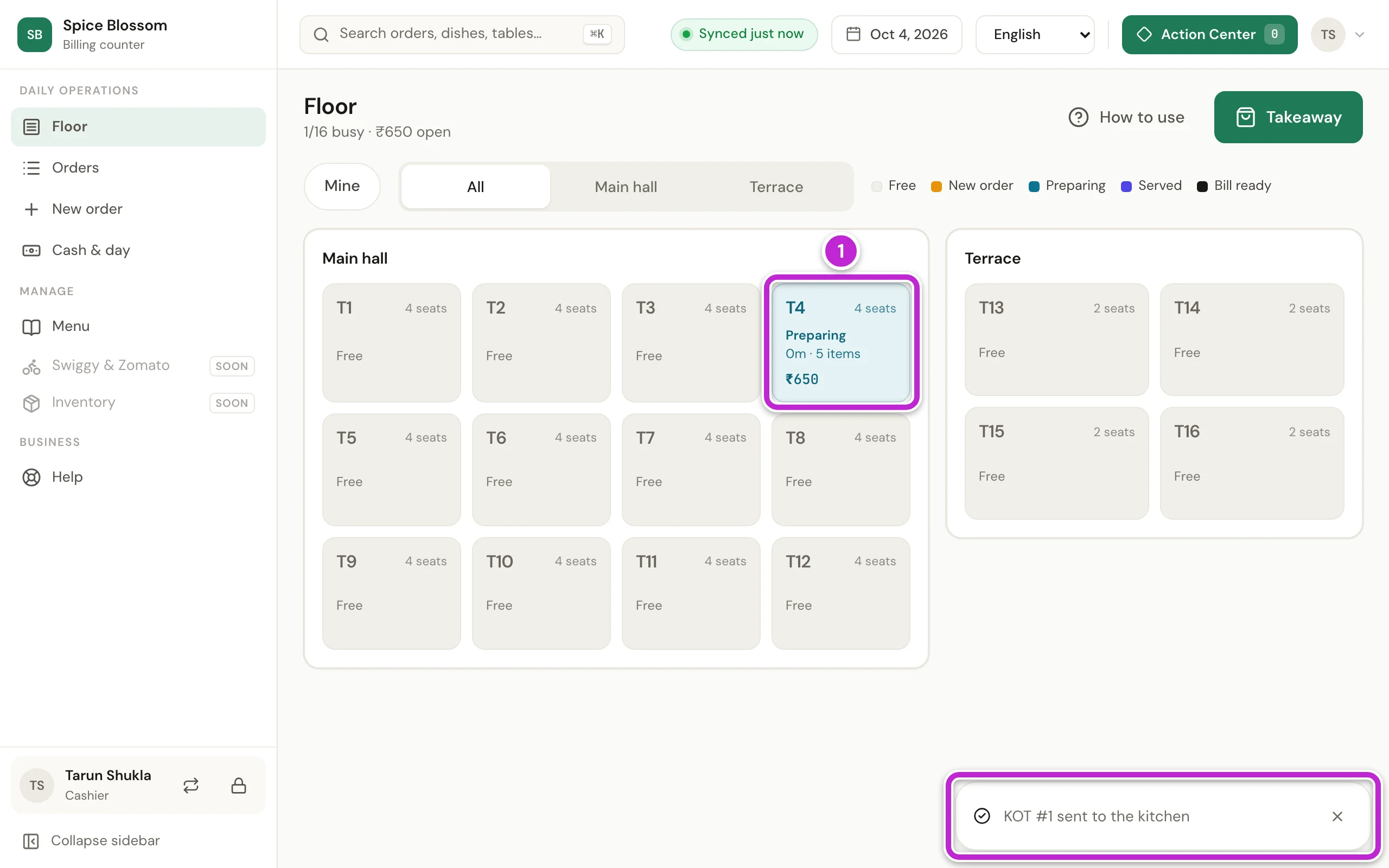
The counter goes back to the Floor and shows KOT #1 sent to the kitchen. The KOT prints in the kitchen. Check that the table now shows Running, the number of items and the amount (1).
Add more dishes to a table
Section titled “Add more dishes to a table”-
On the Floor, click the busy table. Its panel opens with the menu on the left and the table’s order on the right.
-
Click the dishes in the menu, or search for them. They show under New items. Below them, Already ordered lists what the table already has. To cancel a dish that was already sent, click × next to it.
-
Click KOT & print. The new dishes go to the kitchen on a new KOT, and the panel stays open.
Other buttons on the ticket
Section titled “Other buttons on the ticket”- KOT & bill sends the KOT and opens the table’s bill at once. Use it when the guest pays right away (Print the bill and take the payment).
- Hold puts the ticket aside while the guest decides. Nothing goes to the kitchen. Click Held (1) to bring it back.
- Send later keeps the KOT back from the kitchen. Send it to the kitchen later from Orders.
- Guests is how many guests sit at the table. Your restaurant may ask you to fill it.
If something goes wrong
Section titled “If something goes wrong”- Say how many guests sit at the table. Your restaurant asks for the number of guests. Click the plus button beside Guests, then click KOT & print again.
- Some dishes just ran out. A dish on the ticket was marked sold out. Tell the guest, take the dish off the ticket and send again.
- KOT #1 not printed at the top of the screen. Check that the kitchen printer is on, has paper and its cable is in. Then click Retry.
- Leave without sending? You opened another screen before sending. Click Stay and send the KOT. Click Leave only if the guest does not want the dishes.
- No dishes match your search. Check the spelling, or click All and look in the categories.