
Add your menu
Who does this: the owner and managers add and change dishes. Cashiers and the kitchen can also mark a dish sold out.
What you need:
- You are signed in (Sign in).
- Your menu card with the dishes and prices.
Open the menu
Section titled “Open the menu”-
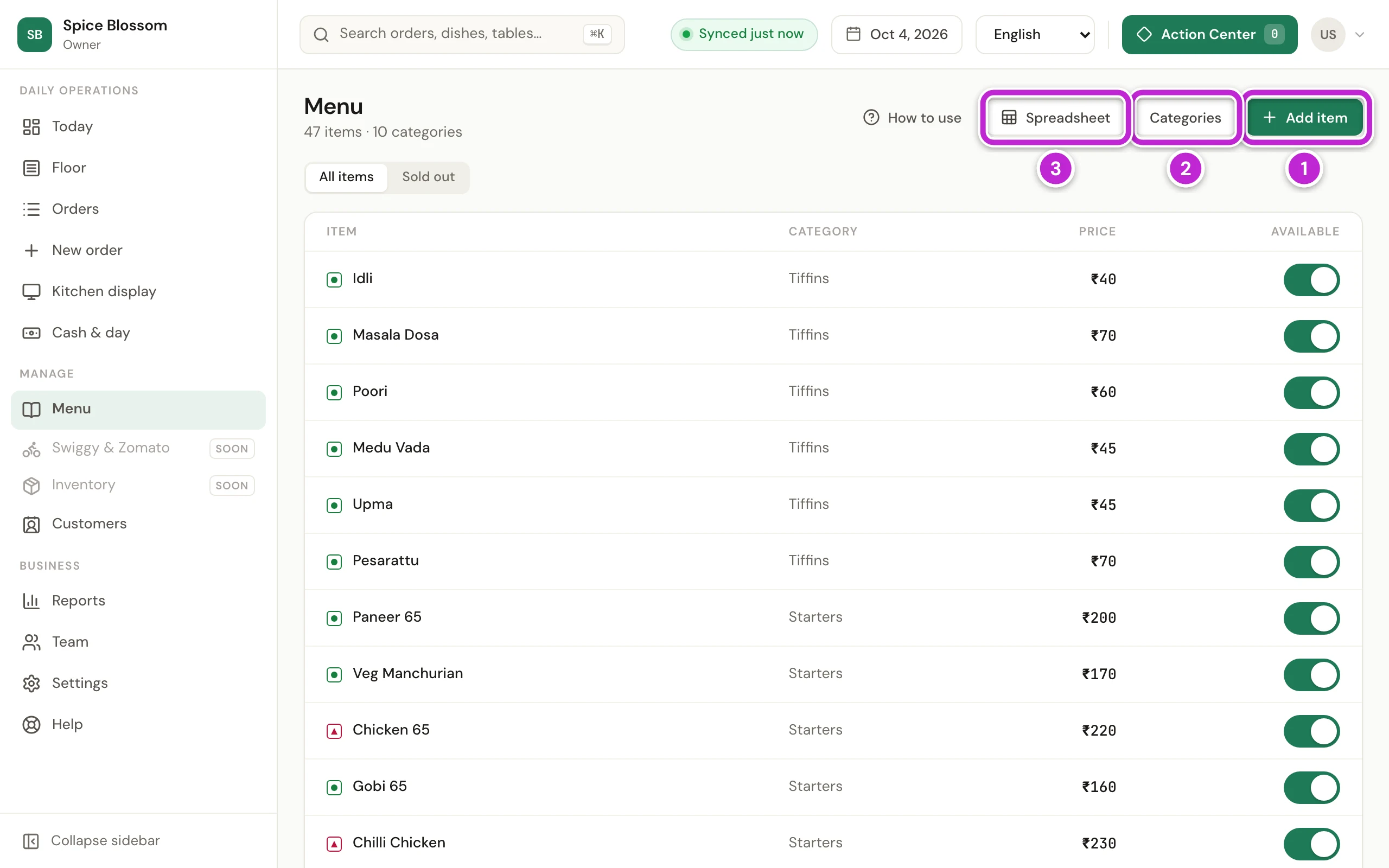
Click Menu in the menu on the left. You see every dish with its category, its price and an Available switch. At the top are Add item (1), Categories (2) and Spreadsheet (3).
Add a category
Section titled “Add a category”-
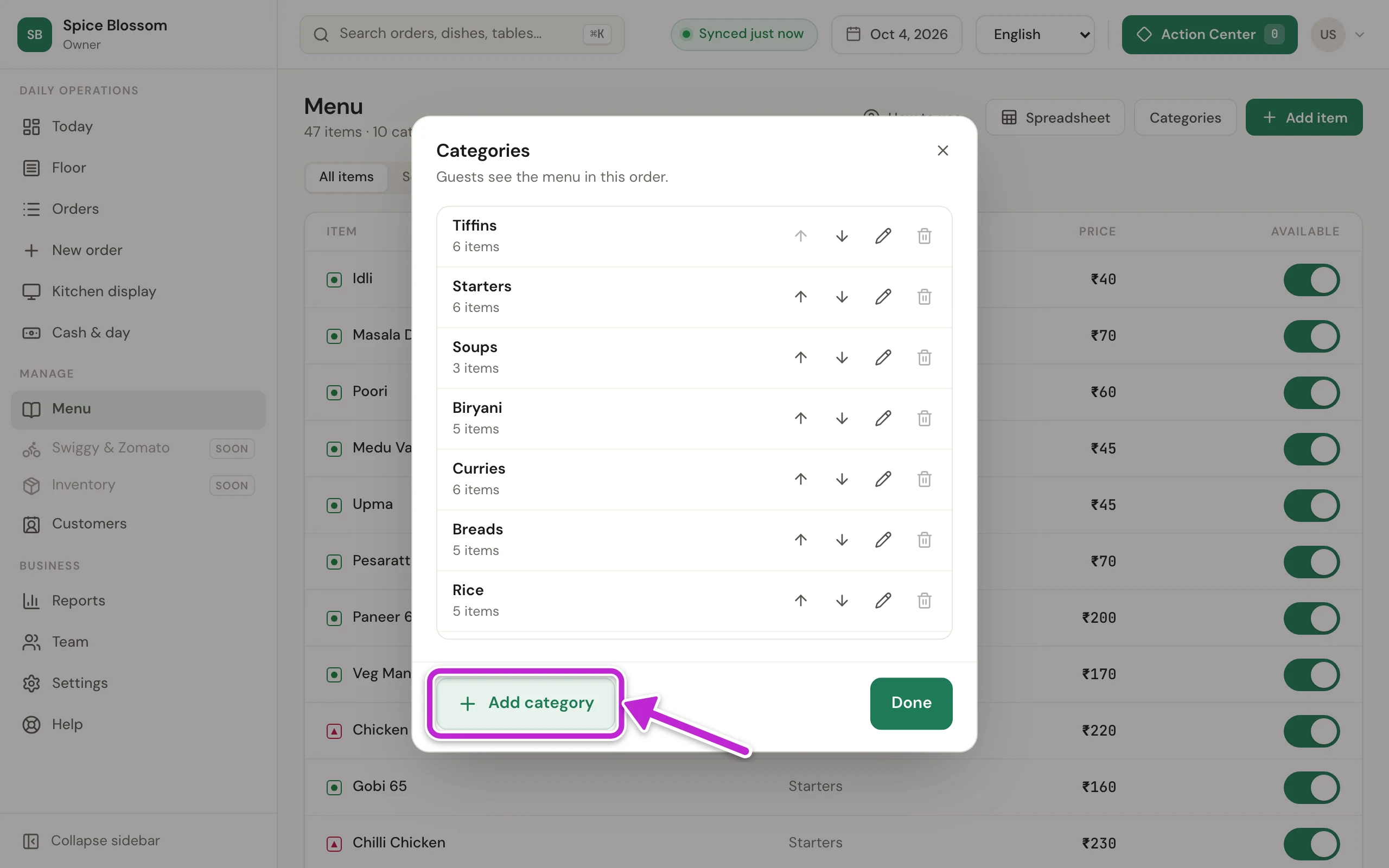
Click Categories. Guests see the categories in the order of this list. To move a category, click the up or down arrow beside it.
-
Click Add category.
-
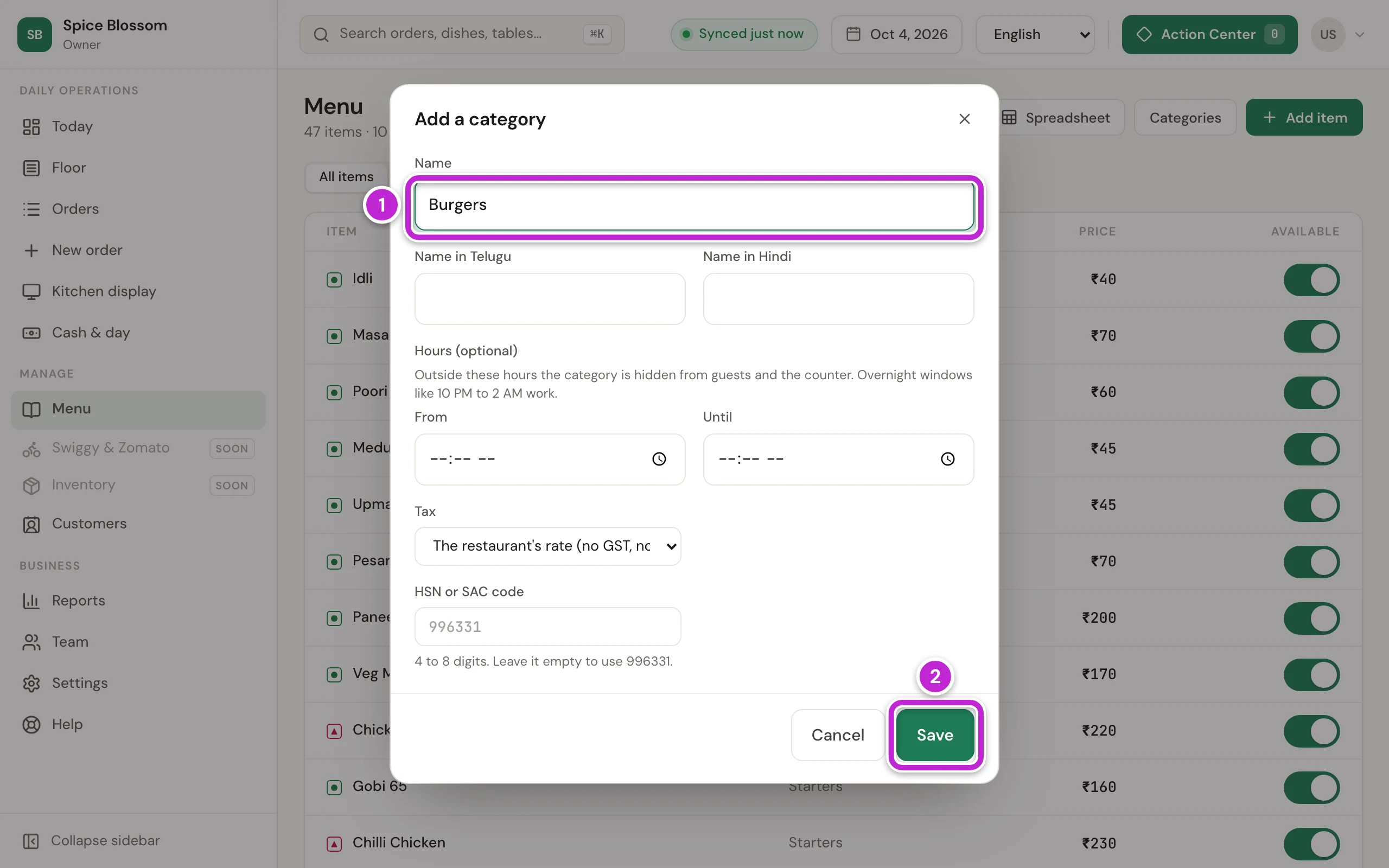
Type the category’s Name (1), for example Burgers. You can also type its name in Telugu and Hindi for guests who read those languages.
-
Click Save (2).
-
Click Done.
Add a dish
Section titled “Add a dish”-
Click Add item.
-
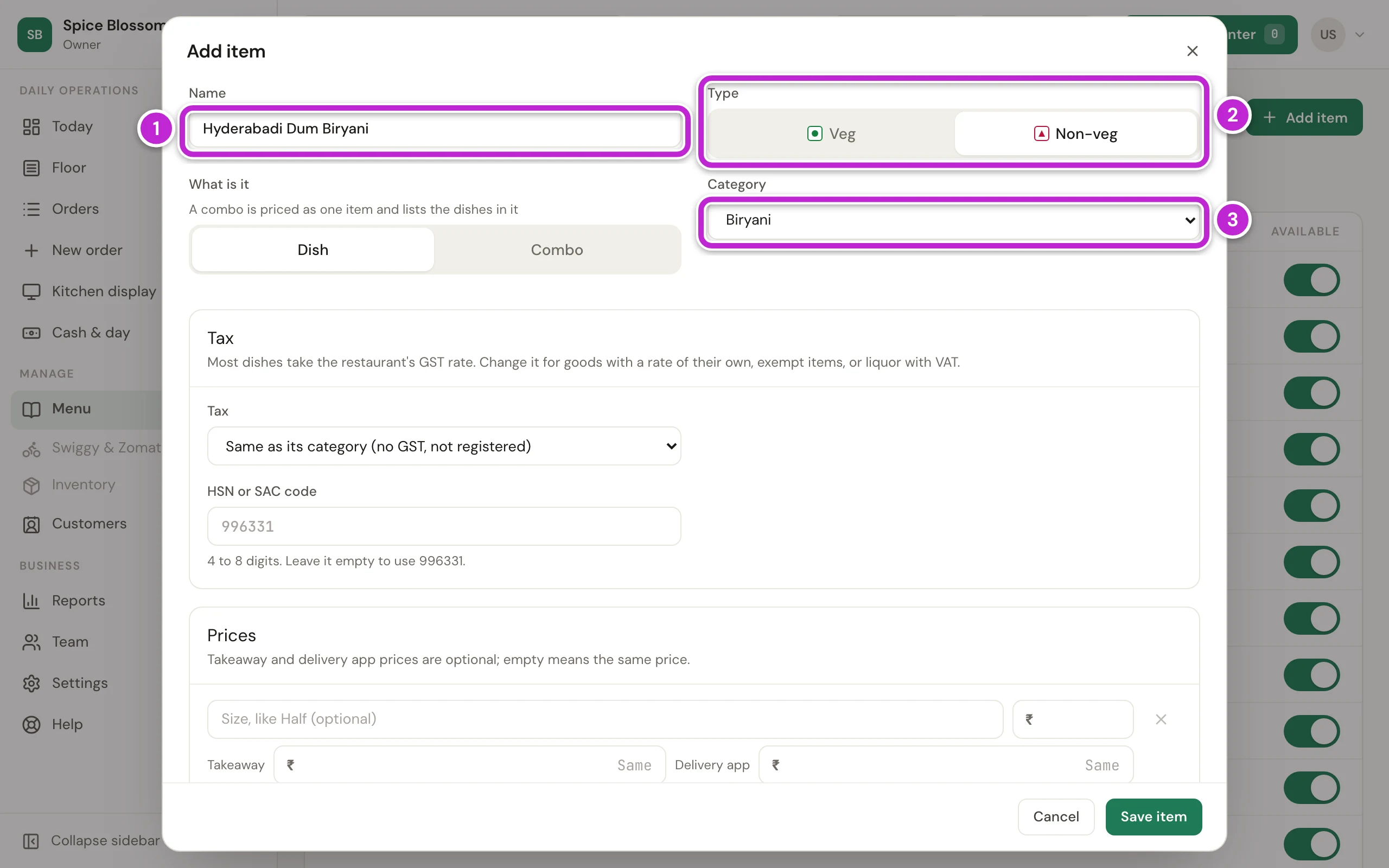
Type the dish’s Name (1).
-
Under Type (2), click Veg or Non-veg. Guests see the green or red mark next to the dish.
-
Choose its Category (3).
-
Under Prices, type the Price (4), for example ₹300.
-
Click Save item (5).
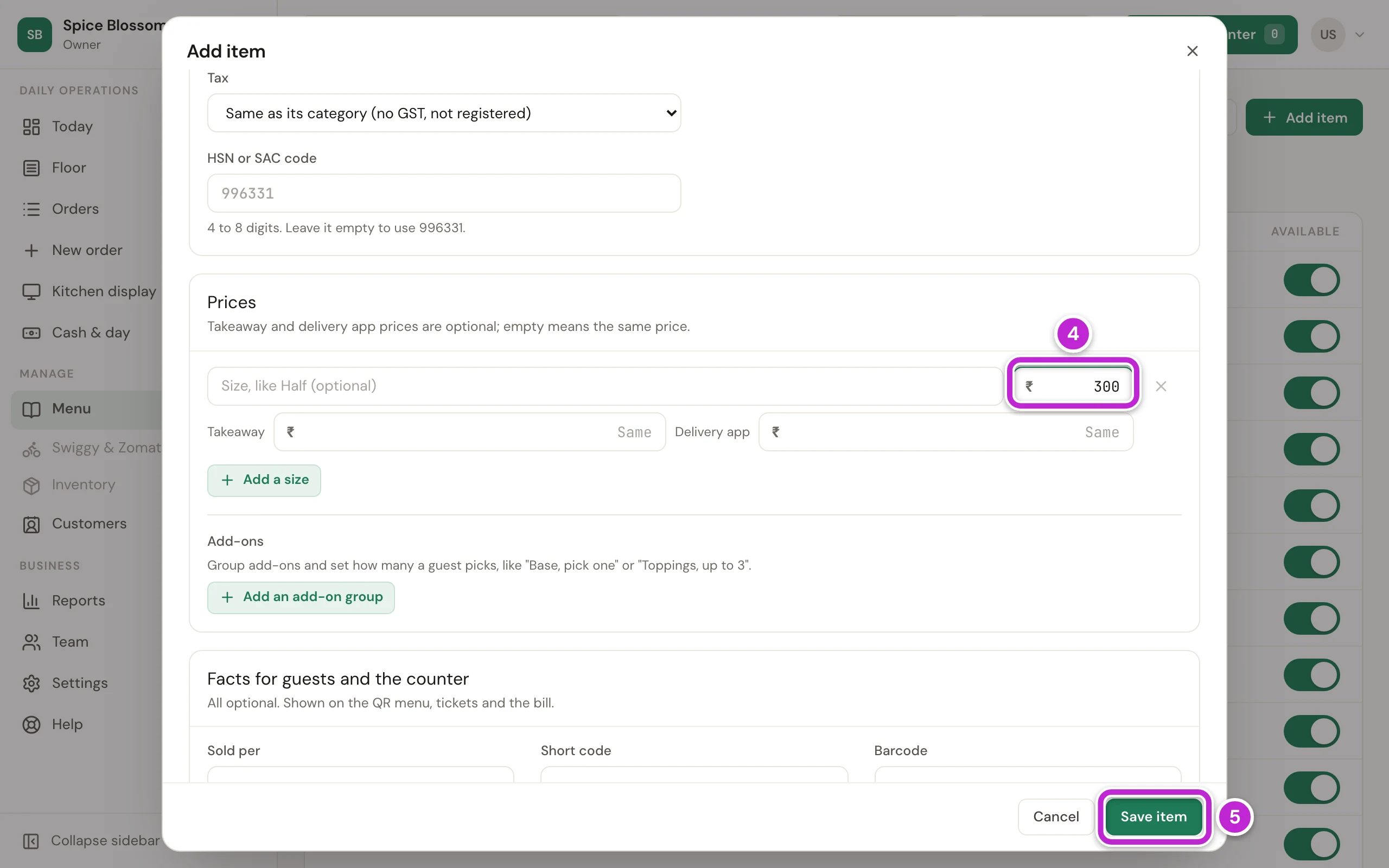
The dish is on the menu at once, at the counter and on the QR menu.
Change a price or add a size
Section titled “Change a price or add a size”-
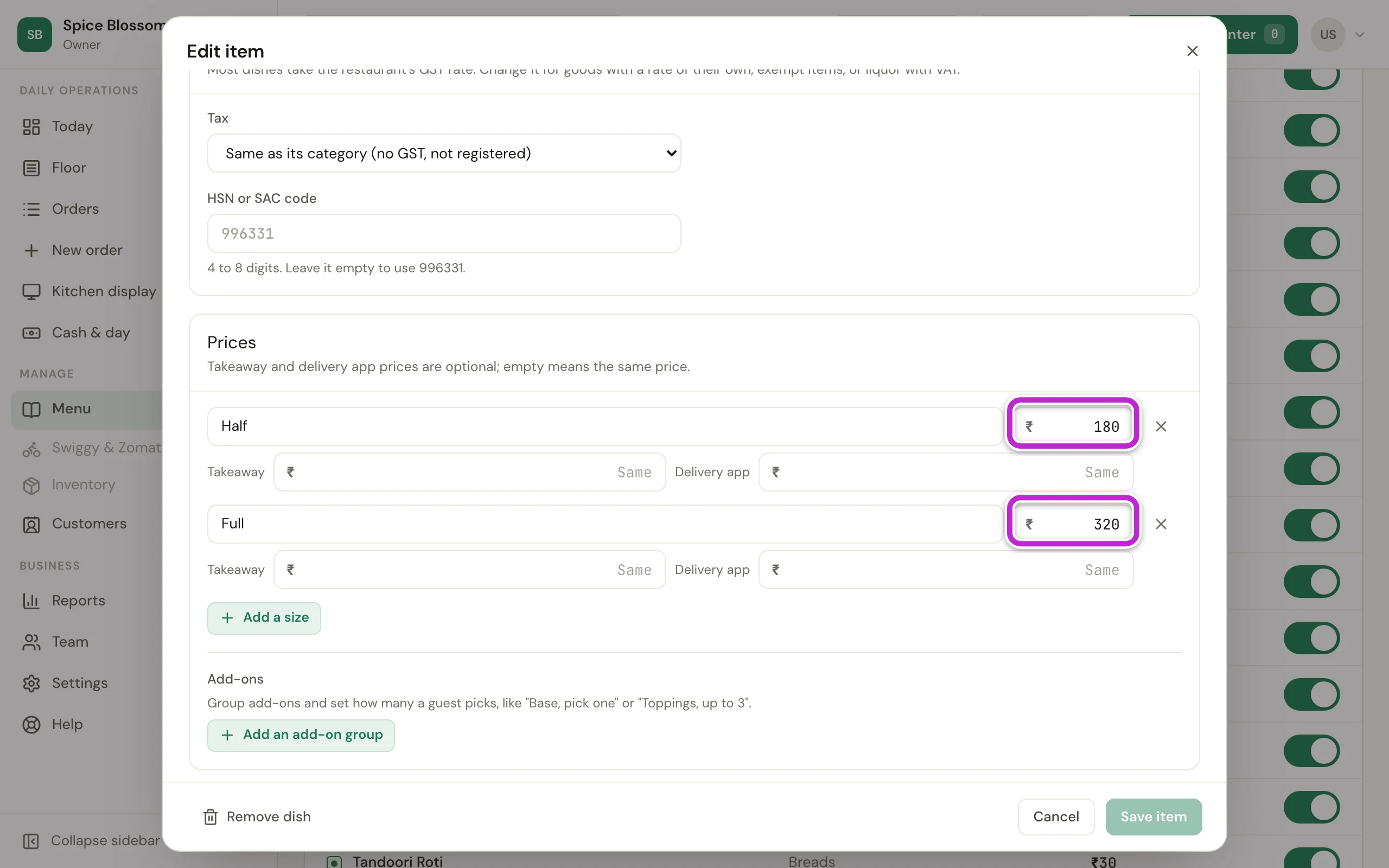
Click the dish’s name in the list. Edit item opens.
-
Under Prices, type the new price. A dish with sizes, such as Half and Full, has one row for each size with its own price.
-
To add a size, click Add a size and type its name and price.
-
Leave Takeaway and Delivery empty to charge the same price. Type a price there only if it is different for those orders.
-
Click Save item.
Mark a dish sold out
Section titled “Mark a dish sold out”When the kitchen runs out of a dish, switch it off, so that nobody orders it.
-
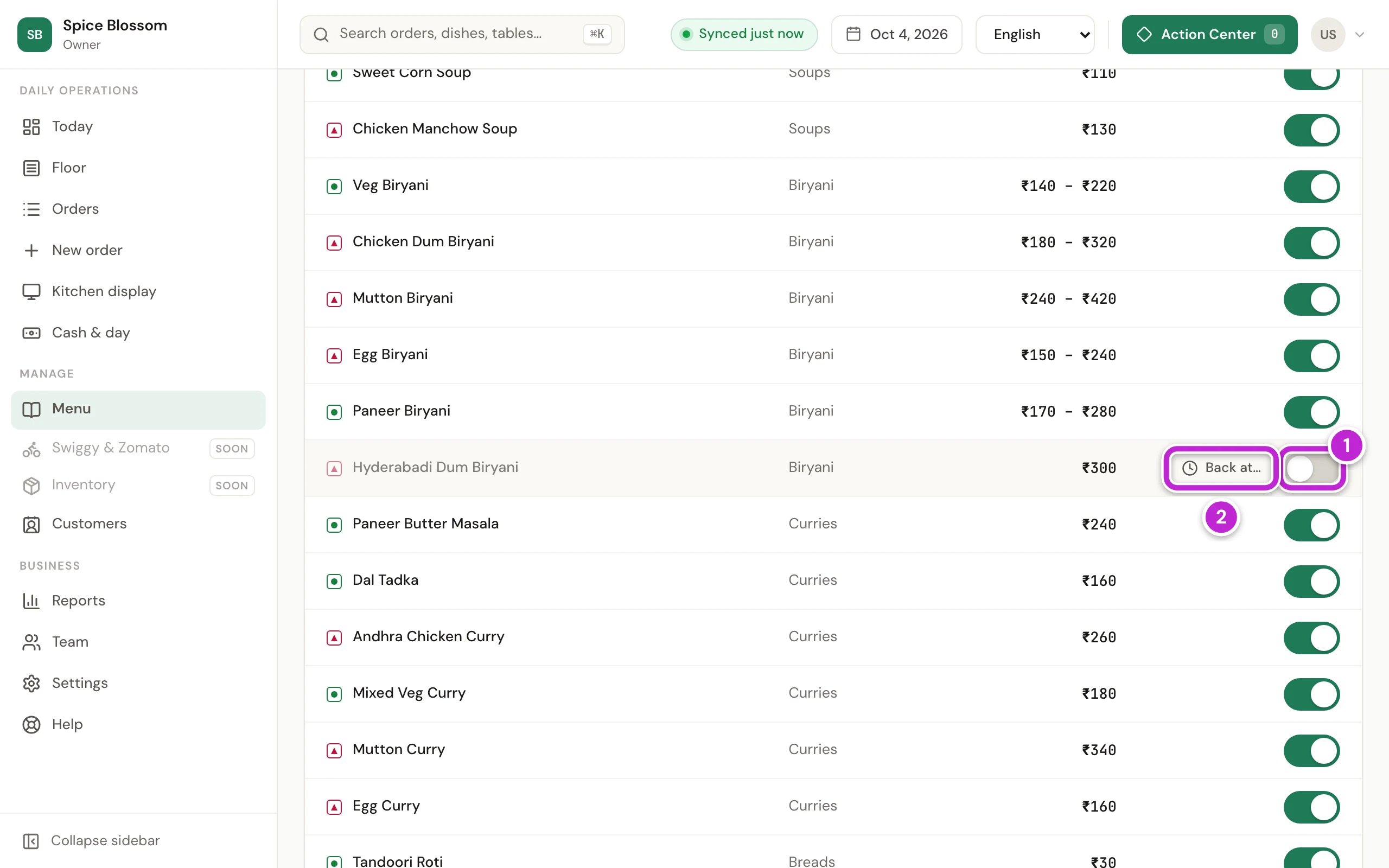
Find the dish on the Menu page. Click its Available switch (1) to turn it off. The row turns grey. Guests see the dish as Not available now on the QR menu and cannot order it.
-
If you know when the dish will be ready again, click Back at… (2).
-
Type the time in Back at (1).
-
Click Set time (2).
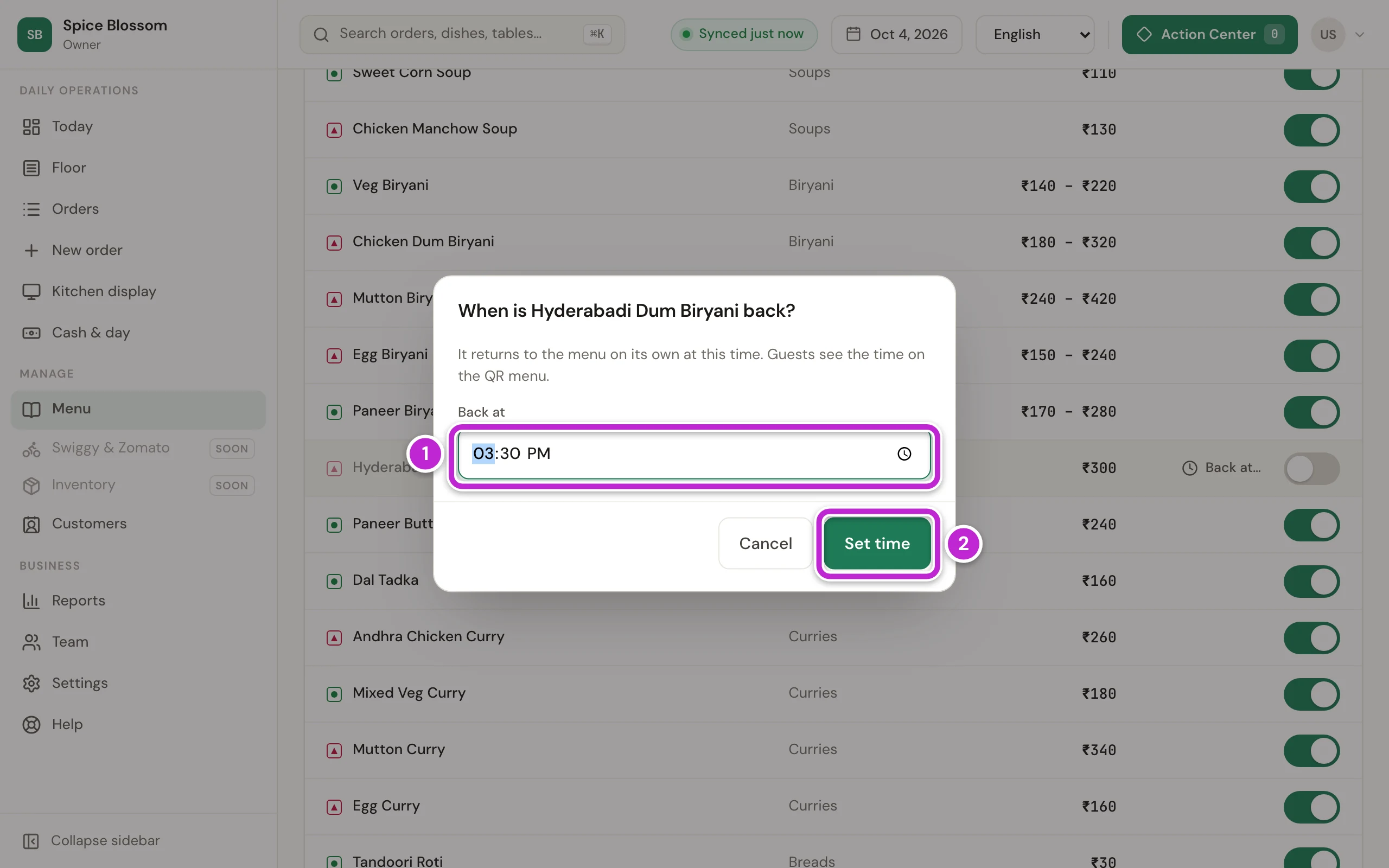
At that time the dish comes back on the menu by itself. Guests see the time on the QR menu until then. If the dish is ready sooner, click its switch to turn it on again. To see every dish that is switched off, click the Sold out tab at the top of the list.
Change many dishes in a spreadsheet
Section titled “Change many dishes in a spreadsheet”Use this when you change many prices at once, or add a long menu.
-
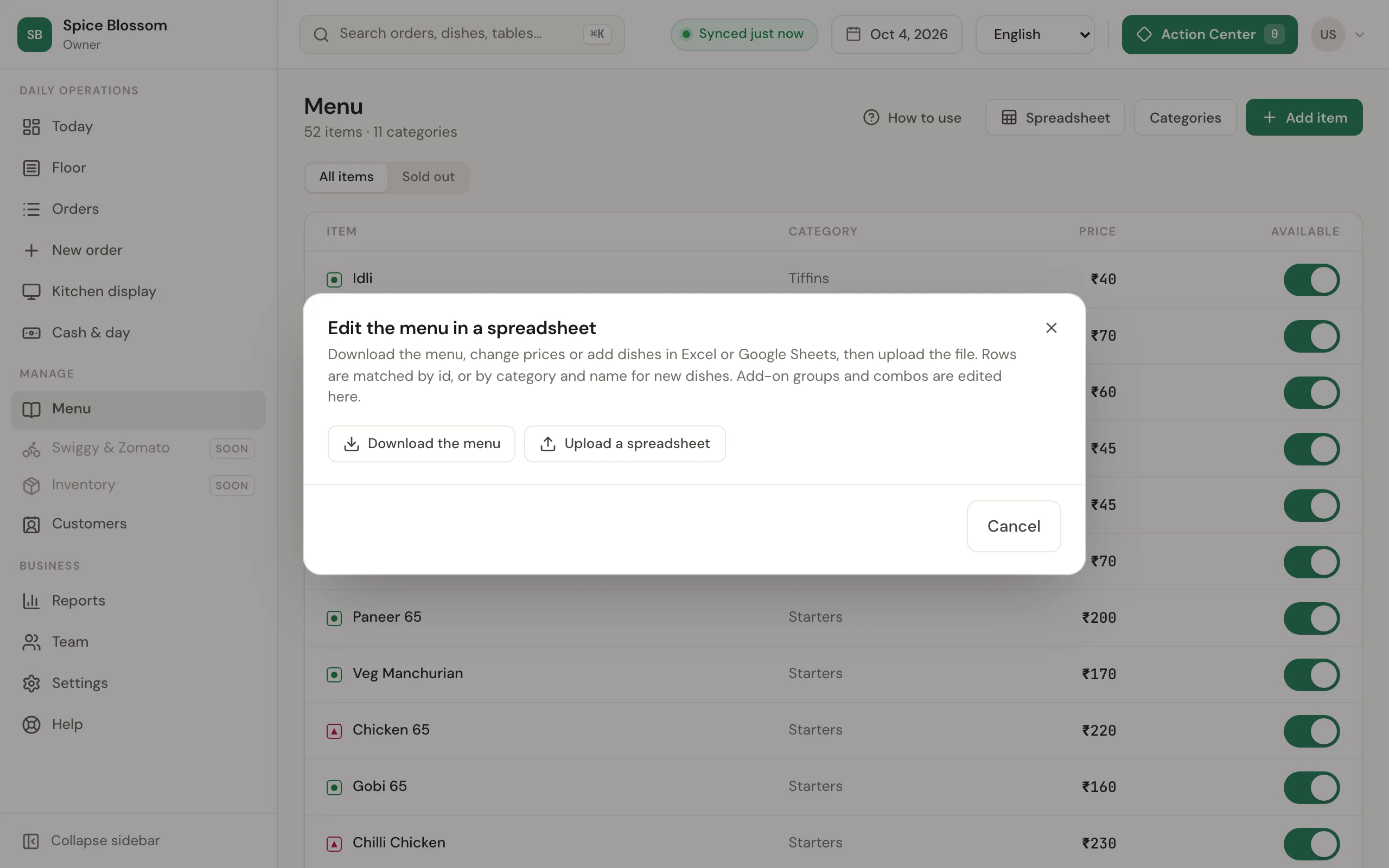
Click Spreadsheet.
-
Click Download the menu. A file with your whole menu downloads to the computer.
-
Open the file in Excel or Google Sheets. Change the prices or add dishes, then save the file.
-
Click Spreadsheet again, then click Upload a spreadsheet and choose the file you saved.
-
DineSure shows every row it found as New, Changed, Same or Problem. Check the list.
-
Click the button to apply the changes, for example Apply 2 changes.
Nothing on the menu changes until you click that button.
If something goes wrong
Section titled “If something goes wrong”- Another dish already has that name. Give the dish a different name, for example with the size or the style in it.
- Another category already has that name. Use the category that is already there, or give the new one a different name.
- Move or remove the dishes in this category first. A category with dishes cannot be removed. Open each dish and choose another Category, or remove the dish, then remove the category.
- Enter an amount like 180 or 180.50. Type numbers only. The ₹ sign is already in the box.
- Give each size its own name, like Half and Full. Two sizes of the dish have the same name, or one is empty. Name each size.
- Changing prices is not part of your role. Ask the owner or a manager to change the price.
- The menu changed on another counter. Open it again. Someone changed the menu on another screen while you had this window open. Close the window, open it again and make your change again.
- The spreadsheet could not be read. Check the rows it lists. Fix the rows it names in the file, save it, and upload it again.
- Nothing in this file differs from the menu. You uploaded the file without your changes. Save the file after changing it, then upload it again.