
Accept QR orders
Who does this: whoever runs the counter: the owner, a manager, a cashier or a captain.
What you need:
- The QR ordering add-on, in Settings, Plan and add-ons. Without it, the QR codes on your tables do not open the menu.
- QR stickers on your tables (Arrange tables and print QR stickers).
- DineSure open at the counter, on the DineSure Counter app if you print KOTs (Set up the billing counter and printers).
How a QR order reaches the counter
Section titled “How a QR order reaches the counter”Guests order from their own phone. The first three pictures show what the guest sees on their phone, not on your counter.
-
The guest scans the QR code on their table with their phone camera. The menu for that table opens.
-
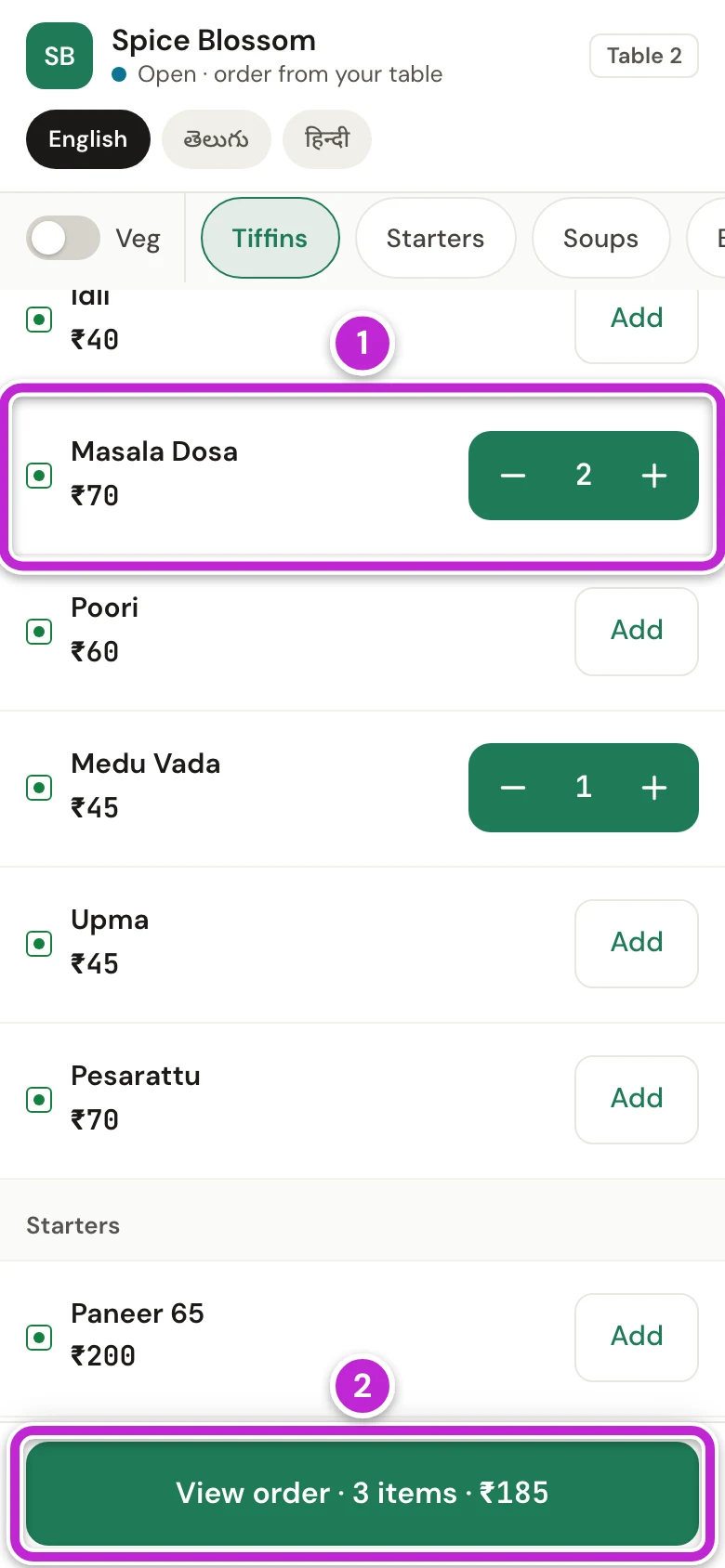
The guest taps Add on each dish they want, and + to add more of the same dish (1). Then they tap View order (2).
-
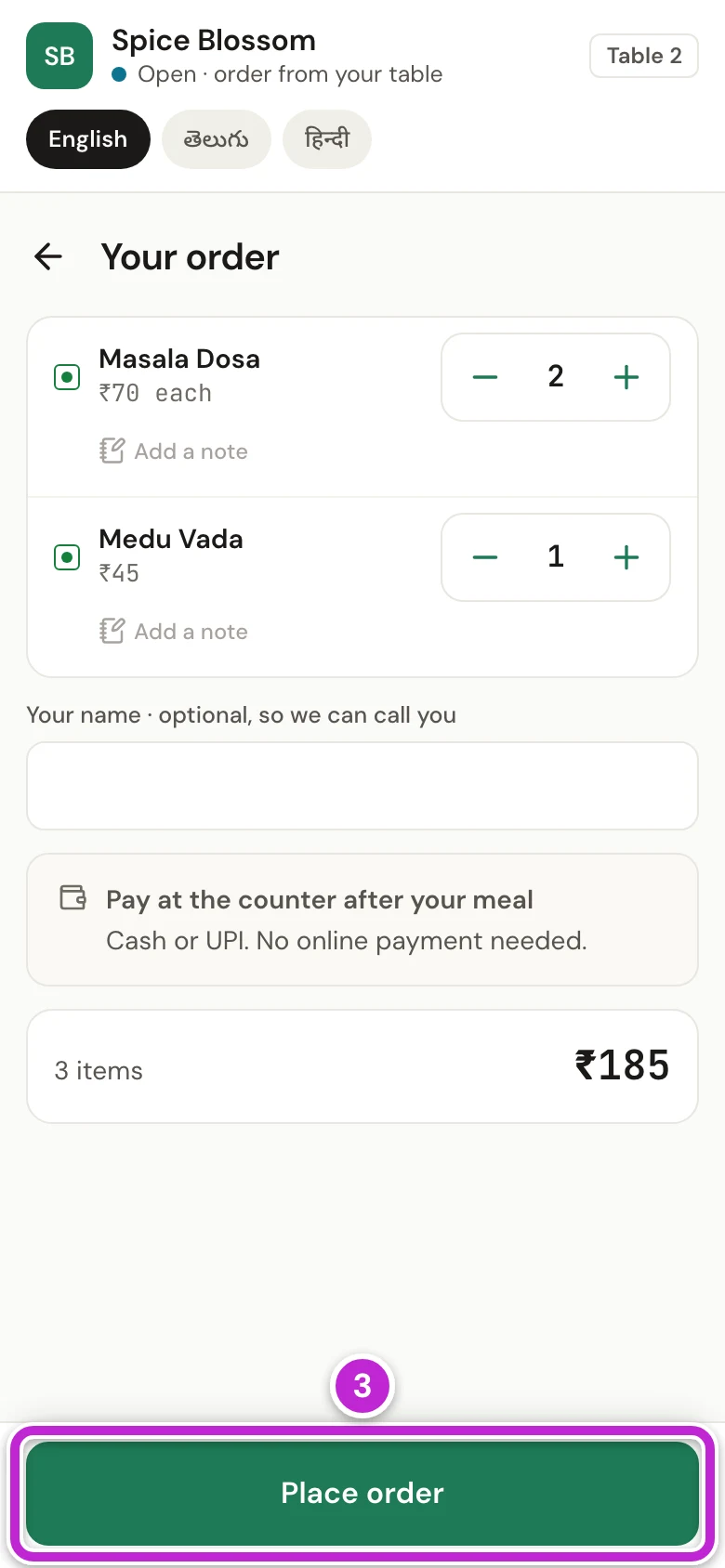
The guest checks their order and taps Place order (3). They do not pay now. They pay after the meal, at the counter or from their phone (Print the bill and take the payment).
-
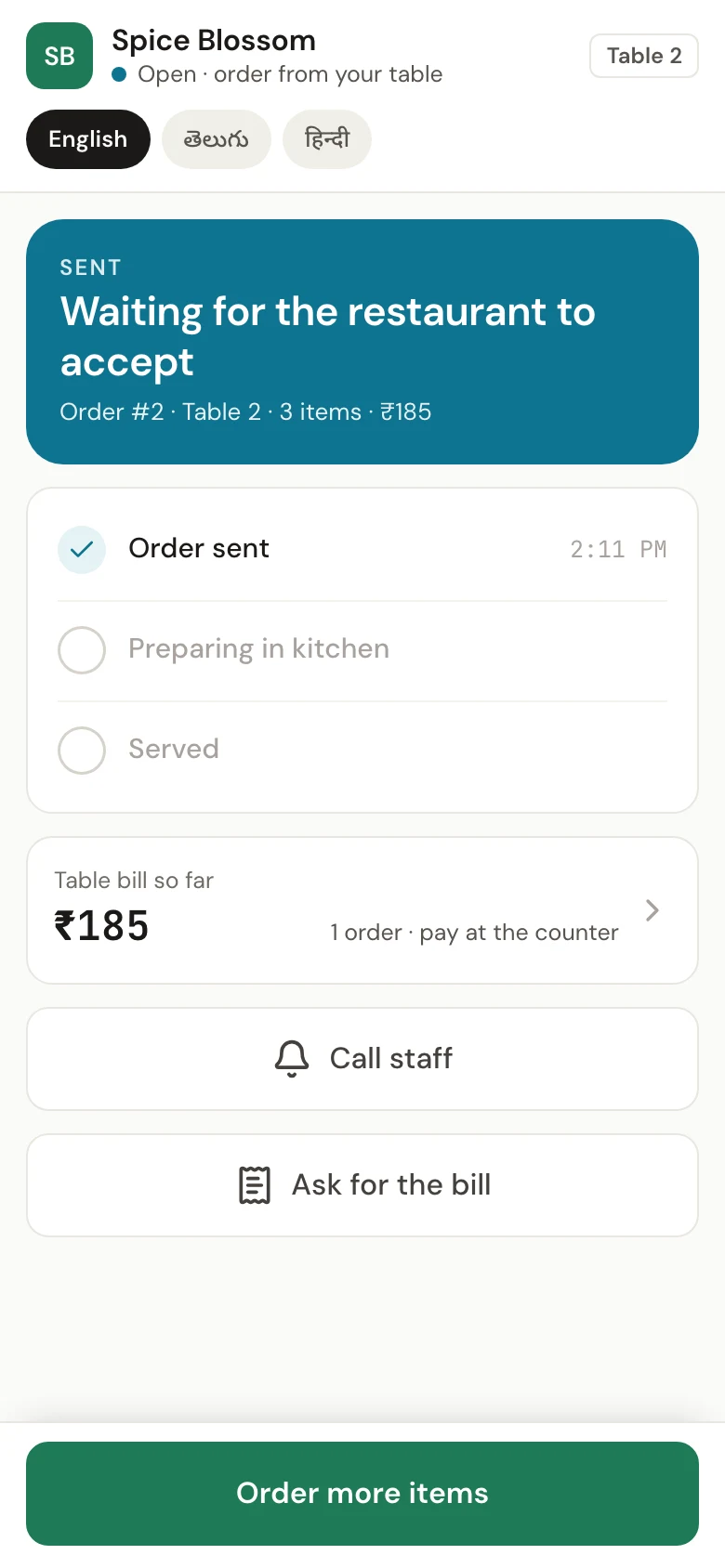
The guest’s phone now shows the order with Waiting for the restaurant to accept until the counter accepts it, then its progress in the kitchen. From here the guest can also call staff, ask for the bill or order more items.
-
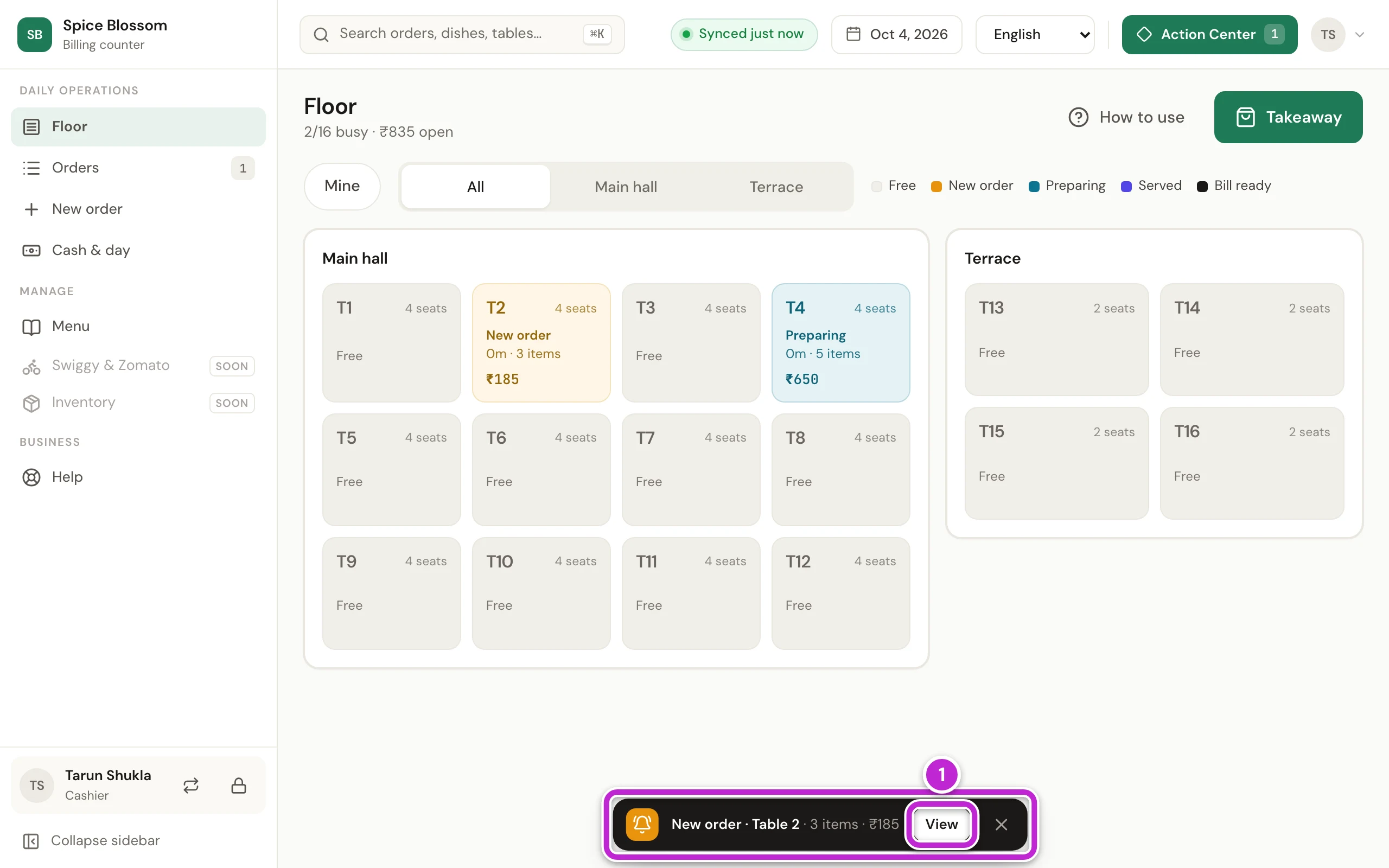
At the counter, a bell rings and a banner shows New order · Table 2. The bell rings again until someone looks at the order. Click View (1) to see it.
Accept an order
Section titled “Accept an order”-
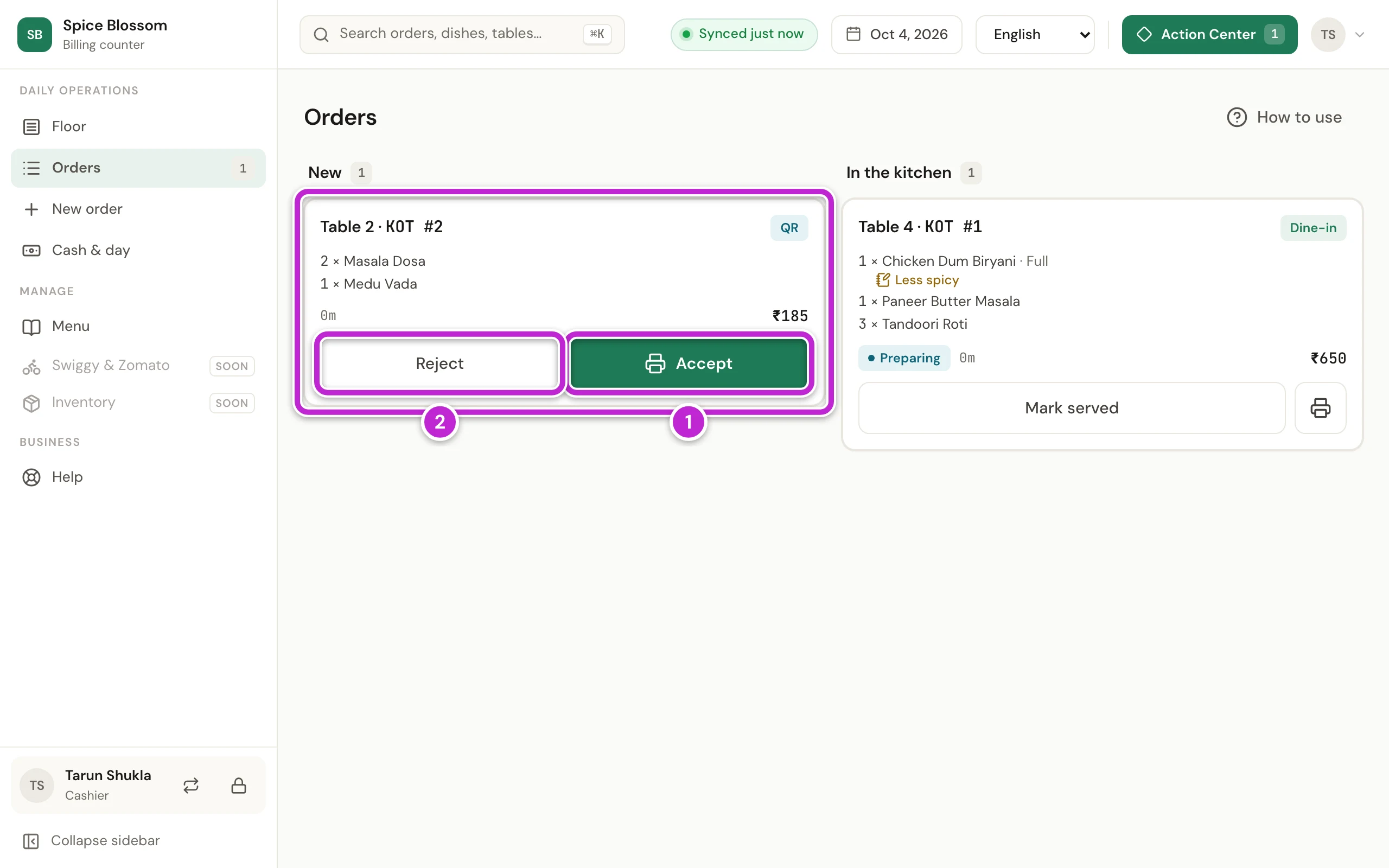
The order is in the New column on Orders, with its table, its KOT number and the dishes. Check the dishes, then click Accept (1). If the order is not right, click Reject (2) and go to Reject an order.
-
The KOT prints in the kitchen and the order moves to In the kitchen. When the food reaches the table, click Mark served (1). If the kitchen lost the KOT, click the printer button, Reprint KOT (2).
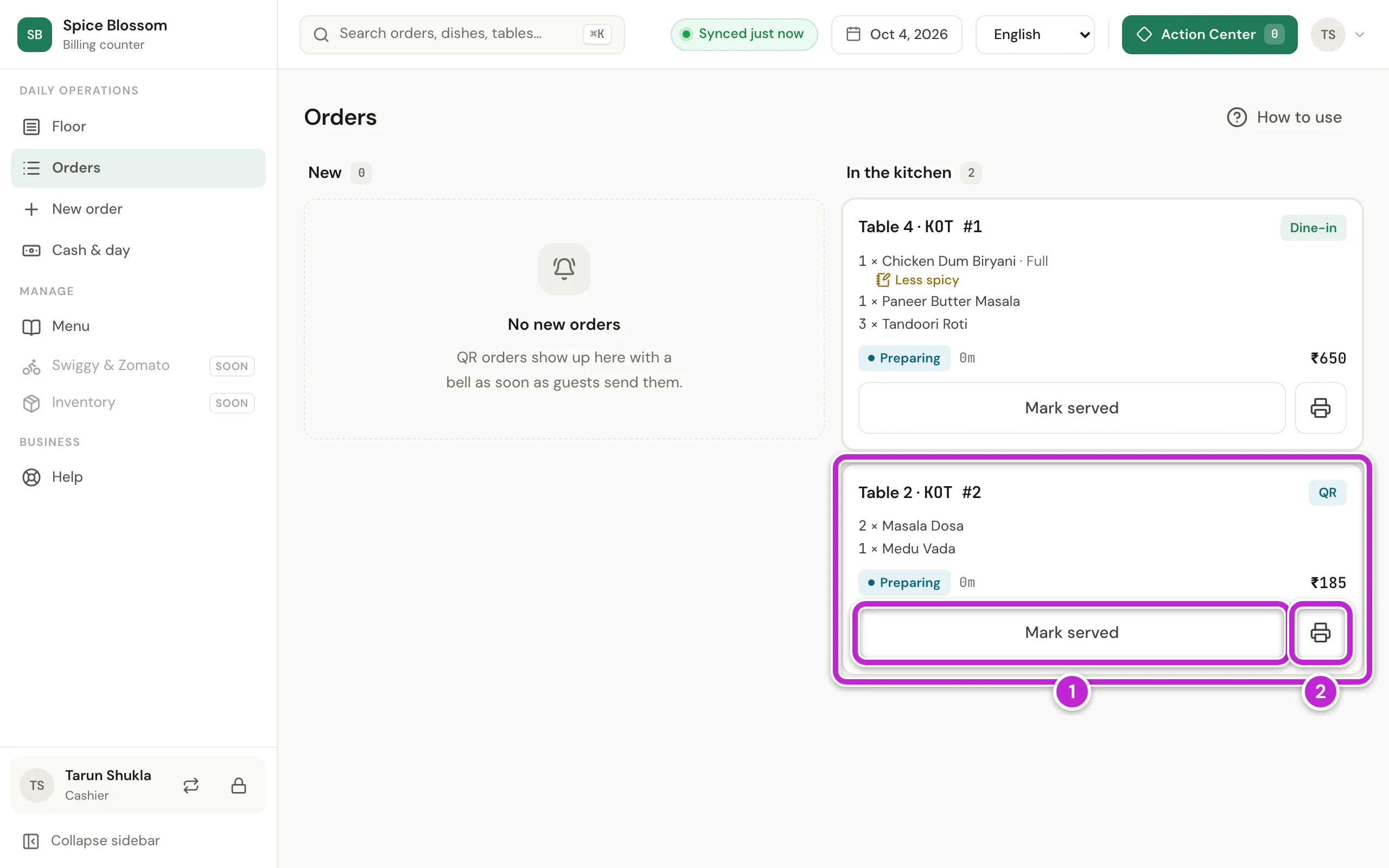
If the same table orders again, the new order comes to Orders the same way, and its KOT prints as an add-on to the table.
Reject an order
Section titled “Reject an order”-
On Orders, click Reject on the order.
-
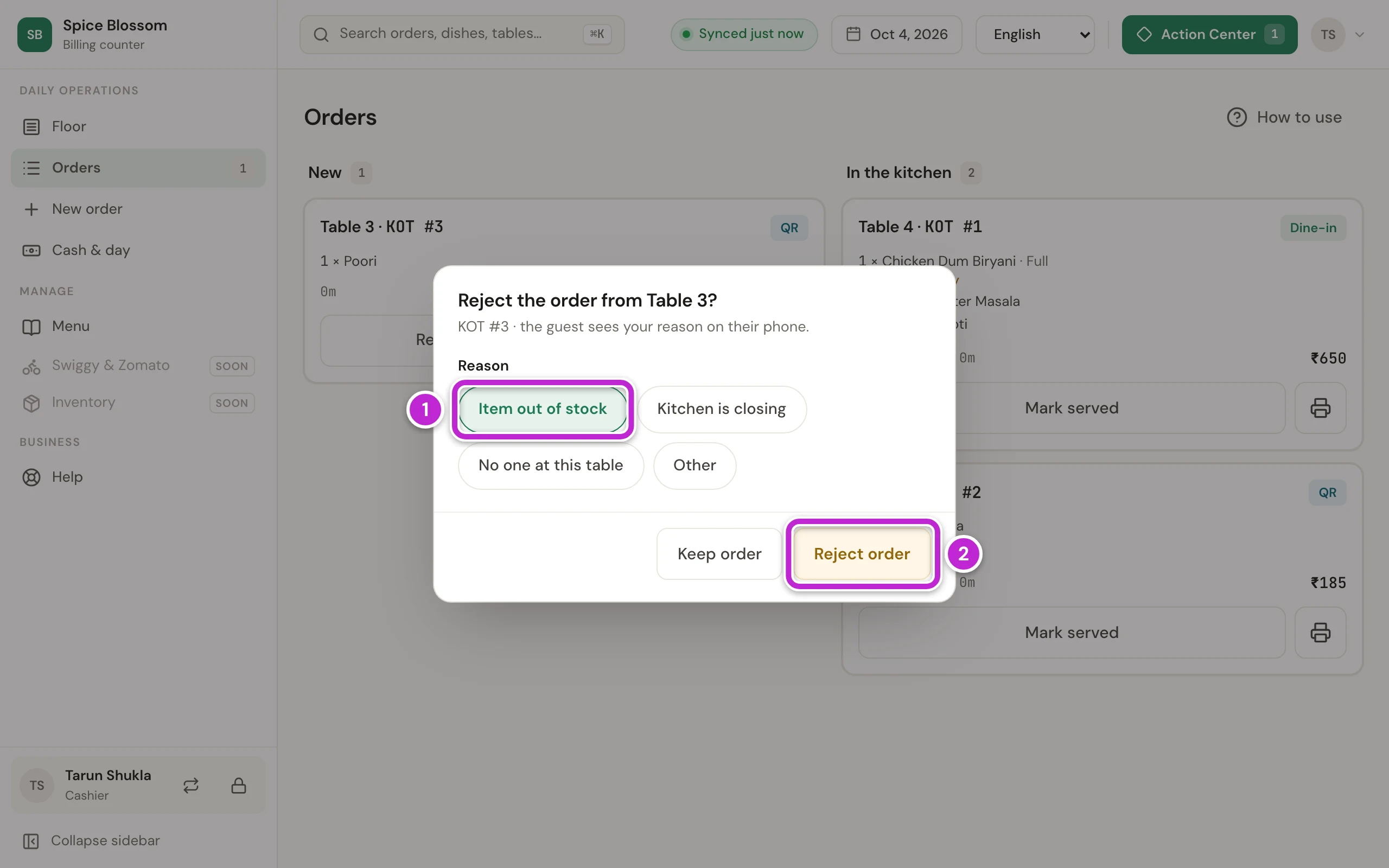
Choose the reason, for example Item out of stock (1). The guest sees this reason on their phone. For your own words, choose Other and type the reason.
-
Click Reject order (2). Nothing prints in the kitchen.
-
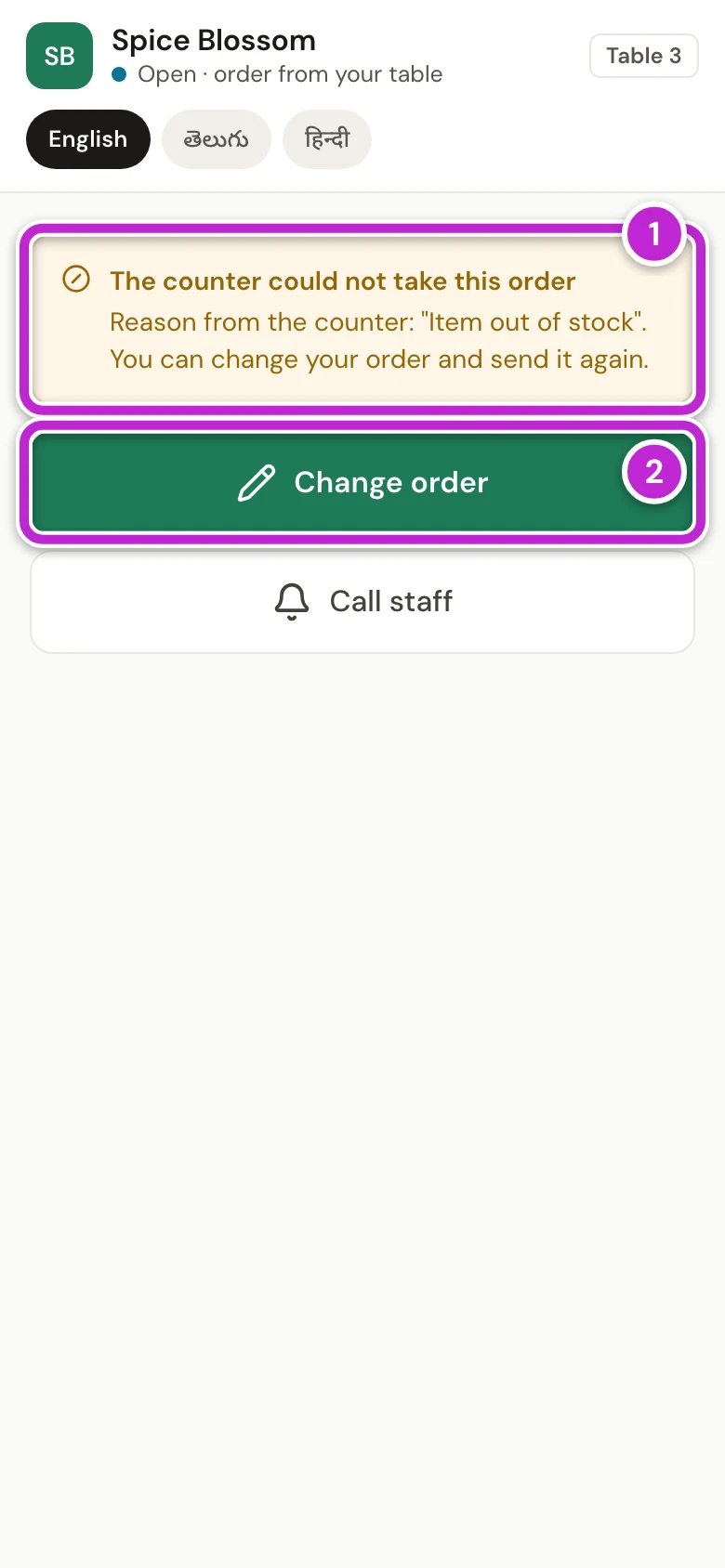
The guest’s phone shows that the counter could not take the order, with your reason (1). The guest can tap Change order (2) to change the order and send it again, or tap Call staff to ask for help. A changed order comes to Orders as a new order.
Close a table whose only order was rejected
Section titled “Close a table whose only order was rejected”A table stays open after you reject its order, even with no items on it. If the guests leave without ordering again, close it from its bill.
-
Click Floor and click the table.
-
Click Bill.
-
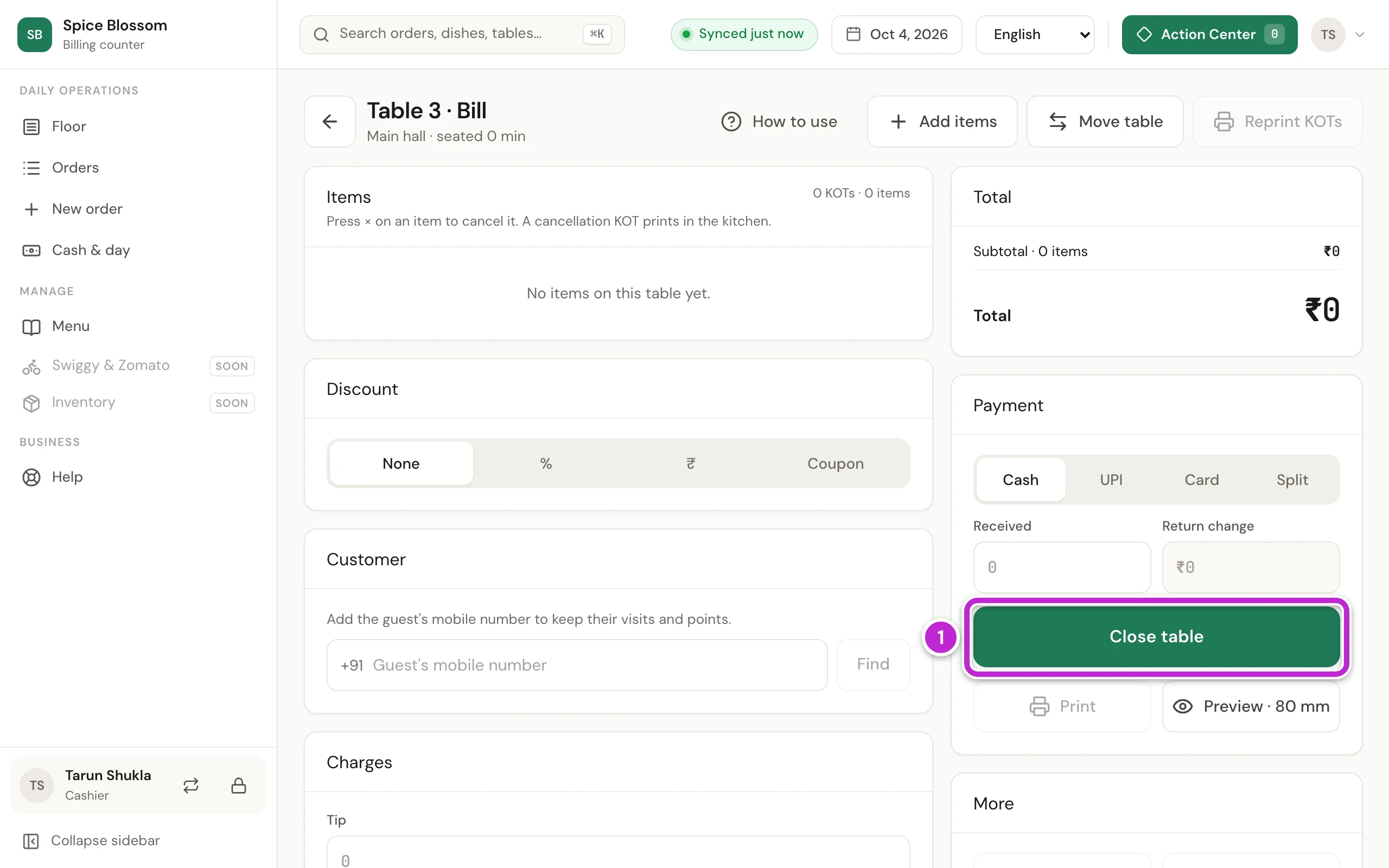
The bill says No items on this table yet. Click Close table (1). The table is closed.
When a guest signs in
Section titled “When a guest signs in”Guests can order without signing in. The line under your restaurant’s name on the menu also lets them sign in with their mobile number and join your restaurant, so their visits are kept and they can order the same dishes again next time.
-
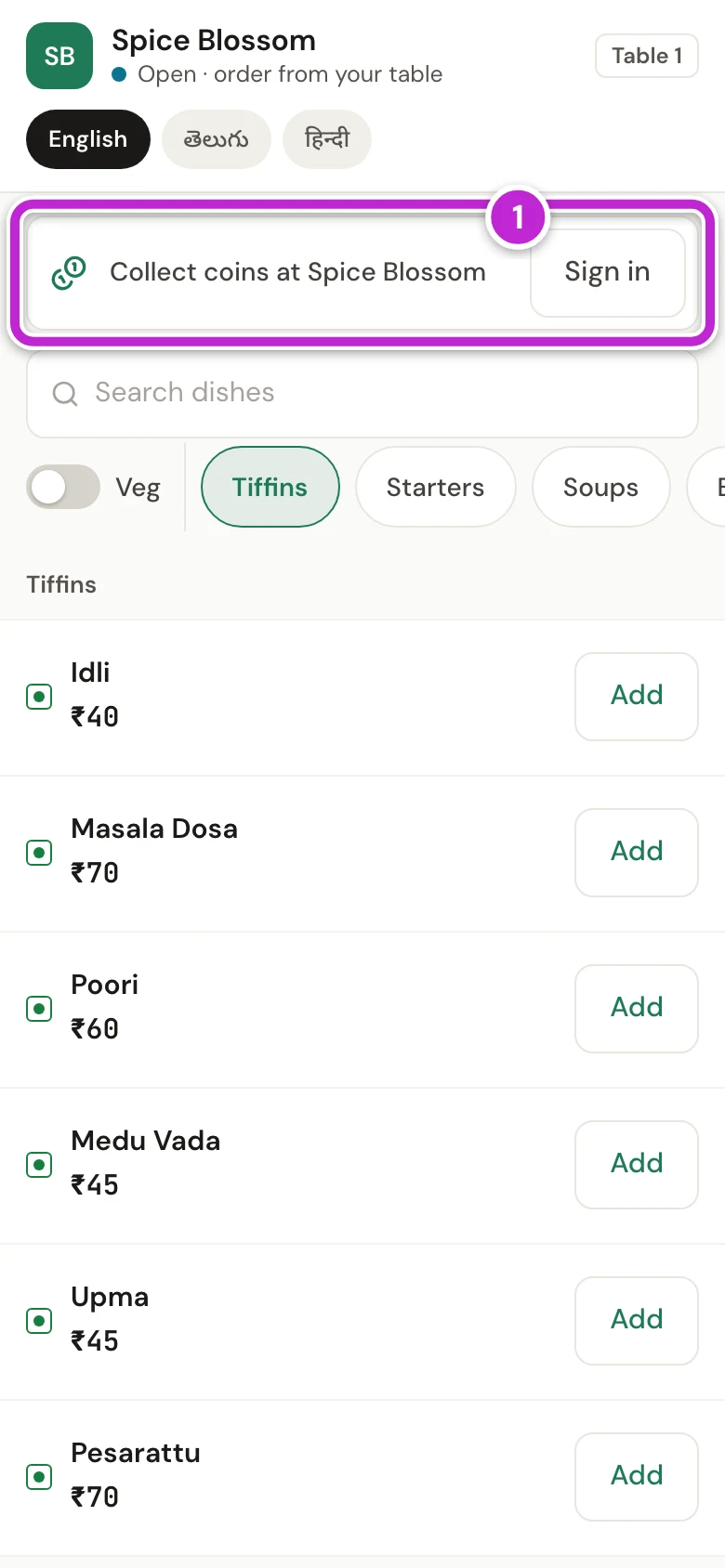
The guest taps Sign in with WhatsApp code (1). When your restaurant gives coins, the line reads Collect coins at Spice Blossom; otherwise it reads Keep your visits at Spice Blossom.
-
The guest types their mobile number and the 6-digit code that comes on WhatsApp. One sign-in works at every restaurant on DineSure.
-
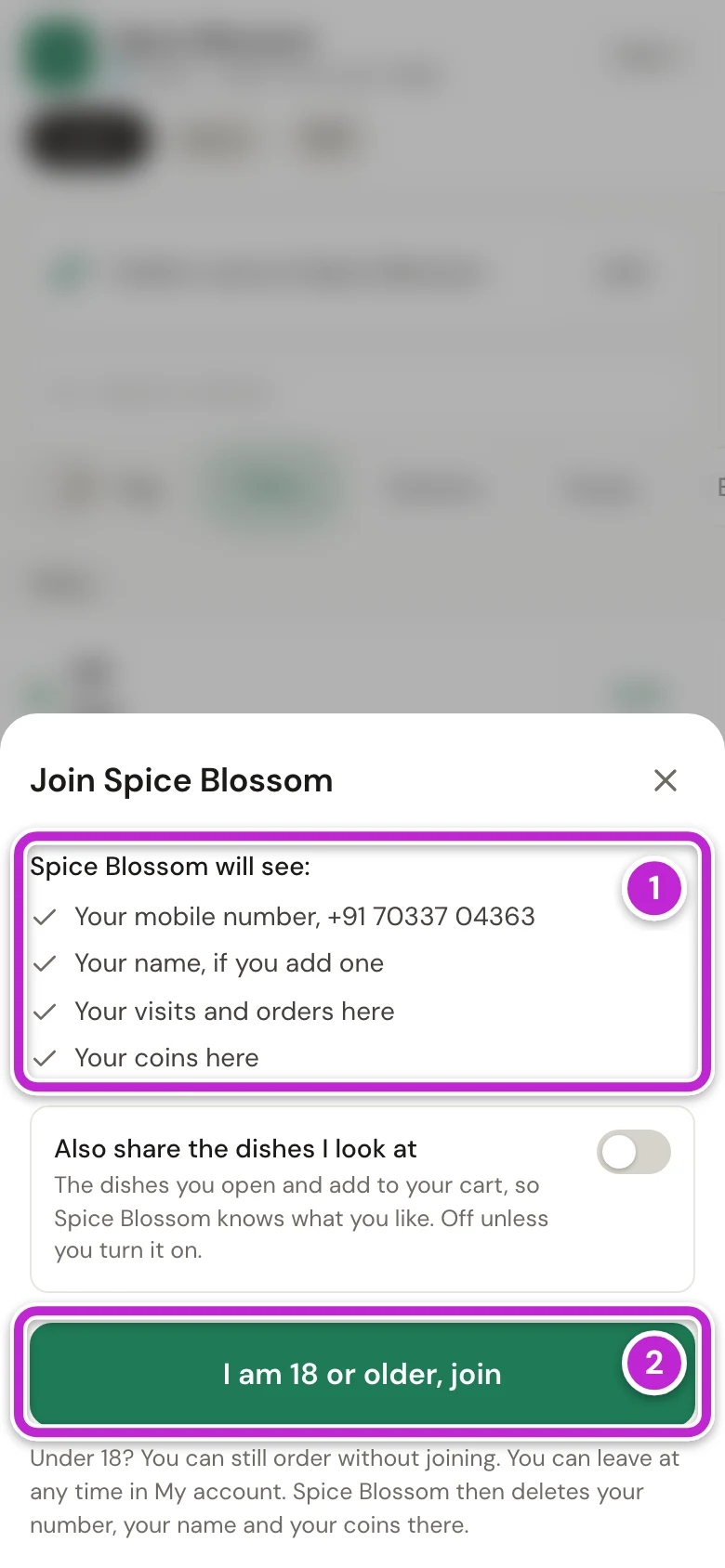
The guest sees what your restaurant will get (1): their mobile number, their name, their visits and orders here, and their coins here. To join, they tap I am 18 or older, join (2). Guests under 18 do not join; they just order.
Once a guest joins, the orders they send carry their number. When you open the table’s bill, the guest is already under Customer, and the bill earns their coins when it is paid (Customers and coins). They also show in Customers.
At their next visit, the menu shows Order again with the dishes of their last visit. One tap puts the dishes still on the menu in the cart, and the order comes to Orders like any other.
A guest can leave your restaurant at any time in My profile on their phone. Their number, name and coins at your restaurant are then deleted, and their bills stay without the number. If a guest asks you instead, remove them in Customers; that ends their join too.
If something goes wrong
Section titled “If something goes wrong”- Someone already updated this order. Another person accepted or rejected the order a moment before you. Look at Orders again to see where it is now.
- Accept or reject the new orders first. The table still has a QR order in New. Open Orders, accept or reject it, then go back to the bill.
- KOT #2 not printed. The printer is off, out of paper or not connected. Fix the printer, then click Retry. See Set up the billing counter and printers.
- The guest’s phone says We are not taking QR orders right now. Open for QR orders is turned off in Settings, QR orders. Ask the owner to turn it on, or take the order at the counter (Take an order at the counter).
- No bell rings. Check that New order sound is on in Settings, QR orders, and that the computer’s sound is on.
- The guest’s phone says: Signing in is paused for now. You can still order without signing in. DineSure stopped sending sign-in codes because too many were asked for in one day. The guest can order as usual, and signing in starts again by itself within a day.