
Add your team
Who does this: the owner.
What you need:
- You are signed in as the owner (Sign in).
- Each person’s name, and the mobile number of everyone who signs in on their own phone or computer.
Who needs a mobile number, and who needs a PIN
Section titled “Who needs a mobile number, and who needs a PIN”- People who sign in on their own phone or computer need a mobile number on WhatsApp, because the sign-in code comes to it on WhatsApp: owners, managers, captains and accountants (Sign in).
- People who only switch in at the billing counter need only a PIN, so cashiers and kitchen staff can work without a mobile number.
Add a person
Section titled “Add a person”-
Click Team in the menu on the left. You see everyone on the team with their role.
-
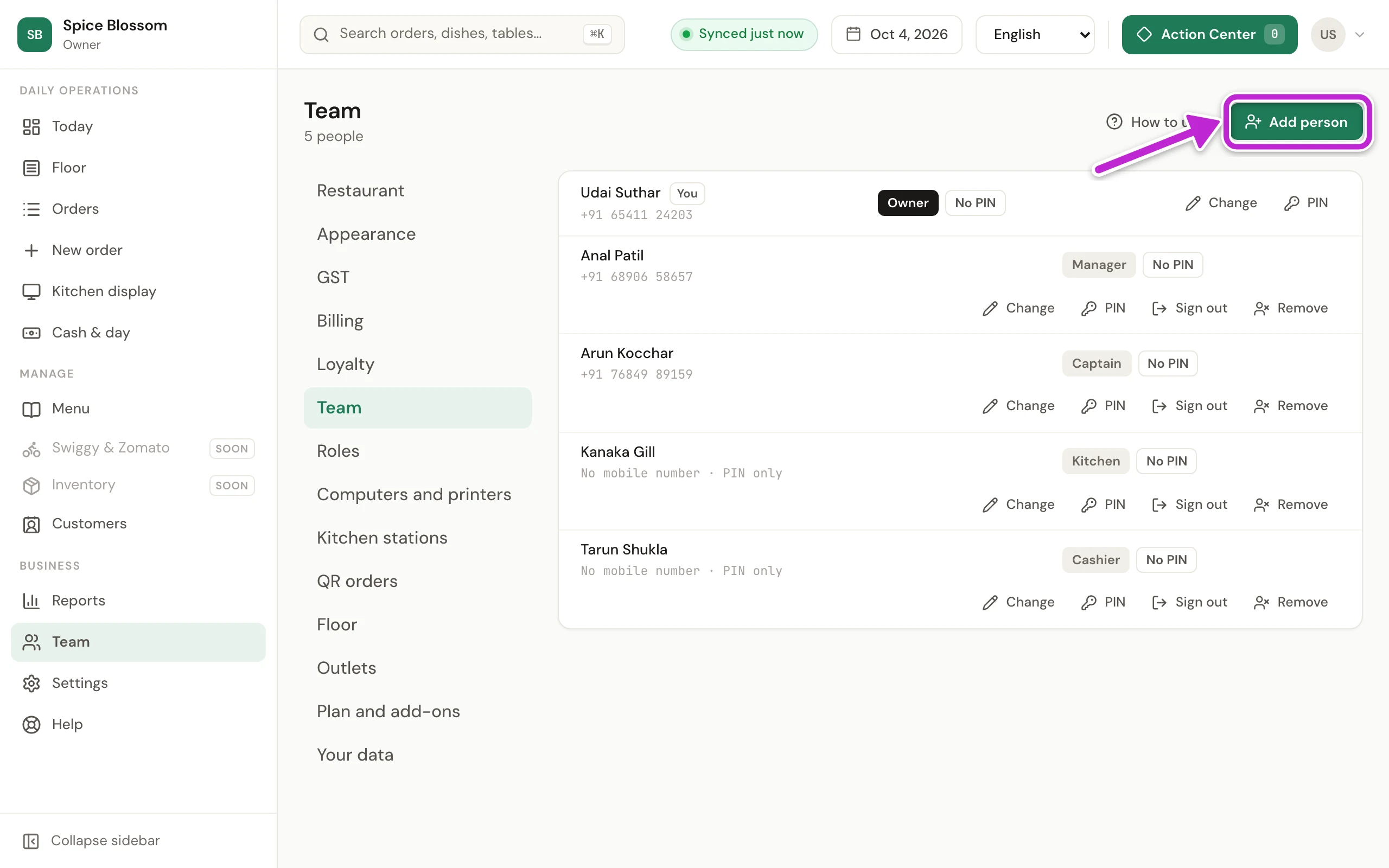
Click Add person.
-
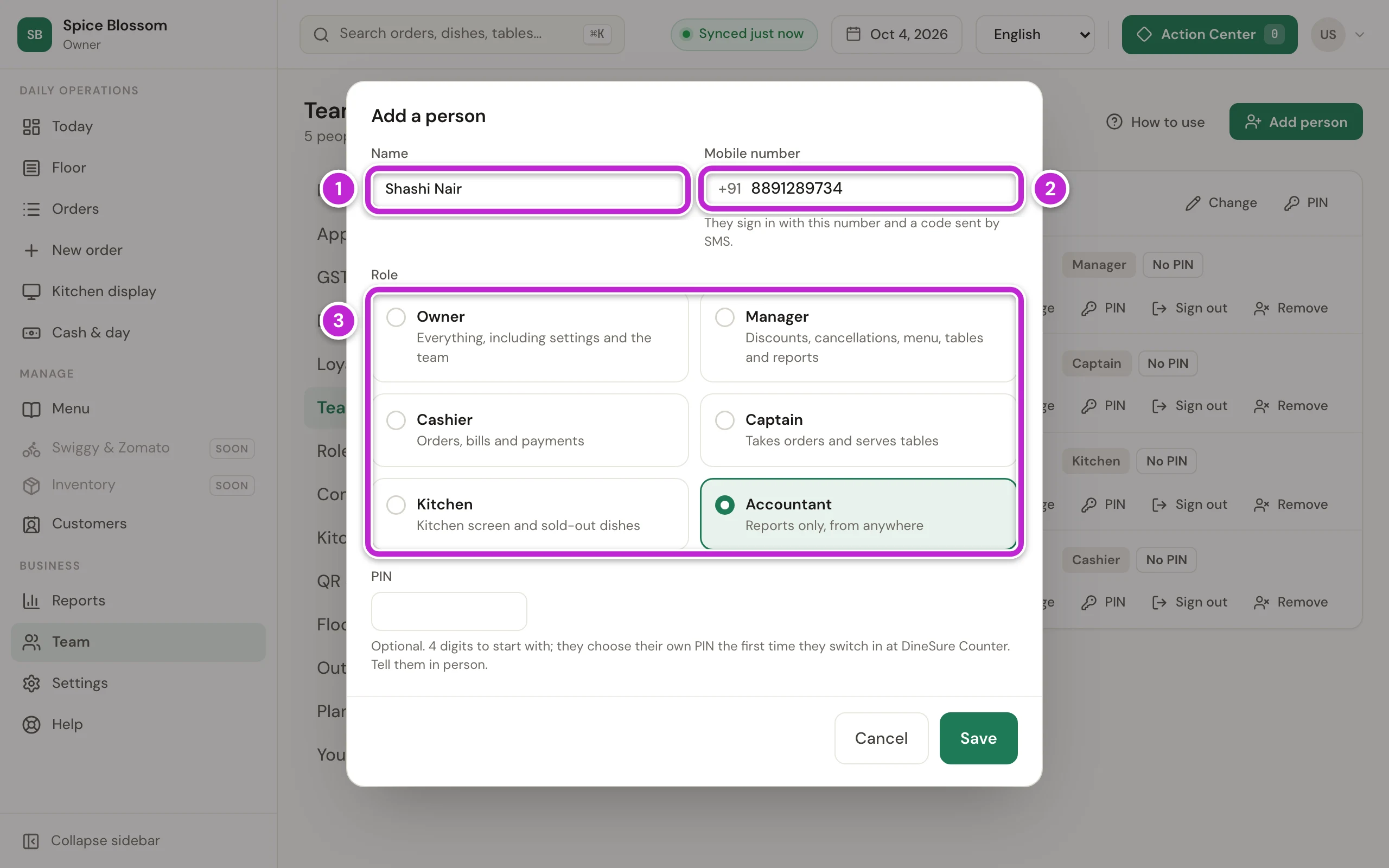
Type the person’s Name (1).
-
Type their Mobile number (2). Leave it empty for a cashier or kitchen person who only works at the counter.
-
Click their Role (3). Each role shows what it is for.
-
If the person has no mobile number, type a 4-digit PIN for them to start with. Tell them the PIN in person.
-
Click Save.
A person with a mobile number can now sign in on their own phone or computer. To change someone’s name, number or role later, click Change on their row.
Give a cashier a starting PIN
Section titled “Give a cashier a starting PIN”Everyone who works at the billing counter switches in with a 4-digit PIN. You give a starting PIN. The person chooses their own PIN the first time they switch in.
-
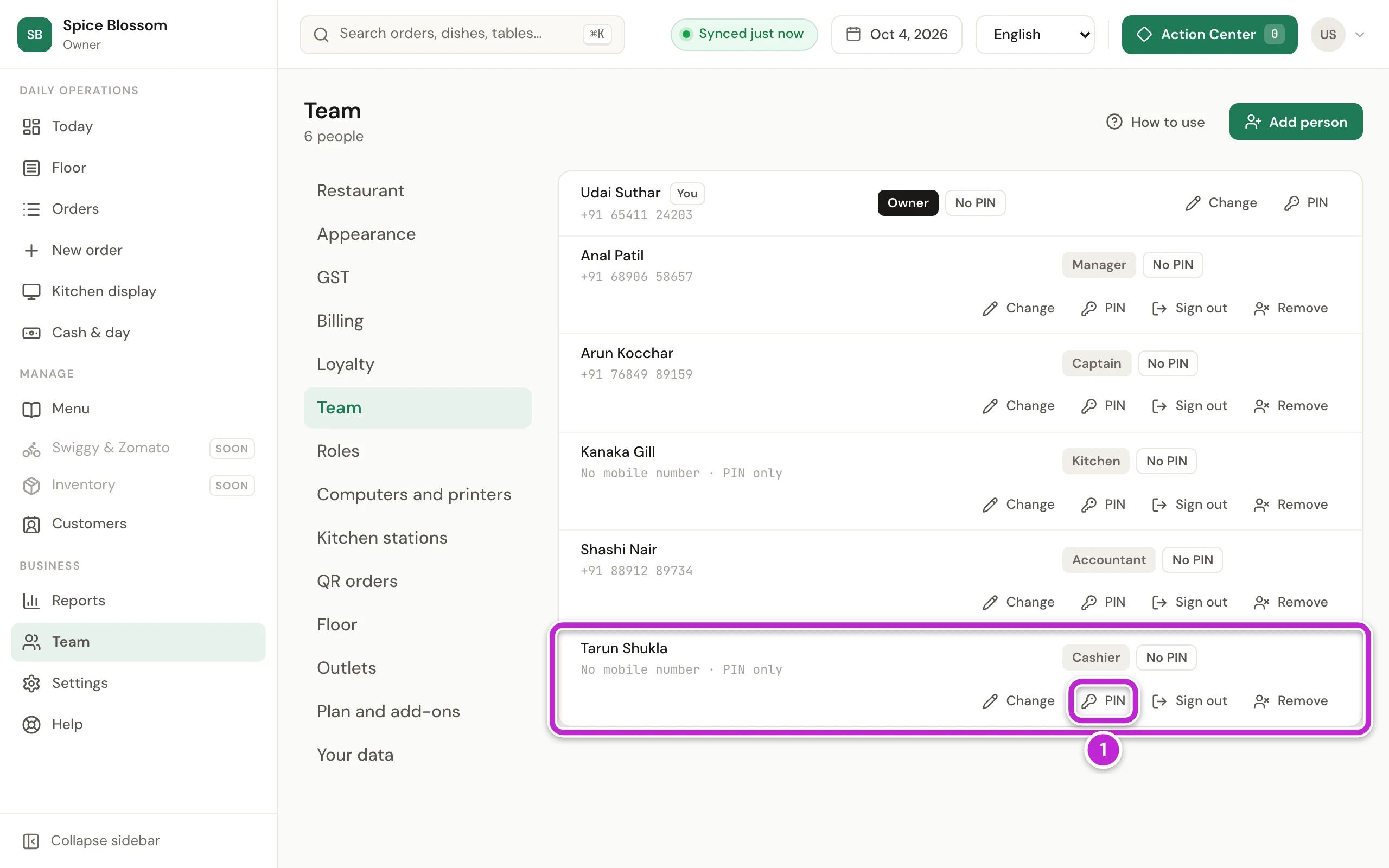
On the person’s row, click PIN (1). A row with No PIN has no PIN yet.
-
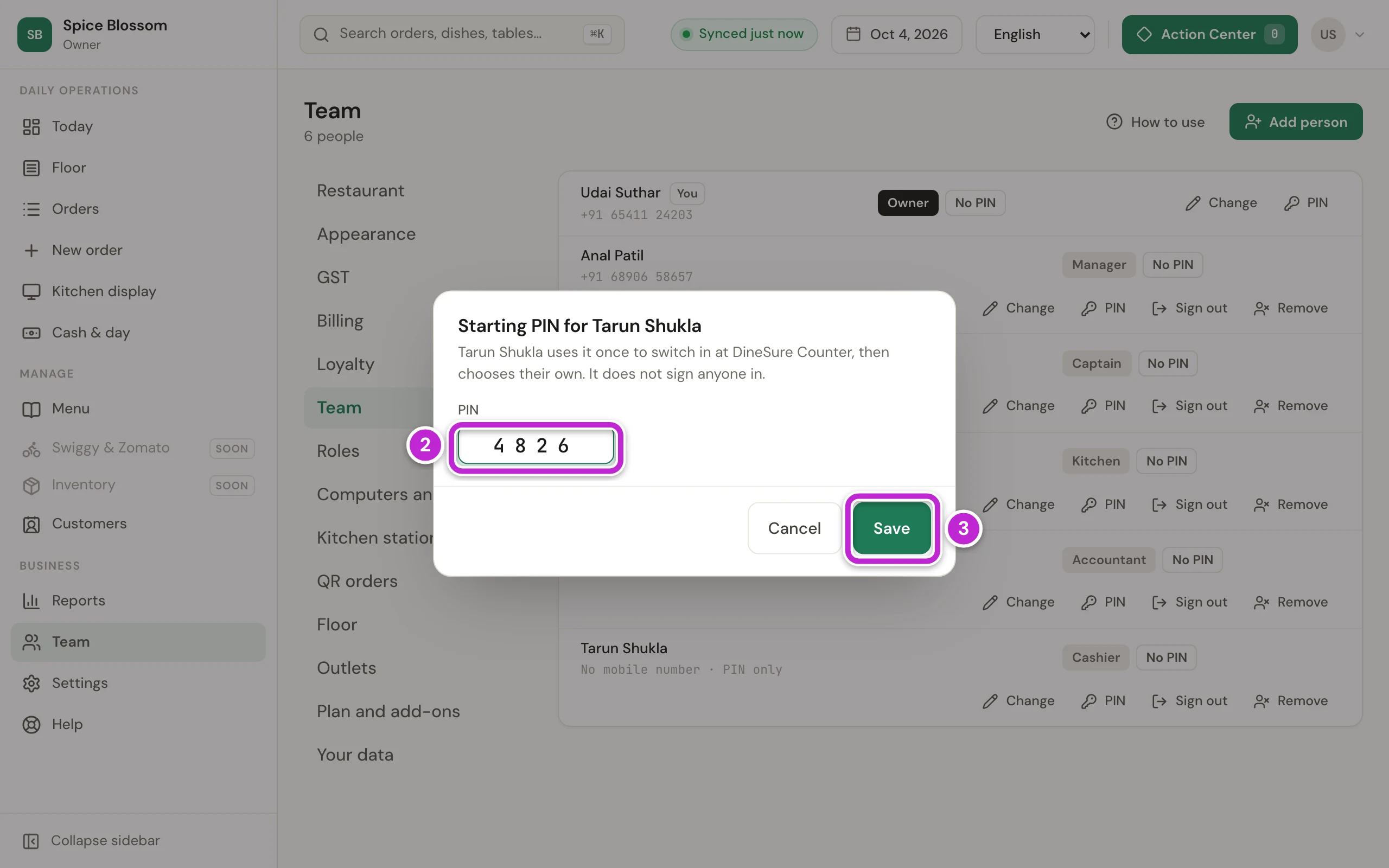
Type 4 digits in PIN (2).
-
Click Save (3).
-
Tell the person the PIN in person. They use it once at the counter, then choose their own (Switch person and lock the counter).
Roles: what each person may do
Section titled “Roles: what each person may do”Each role comes with DineSure’s usual choices:
- Owner: everything, including settings and the team.
- Manager: discounts, cancellations, menu, tables and reports.
- Cashier: orders, bills and payments.
- Captain: takes orders and serves tables.
- Kitchen: the kitchen screen and sold-out dishes.
- Accountant: reports only, from anywhere.
To change what a role may do:
-
Click Settings in the menu on the left.
-
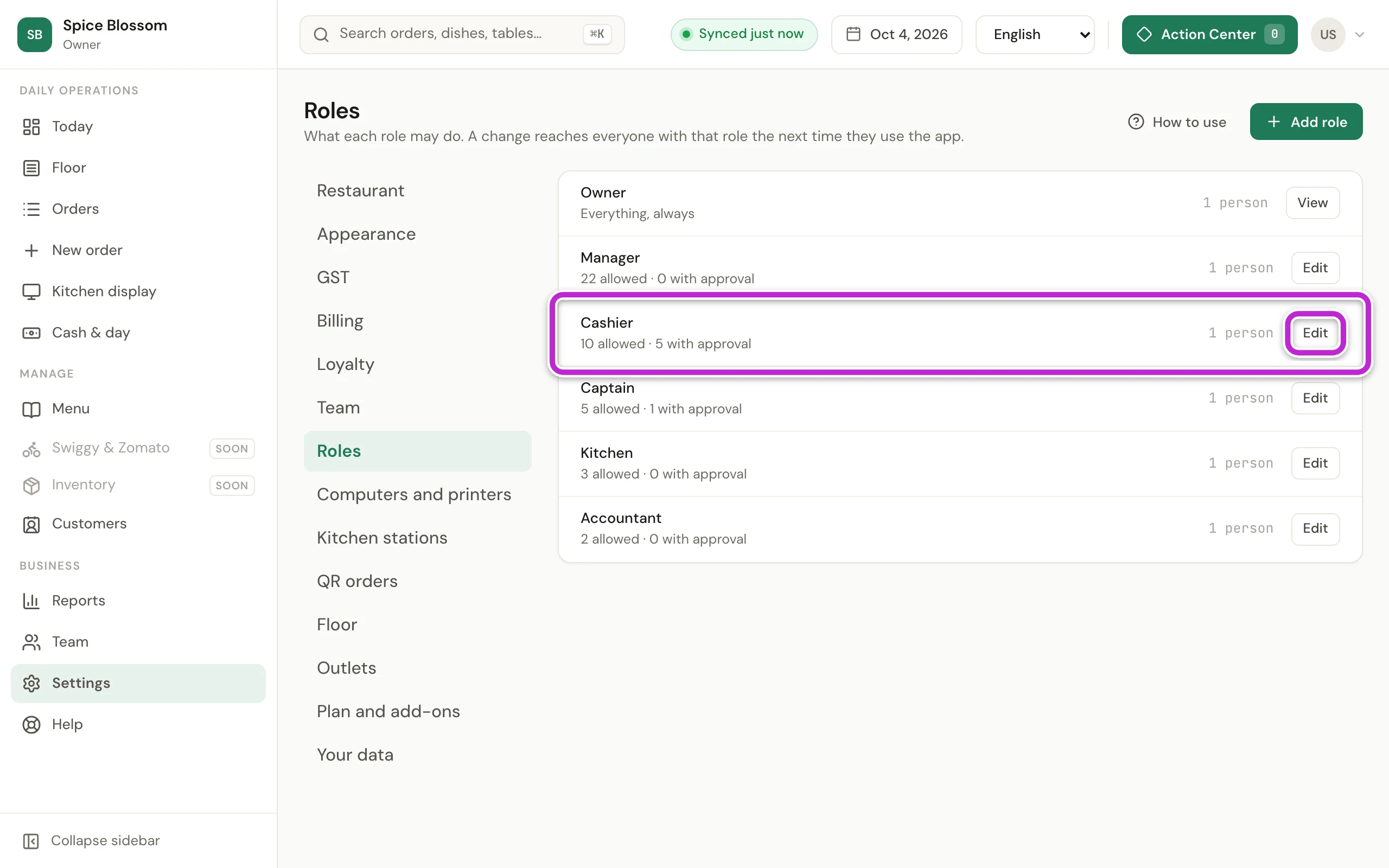
Click Roles. Each role shows how many things it may do on its own, and how many need approval.
-
Click Edit on the role, for example Cashier.
-
For each action, choose Allowed, With approval or Off. With approval, someone who is allowed to do it enters their PIN at the counter first (Discounts, cancellations and approvals).
-
Click Save role.
The change reaches everyone with that role on their next tap. Changing roles, approving from the phone and setting up the restaurant stay with the owner.
If something goes wrong
Section titled “If something goes wrong”- That mobile number is already on the team. Each person needs their own number. Check the number, or find that person on the list.
- Someone on the team already has that name. Add something to the name, such as the first letter of the family name.
- Owners, managers, captains and accountants need a mobile number. Type their number, or choose Cashier or Kitchen if they only work at the counter.
- Without a mobile number, give them a starting PIN. Type a 4-digit PIN, or type their mobile number.
- Enter 4 digits. A PIN has exactly 4 digits.
- The restaurant needs at least one owner. You cannot remove the last owner or change their role. Give another person the owner role first.
- Nobody changes their own role or access. Ask the owner. Ask another owner to make the change.
- Settings are for the owner. Only the owner manages the team. Ask the owner.
- No PIN yet. The owner gives each person a starting PIN in Settings, Team. That person cannot switch in at the counter yet. Give them a starting PIN as shown above.