
Customers and coins
Who does this: the owner chooses how coins work. The cashier adds the guest’s mobile number to the bill and uses their coins. The owner or a manager looks up customers and changes coins by hand.
What you need:
- The guest’s mobile number, only if they are happy to give it.
- For coins: the loyalty add-on. Without it, DineSure still keeps each customer’s visits and spending, but nobody earns or uses coins. The owner sees it in Settings, Plan and add-ons.
How coins work
Section titled “How coins work”- Earning. A bill earns coins on its food bill: the food’s value after discounts, before charges and tax. At 5%, a ₹1,000 food bill earns 50 coins, worth ₹50.
- The most coins can pay. Coins pay only part of a food bill. At 50%, a ₹600 food bill takes at most ₹300 in coins. A guest with 260 coins uses all 260 and pays the other ₹340, plus charges and tax.
- The minimum. A guest needs at least the minimum, like 100 coins, and uses at least that many on one bill. At 50%, a ₹150 food bill takes at most ₹75 in coins, under the minimum, so the coins wait for a bigger bill. With these two rules, coins work on food bills of ₹200 or more.
Choose how coins work
Section titled “Choose how coins work”-
Click Settings, then Coins.
-
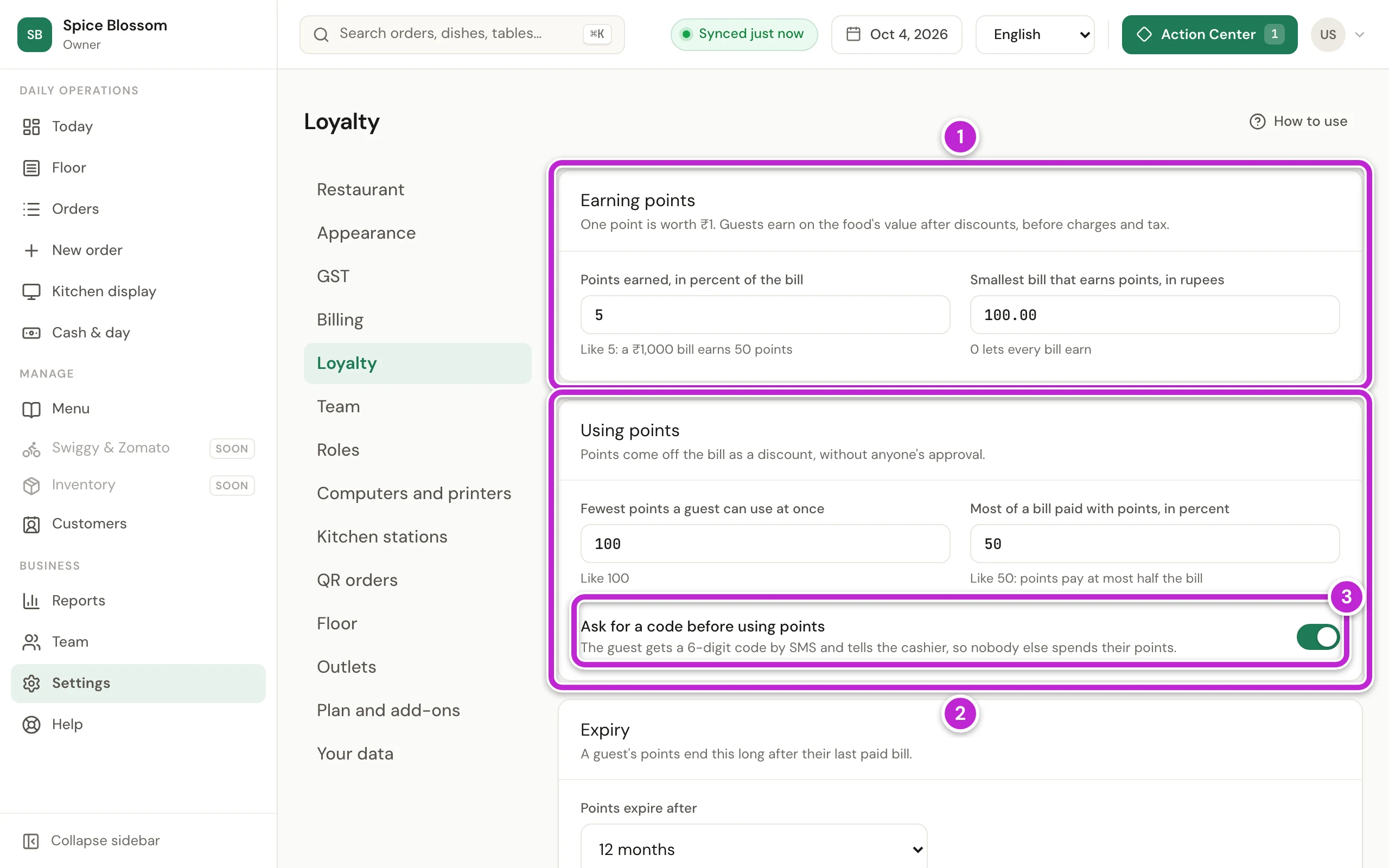
Under Earning coins (1), set how many coins a bill earns, in percent of the food bill, and the smallest food bill that earns coins.
-
Under Using coins (2), set Minimum coins required to redeem and Maximum food bill payable with coins, in percent. The note under them says from which food bill guests can use coins.
-
Keep Ask for a code before using coins (3) on. The guest then gets a code on WhatsApp and tells the cashier, so nobody can spend a regular’s coins on another bill.
-
To check the rules, type a food bill and a guest’s coins under Try the rules. It shows the most coins can pay, the coins used and what is left to pay. Nothing there is saved.
-
Under Expiry, choose when unused coins end. A guest’s coins end that long after their last paid bill.
-
Click Save changes. If you change nothing, the rules on the screen already apply.
Add the guest to the bill
Section titled “Add the guest to the bill”-
Open the table’s bill (Print the bill and take the payment).
-
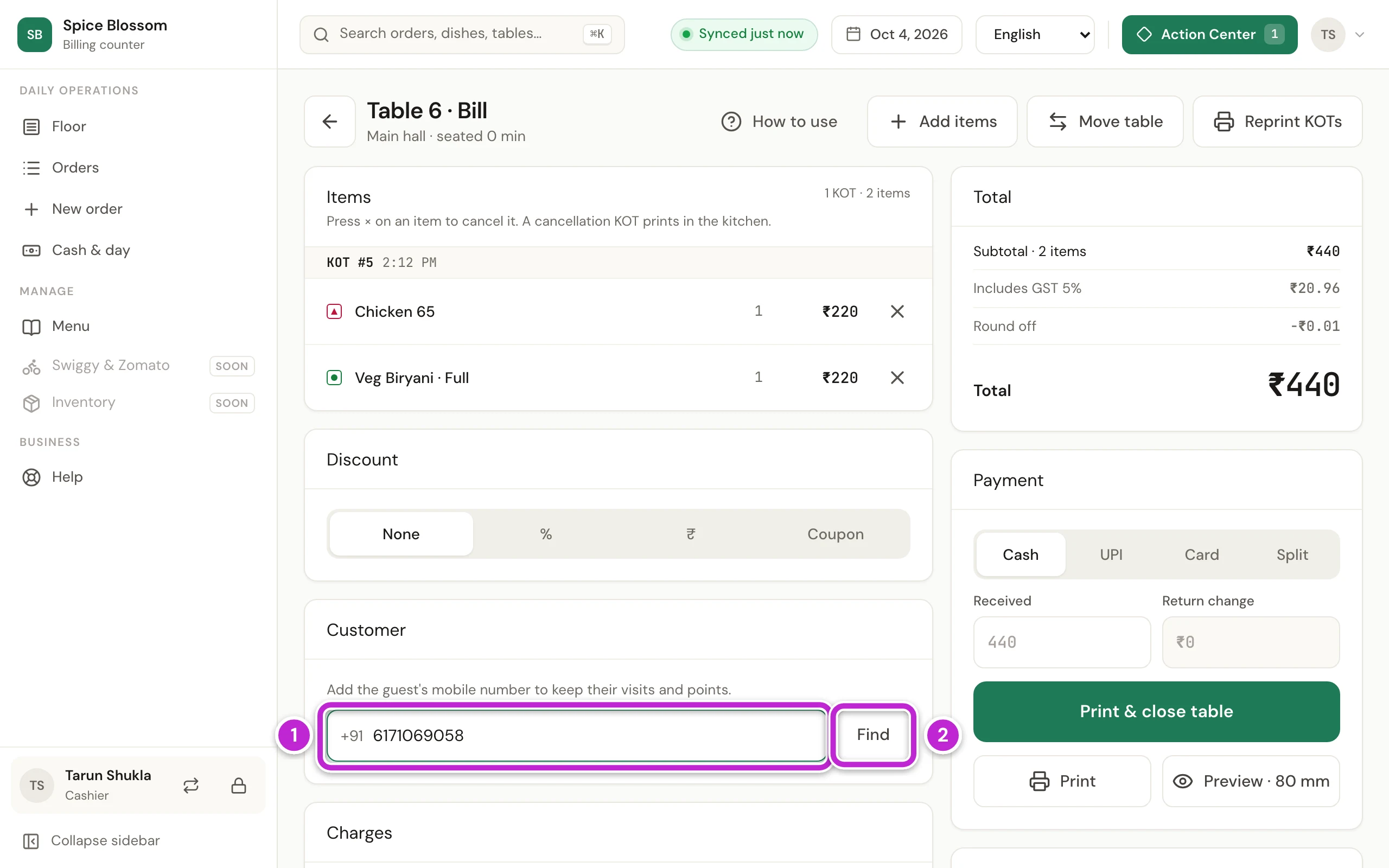
Under Customer, type the guest’s mobile number (1) and click Find (2). If the guest joined your restaurant on DineSure and ordered from their phone, their number is already there; to use another number, click Change.
-
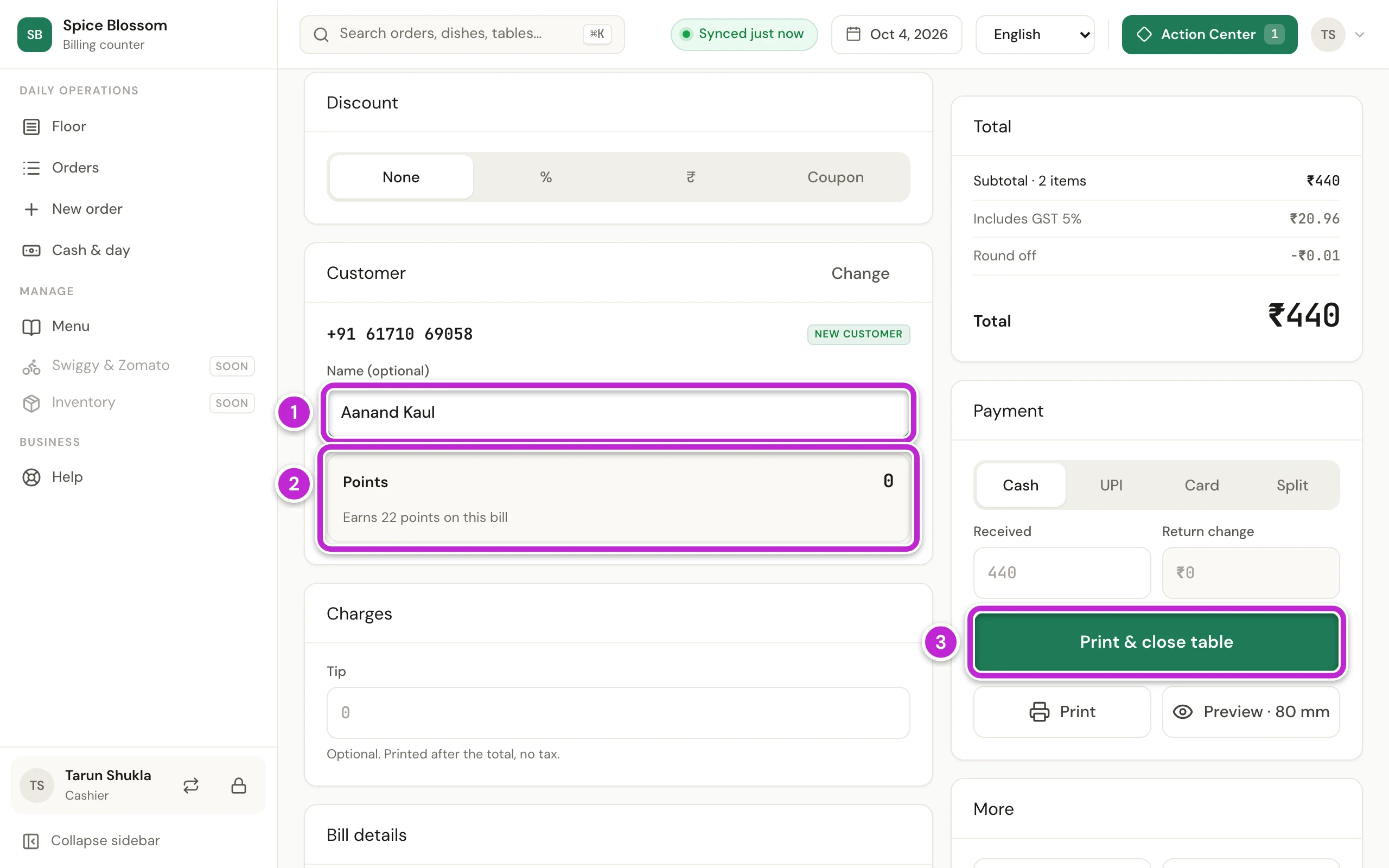
A guest who is new to your restaurant shows New customer. If they tell you their name, type it in Name (optional) (1).
-
Check the Coins box (2). It says how many coins this bill earns.
-
Take the payment and click Save & print (3) as usual. The coins are added once the bill is paid. The printed bill shows the guest’s number with only its last 4 digits, and their coins.
A bill split by dishes has no customer. Use one bill, or split it equally. Customers and coins also need the internet.
Pay with coins
Section titled “Pay with coins”-
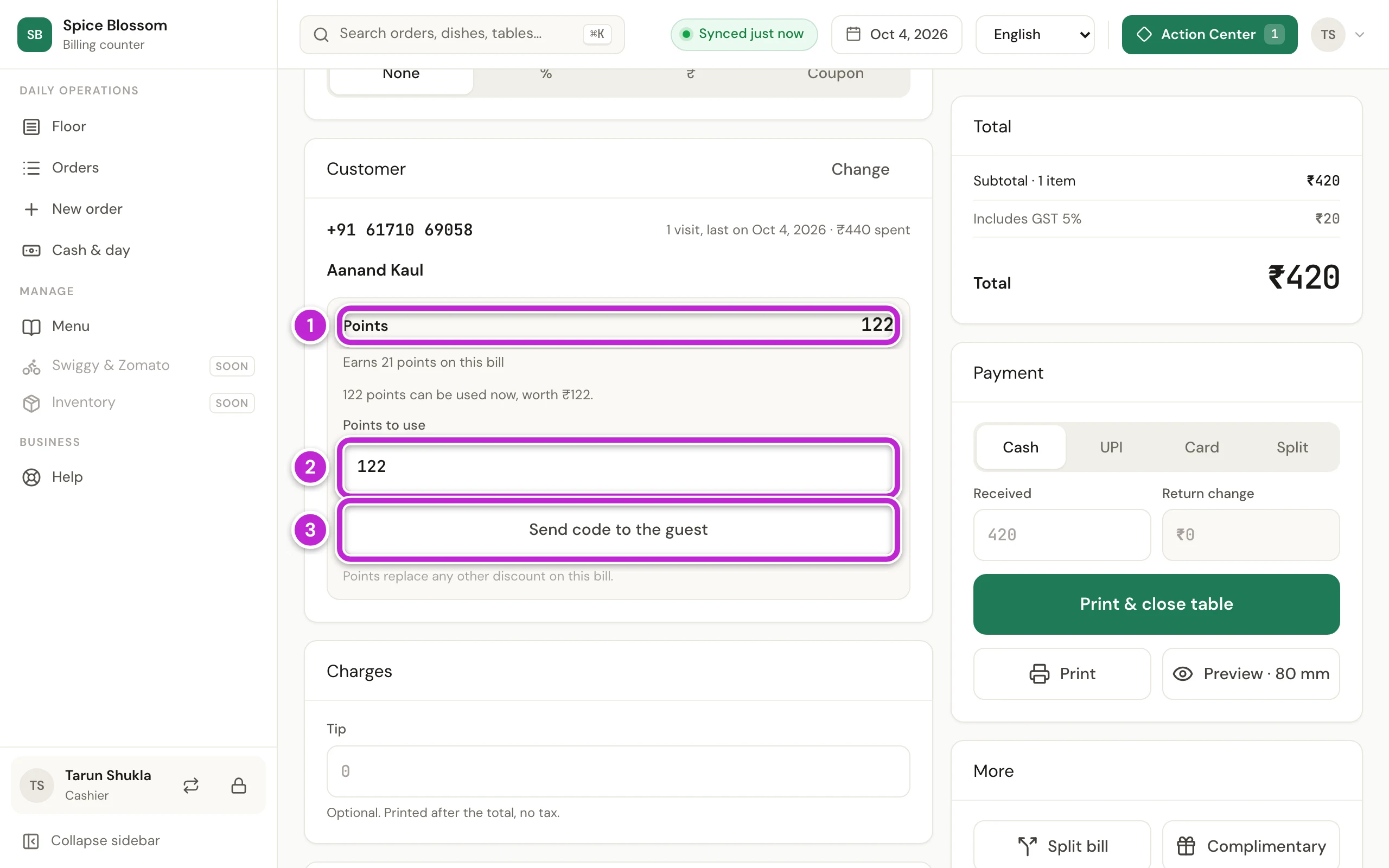
On the bill, find the guest by their mobile number, as above. The Coins line (1) shows how many coins they have.
-
Coins to use (2) shows the most this bill can take. Type fewer if the guest wants to keep some.
-
Click Send code to the guest (3). The guest gets a 6-digit code on WhatsApp.
-
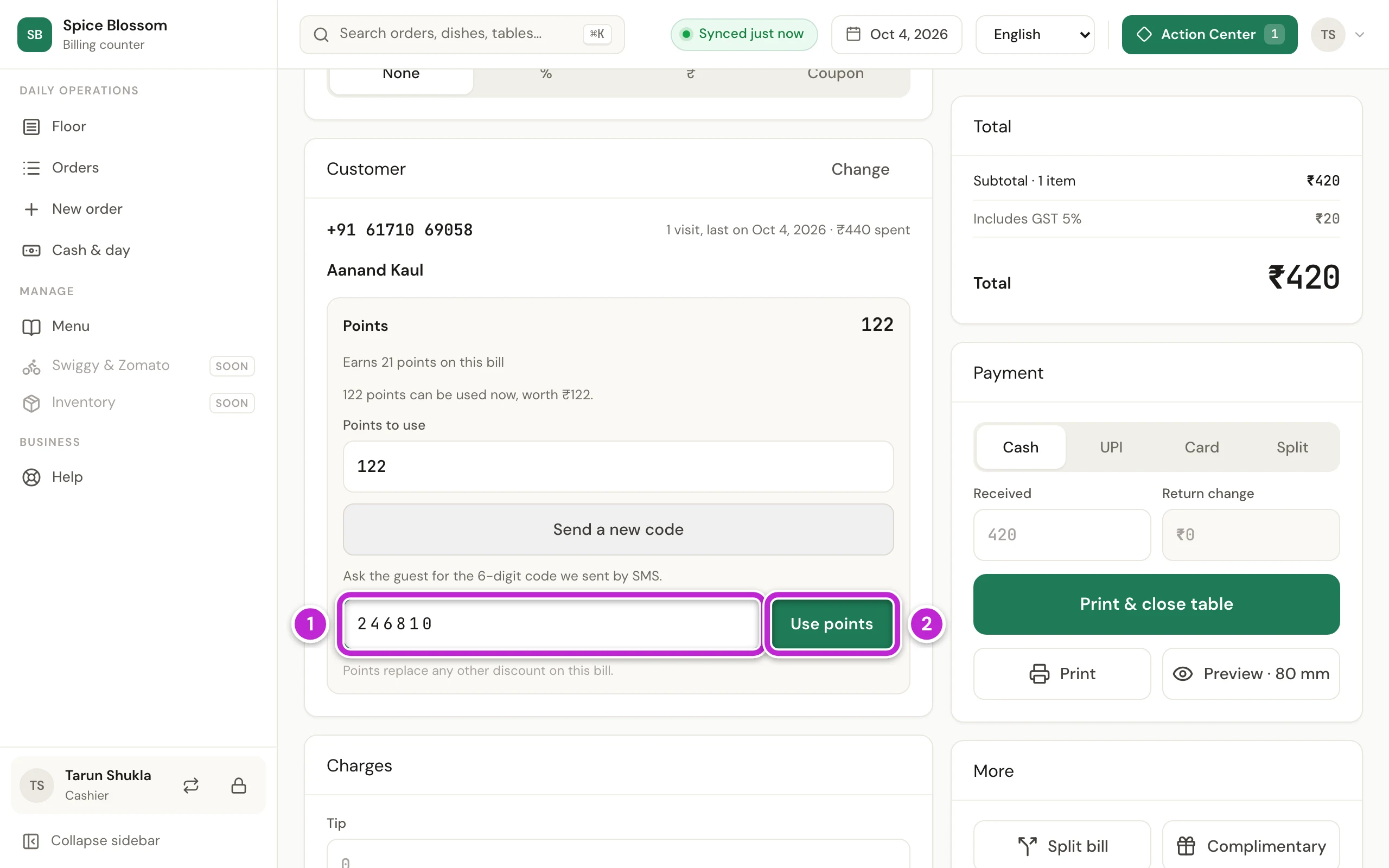
Ask the guest for the code. Type it in 6-digit code (1) and click Use coins (2).
-
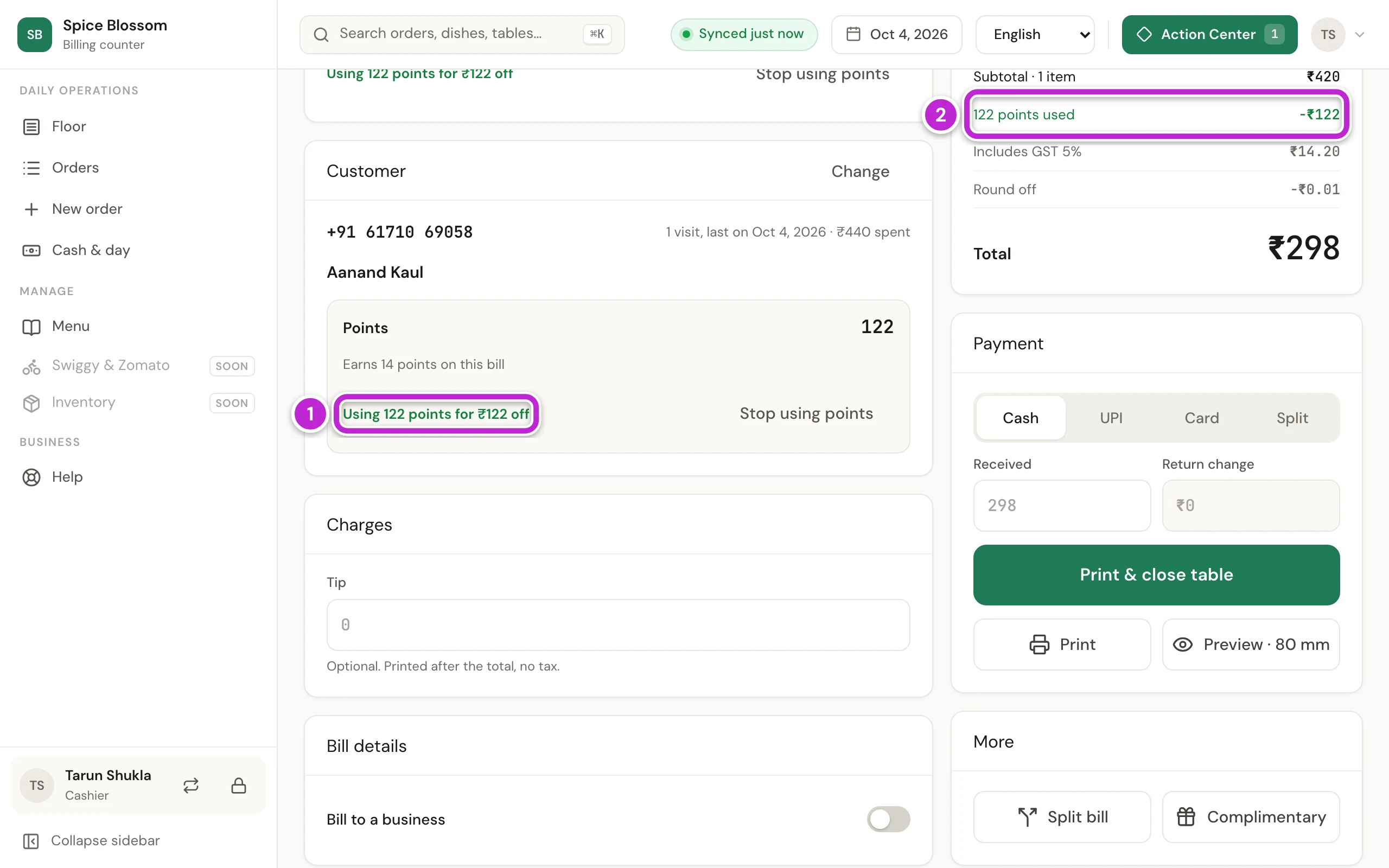
The card shows the coins in use (1), and the bill’s total shows them as a discount (2). Coins replace any other discount on this bill. Take the payment and close the table as usual.
If the bill is too small for the minimum, the Coins box says from which food bill coins work, and the guest keeps their coins for the next visit.
Add a guest after they paid
Section titled “Add a guest after they paid”If a guest gives their number after paying, add them to today’s bill.
-
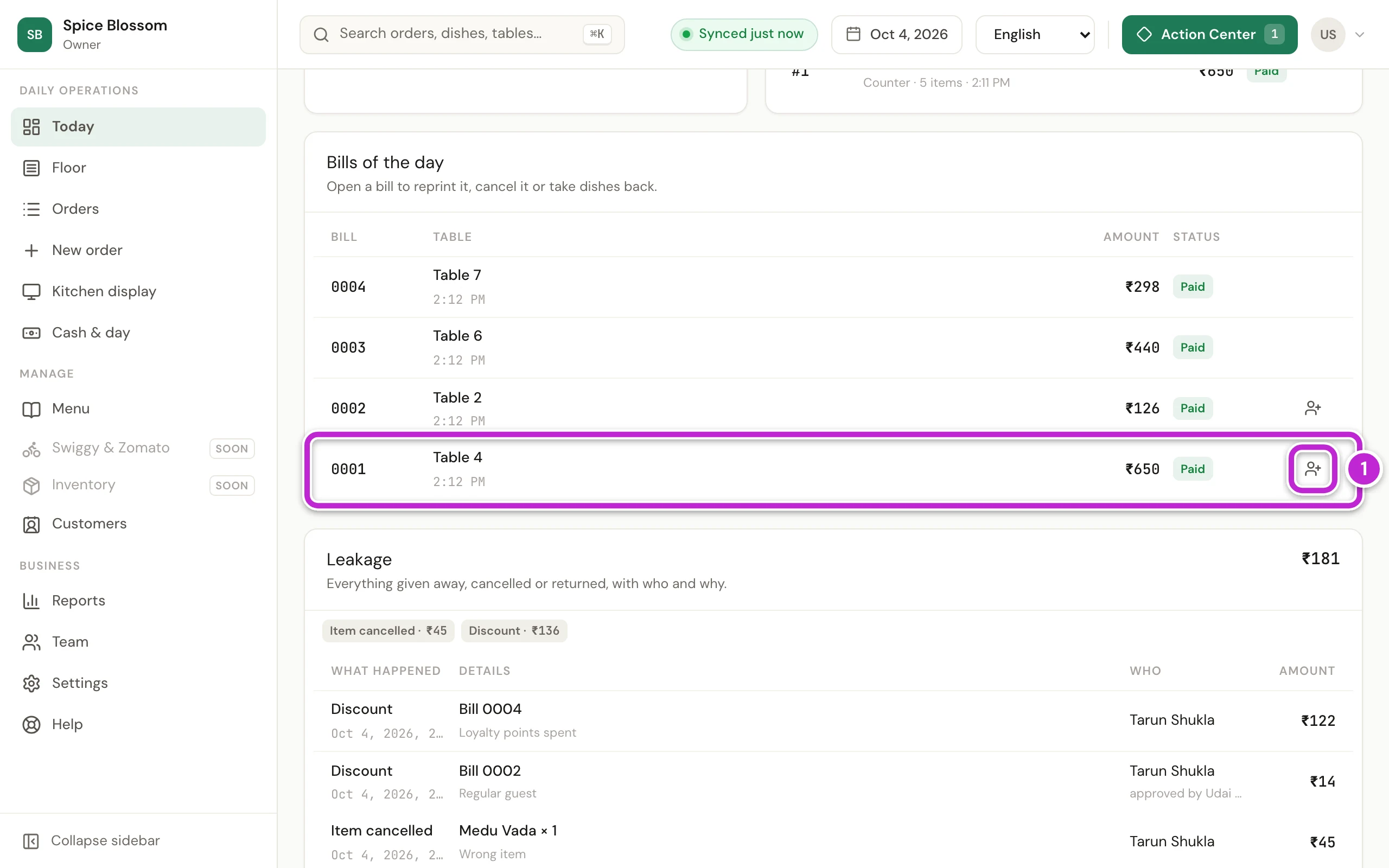
Click Today. Under Bills of the day, find the bill and click the button at the end of its row (1). Bills that already have a customer have no button.
-
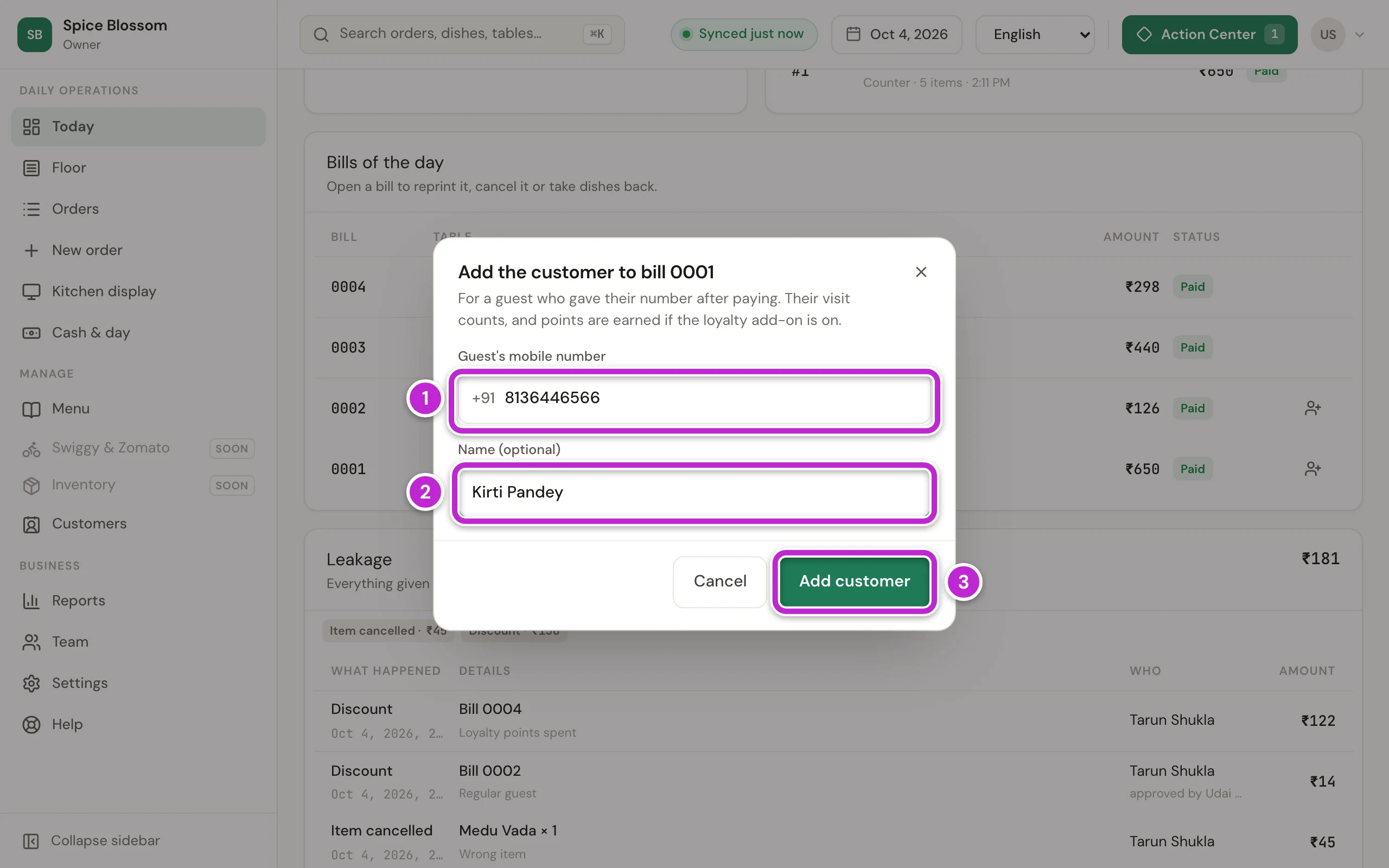
Type the guest’s mobile number (1) and their name if they tell you (2), then click Add customer (3). The visit counts, and the bill earns coins.
Look up a customer and change coins
Section titled “Look up a customer and change coins”-
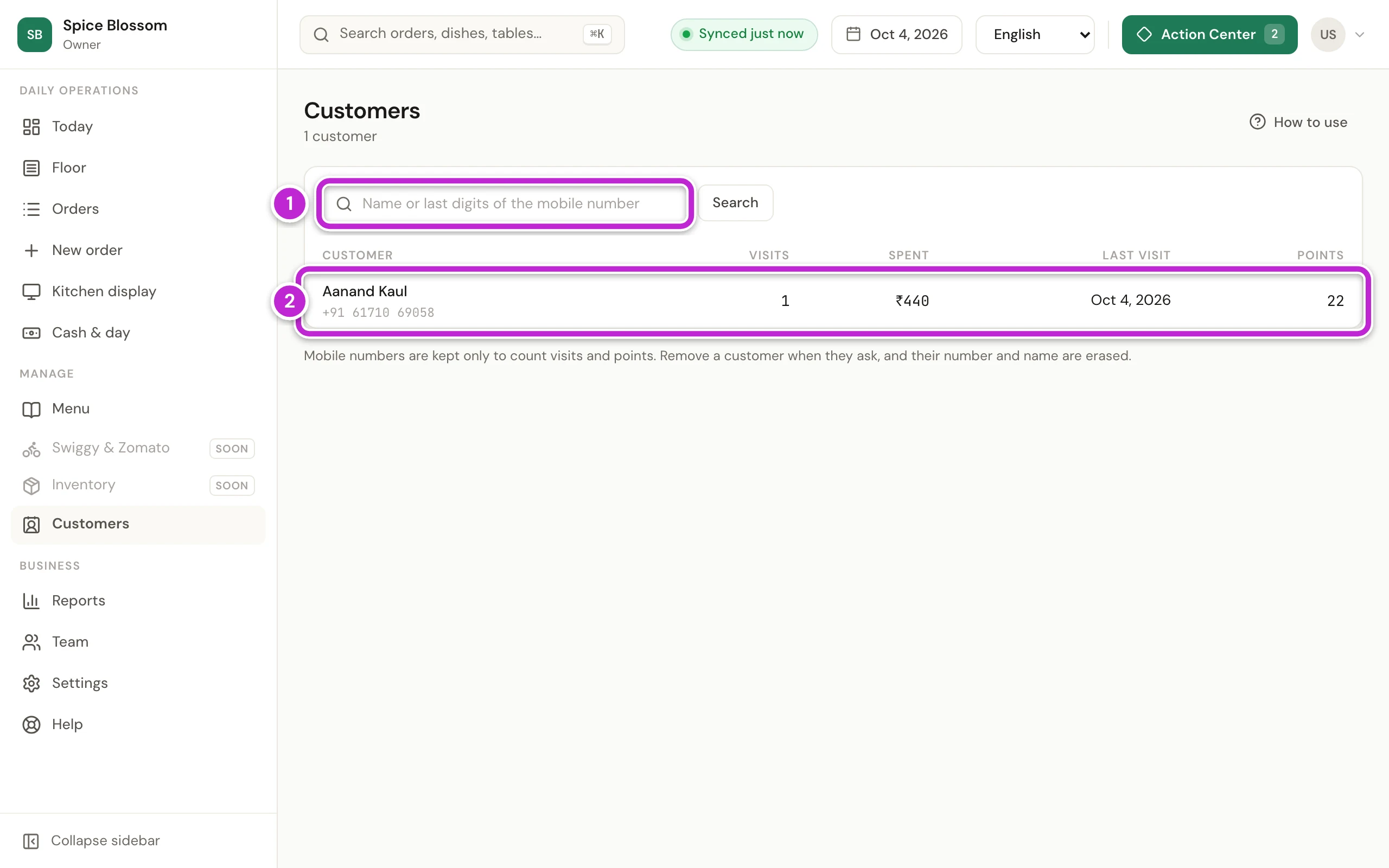
Click Customers. The list shows each customer’s visits, spending, last visit and coins. To find someone, type their name or the last digits of their number in the search box (1) and click Search.
-
Click the customer’s name (2).
-
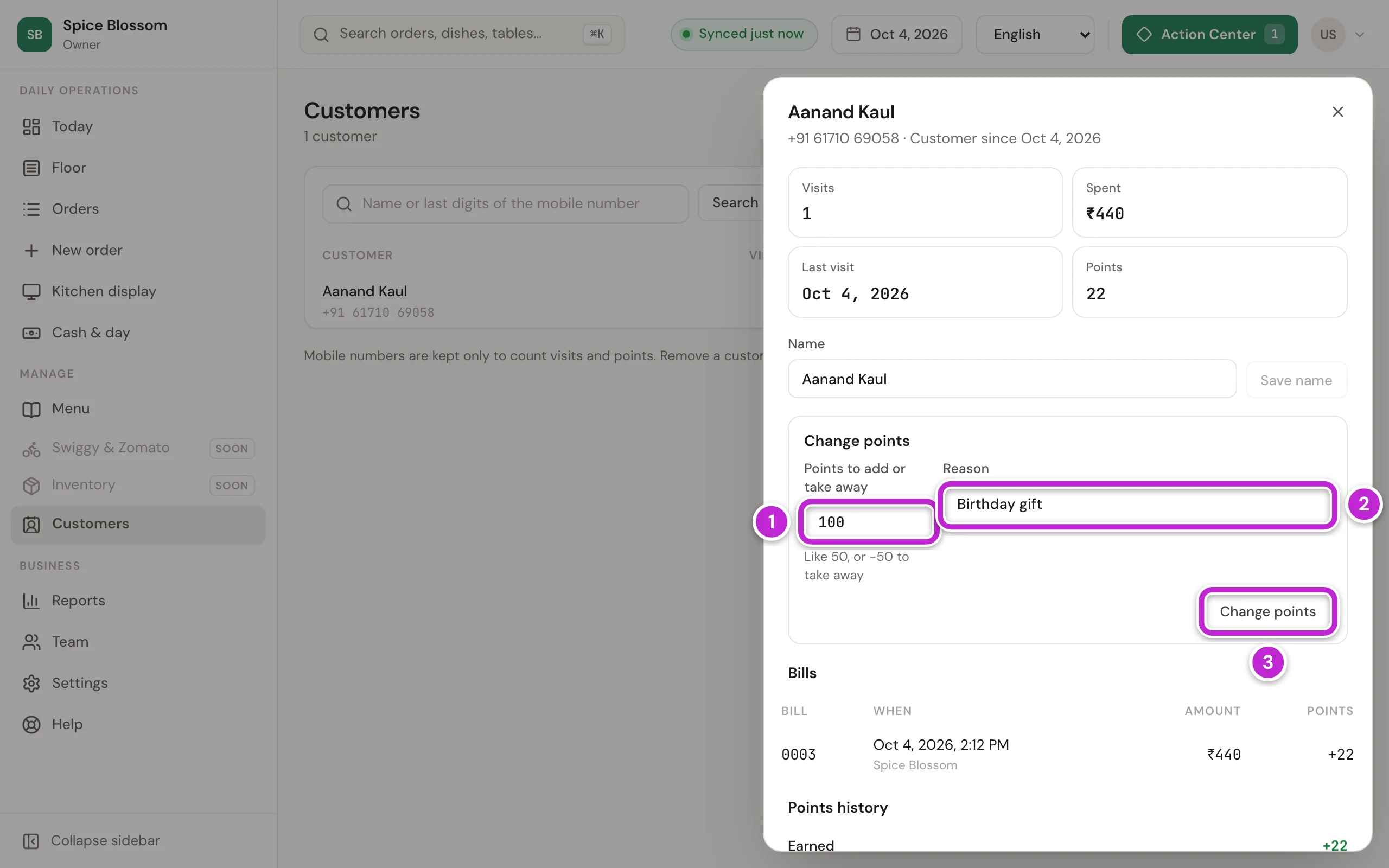
To give or take back coins by hand, type the coins in Coins to add or take away (1), like 50, or -50 to take away. Write the Reason (2) and click Change coins (3).
-
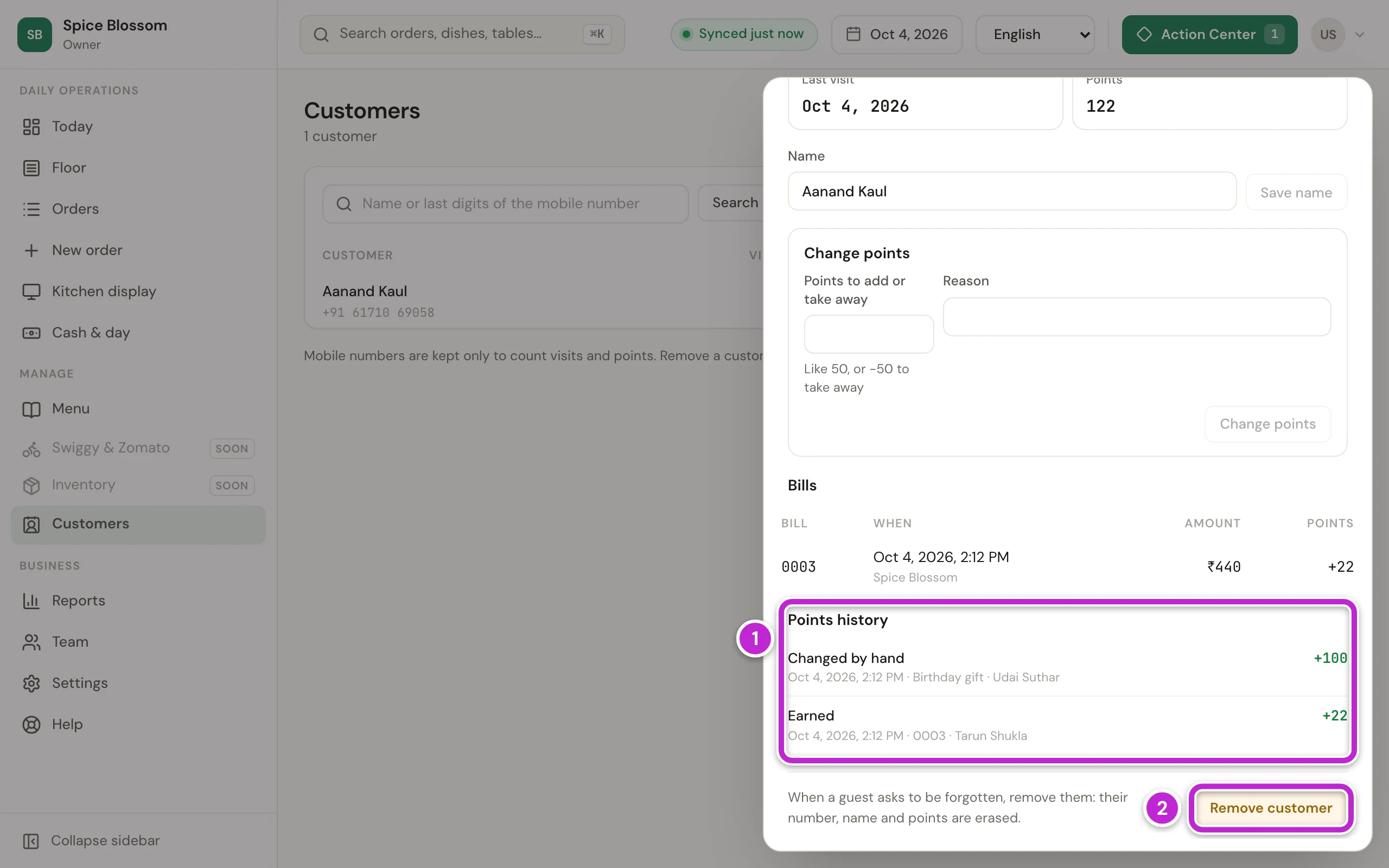
Coins history (1) lists every coin earned, used, given back, taken back or changed by hand, with the bill and who did it. If a guest asks you to forget them, click Remove customer (2) and confirm. Their number, name and coins are erased, and their bills stay in your reports without them.
If something goes wrong
Section titled “If something goes wrong”- Coins can be used on food bills of ₹200 or more. Coins can pay only part of the food bill, and on this bill that part is under the minimum. The coins stay for a bigger bill.
- Use at least 100 coins. Type at least the minimum in Coins to use, or keep the coins for the next visit.
- That code is wrong or has expired. Send a new one. The guest typed the code wrong, or 10 minutes passed. Click Send a new code and ask for the new code.
- Too many codes were sent. Try again later. A number gets at most 3 codes an hour. Keep the coins for the next visit.
- That code is wrong or was used on another bill. Send a new one. The code was used on another bill. Send a new one.
- Coins and customers cannot be used on this bill. A bill split by dishes takes no customer, and a complimentary bill cannot be paid with coins.
- This number is on your team. Team members' bills earn no coins. The number belongs to someone on your team.
- This number has earned coins on 3 bills today. Coins again from tomorrow. A number earns coins on at most 3 bills a day.
- The guest does not have that many coins. The guest’s coins changed since you found them. Click Change, find the guest again, and use what they have now.
- Coins are off The loyalty add-on is off or has ended. Coins already earned stay, and they work again when the add-on is back.
- Customers are not part of your role Ask the owner. At first, the owner and managers see customers, and only the owner changes coins (Add your team).