
Cash and close the day
Who does this: the cashier opens, uses and counts the drawer. Only the owner or a manager closes the day.
What you need:
- The counter computer with DineSure Counter (Set up the billing counter and printers). Each counter computer has its own drawer.
- The cash in the drawer, to count.
Open the drawer at the start of the shift
Section titled “Open the drawer at the start of the shift”-
Click Cash & day in the side menu. If the drawer is closed, the page says Billing counter is not open. Click Open drawer.
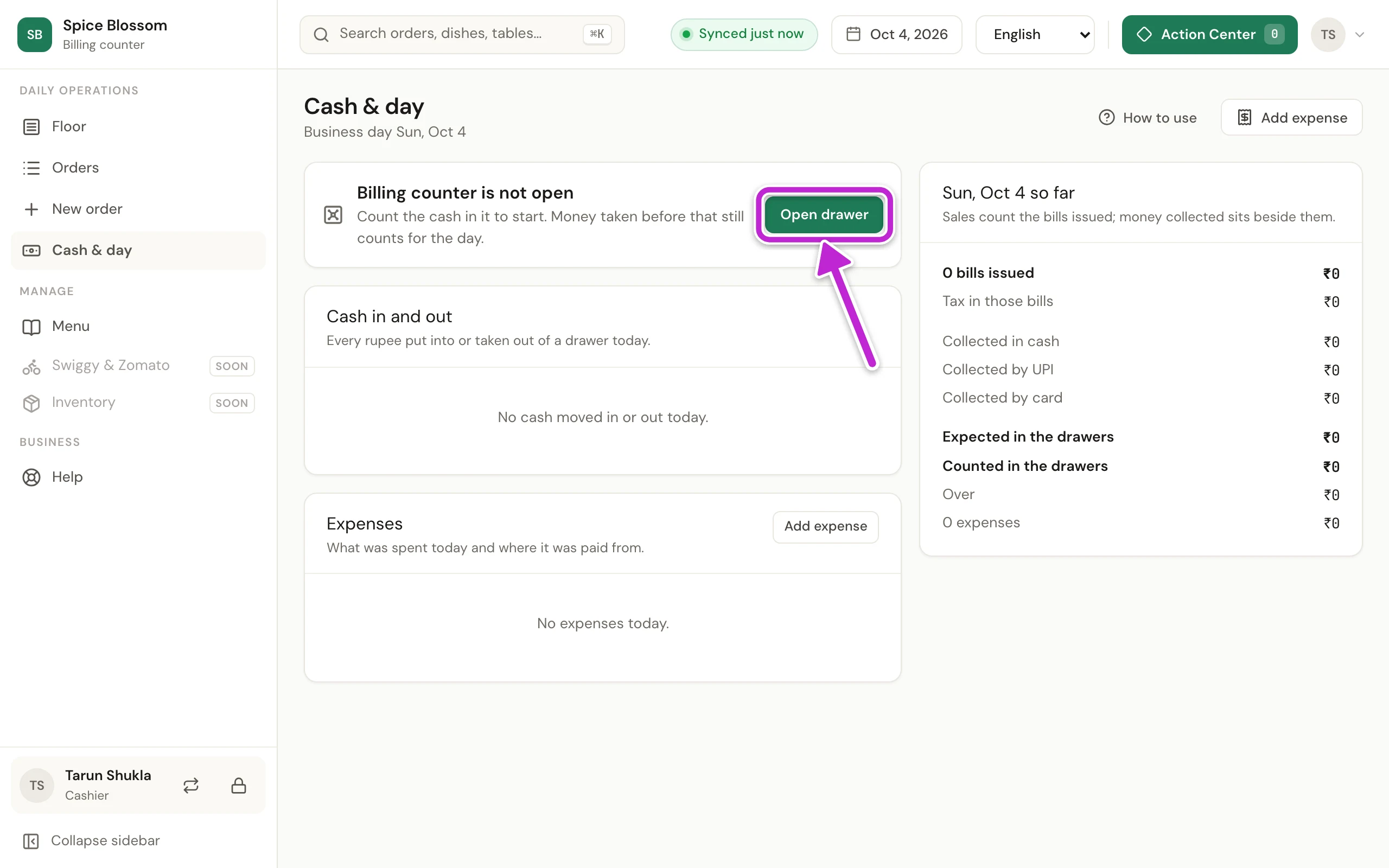
-
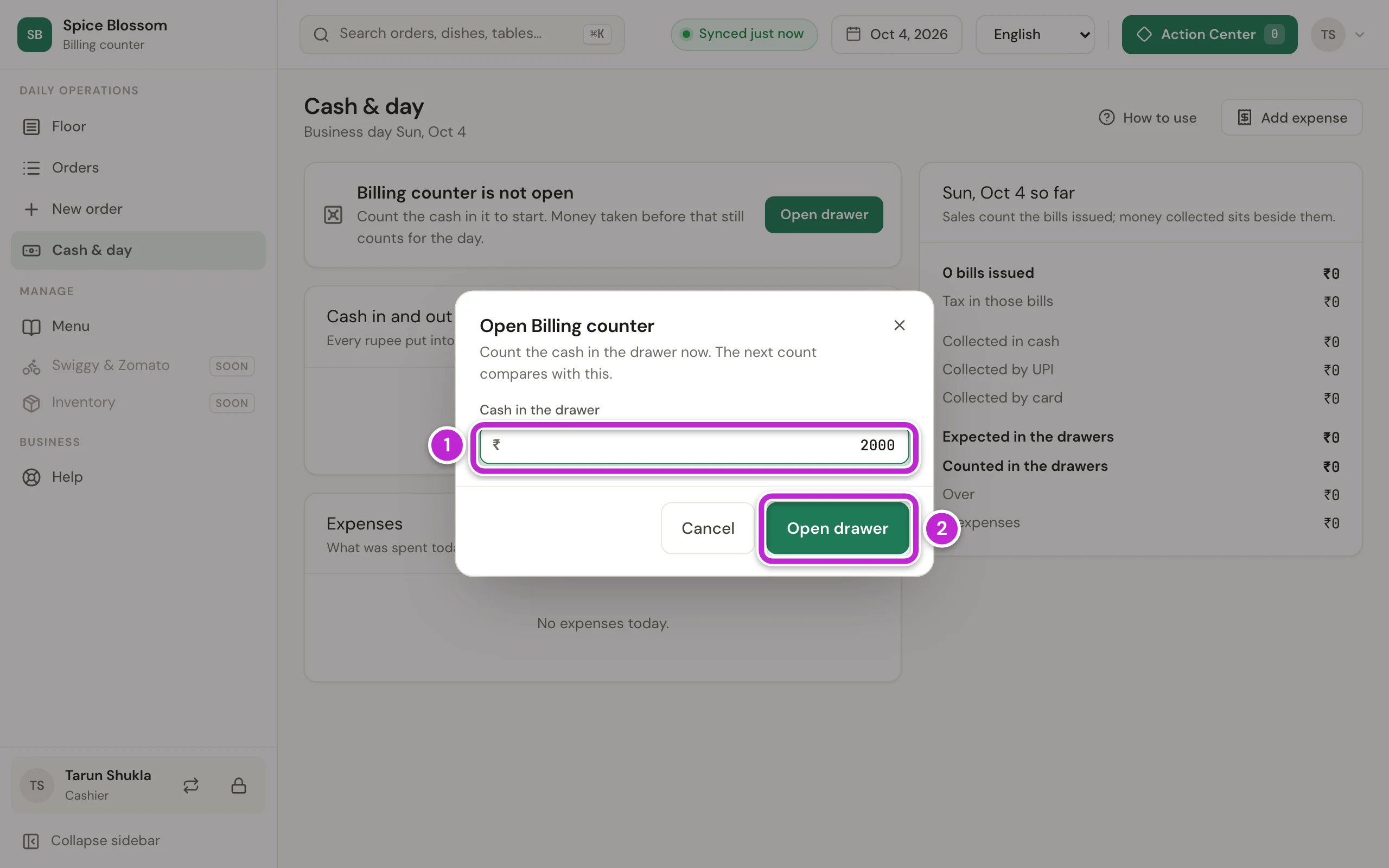
Count the cash in the drawer and type the amount in Cash in the drawer (1).
-
Click Open drawer (2). The next count compares with this amount.
Put cash in or take cash out
Section titled “Put cash in or take cash out”-
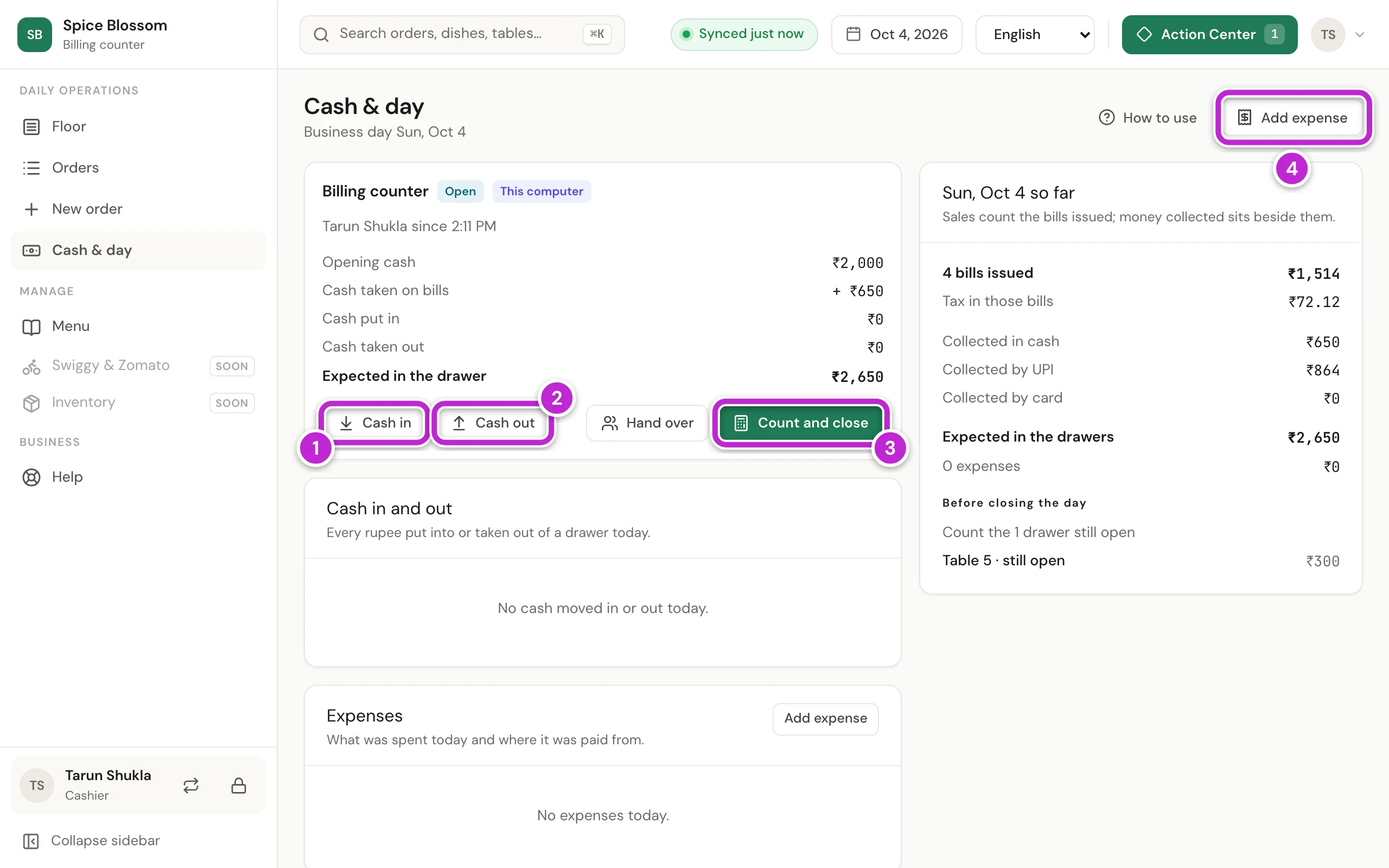
On Cash & day, the drawer card shows the opening cash, the cash taken on bills, the cash put in and taken out, and Expected in the drawer. Click Cash in (1) to put cash in, or Cash out (2) to take cash out to the bank or the owner. You use Count and close (3) and Add expense (4) later on this page.
-
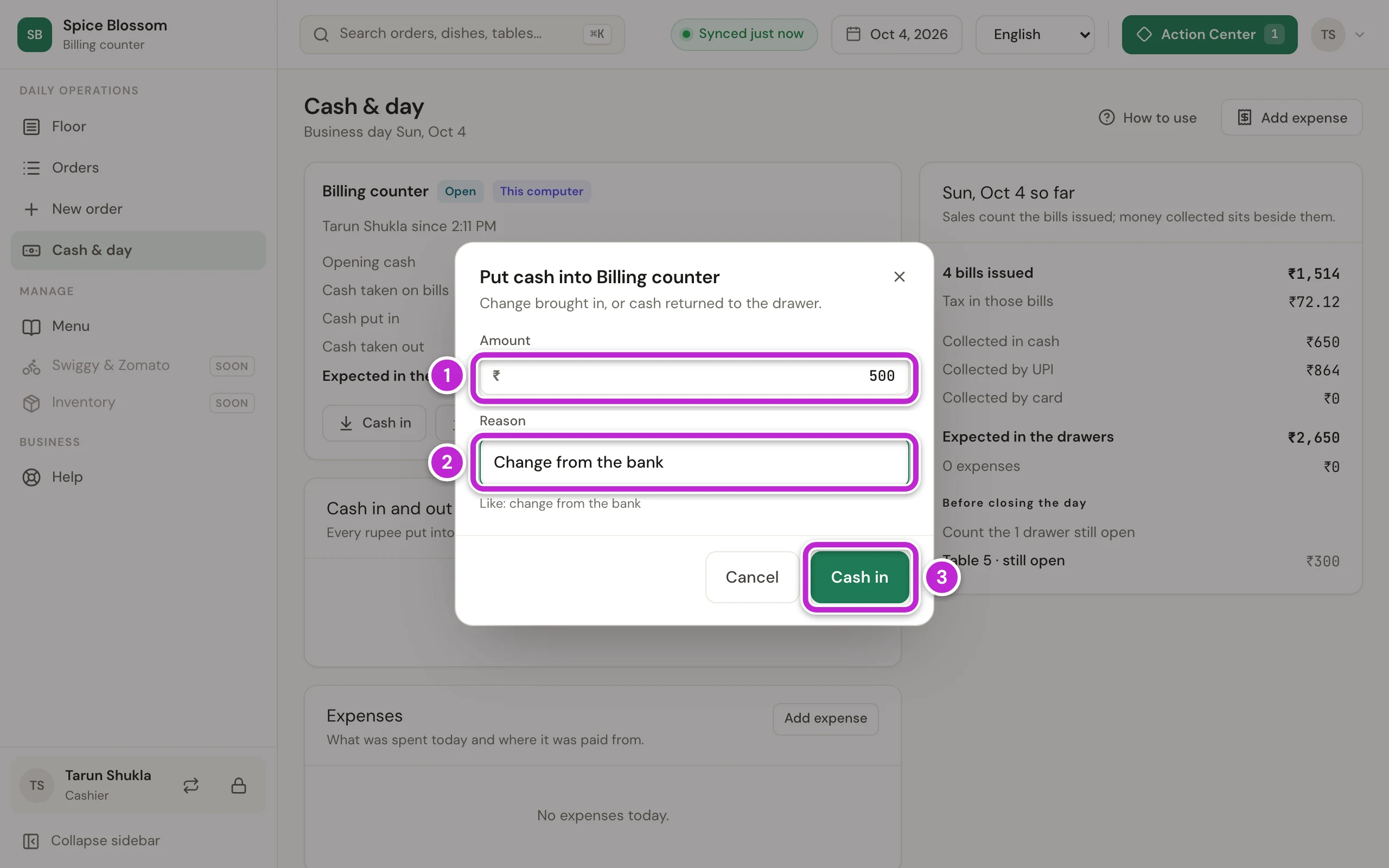
Type the Amount (1).
-
Type the Reason (2), for example change from the bank.
-
Click Cash in (3). The movement shows under Cash in and out, and the expected cash changes.
A cash movement cannot be changed later. If you typed the wrong amount, make a movement the other way with a reason.
Add an expense
Section titled “Add an expense”Use an expense for money spent for the restaurant, like vegetables, gas or wages. Use Cash out only for cash taken to the bank or to the owner.
-
Click Add expense at the top right.
-
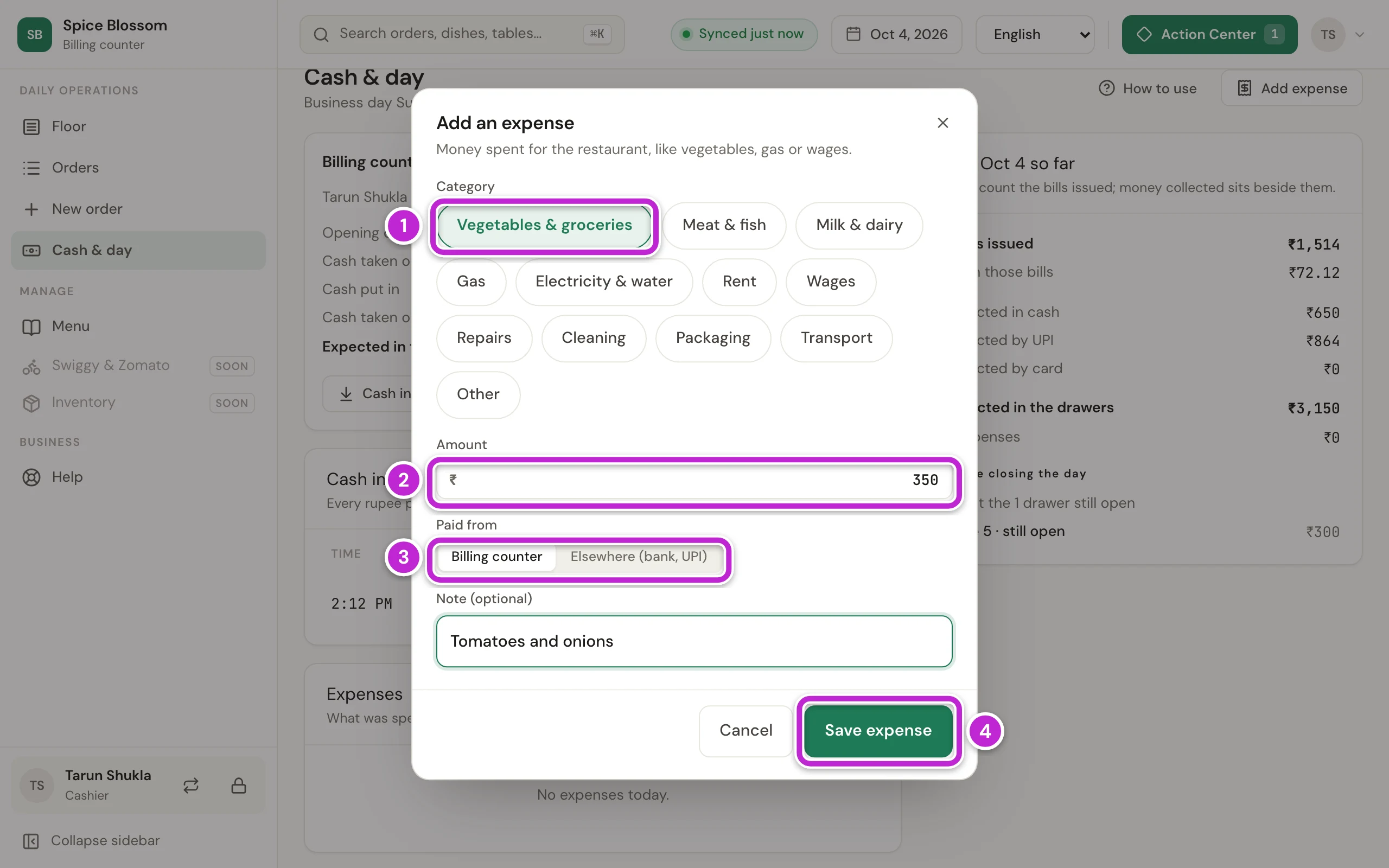
Choose the category, for example Vegetables & groceries (1).
-
Type the Amount (2).
-
Under Paid from (3), choose the drawer if the cash came out of it. Choose Elsewhere (bank, UPI) if you paid from the bank or by UPI.
-
Type a note if it helps, for example what you bought. For the category Other, the note is needed.
-
Click Save expense (4). An expense paid from the drawer also takes the cash out of it.
Before closing the day
Section titled “Before closing the day”-
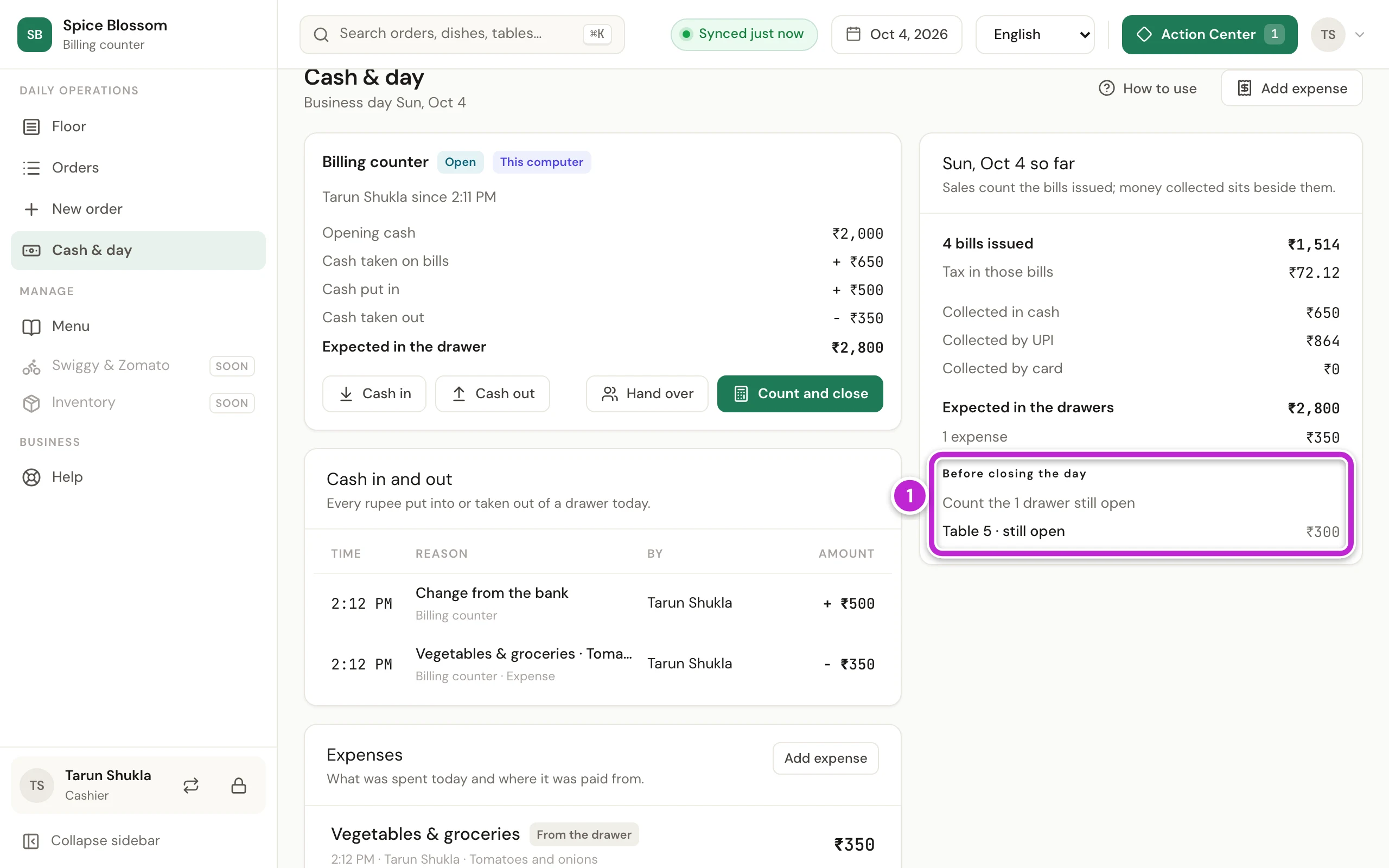
At the end of the day, look at Before closing the day on Cash & day (1). It lists what you must finish first: every drawer still open, and every table that is still open or has a bill not paid.
-
Click each table in the list. Its bill opens. Take the payment and click Save & print, or Close table if the table has no items (Print the bill and take the payment).
-
Come back to Cash & day. Repeat until only the drawers are left in the list.
Count the drawer
Section titled “Count the drawer”-
Click Count and close.
-
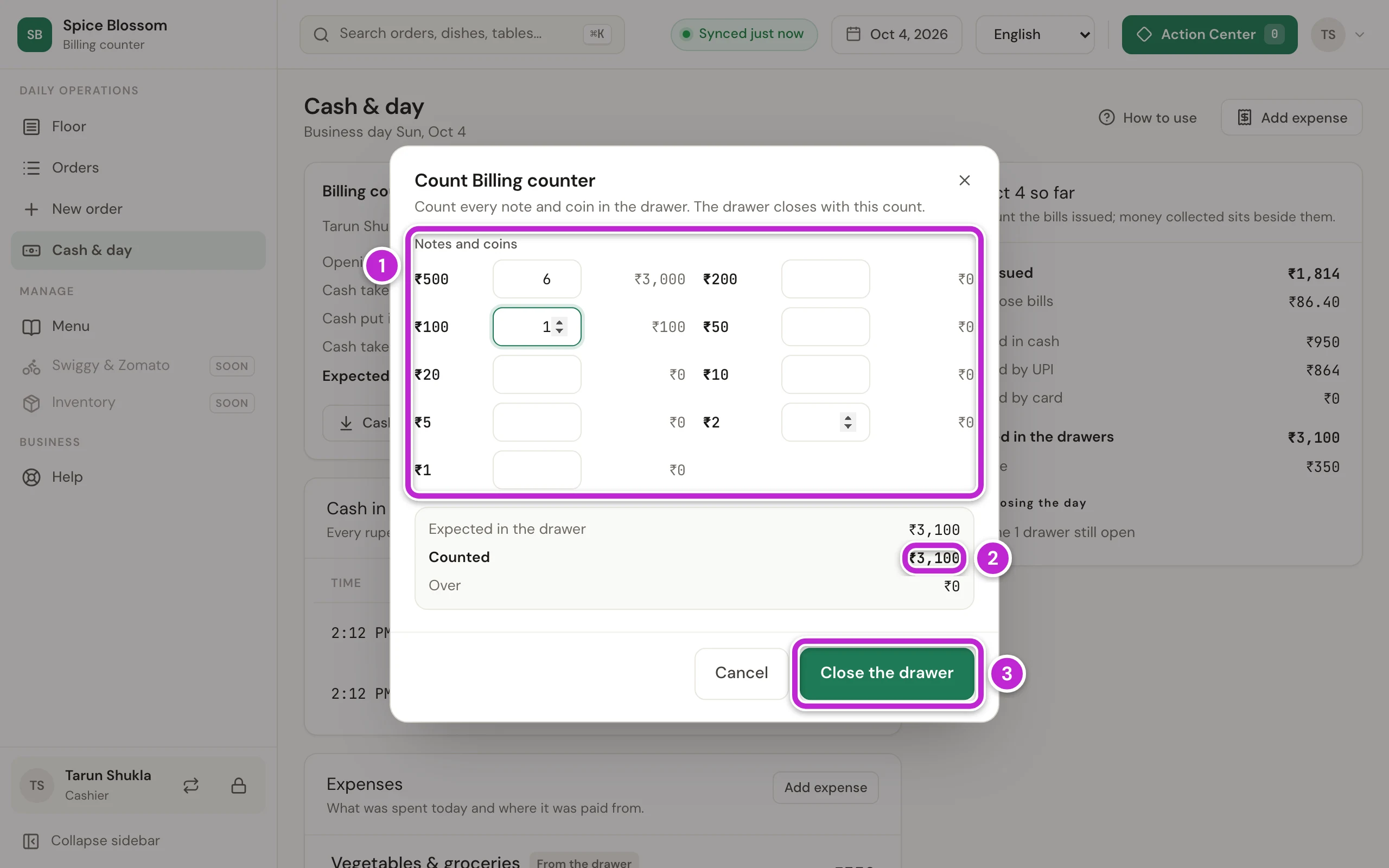
Count the notes and coins in the drawer. Under Notes and coins, type how many you have of each one (1). For example, six ₹500 notes and one ₹100 note.
-
Check Counted (2) against Expected in the drawer. If they are the same, the line below says Over ₹0.
-
If they are not the same, the dialog shows Short or Over with the difference, and asks Why is it different?. Count again first. If the difference is real, type the reason.
-
Click Close the drawer (3). The drawer card shows Counted.
Close the day
Section titled “Close the day”-
The owner or a manager switches in at the counter (Switch person and lock the counter).
-
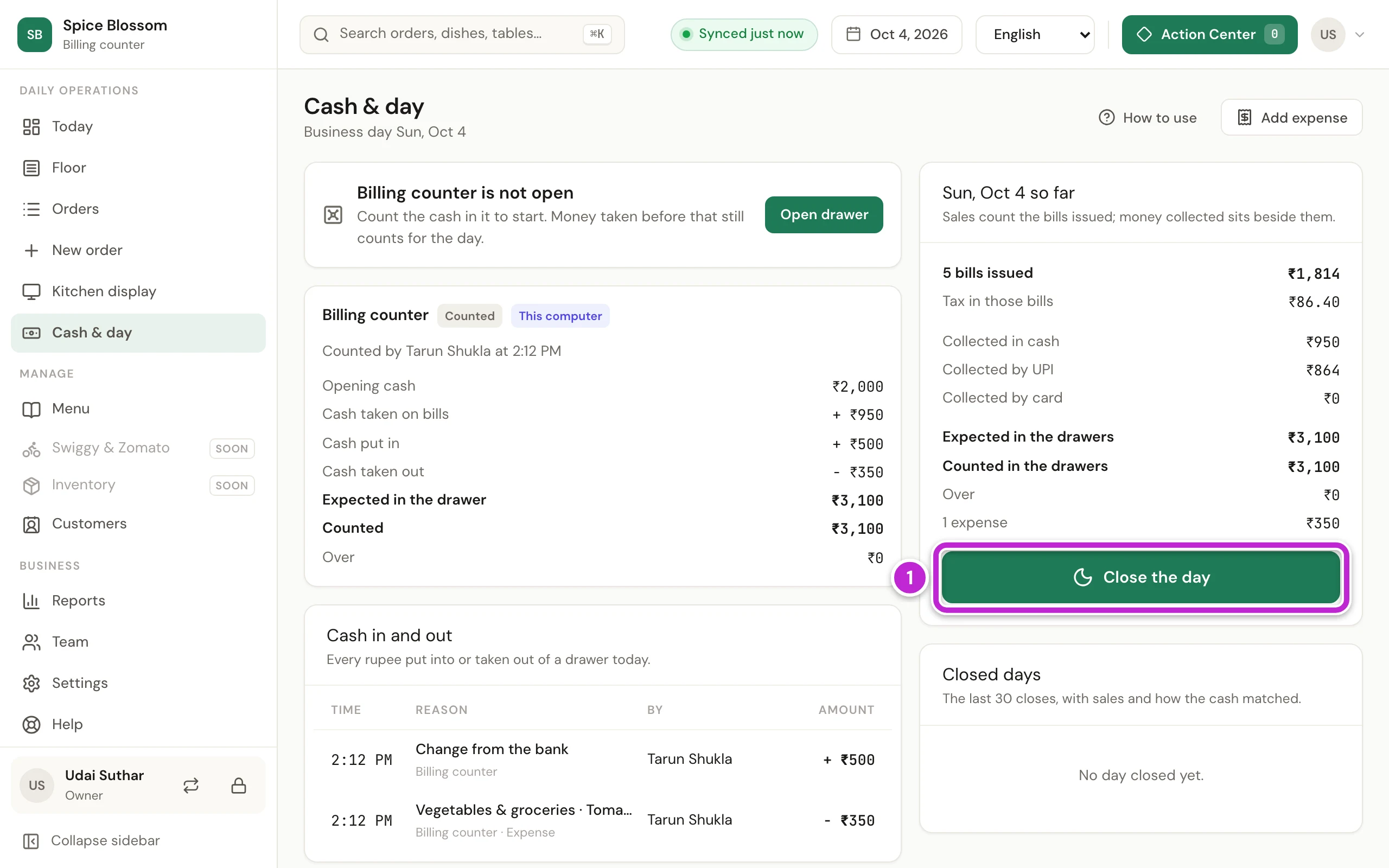
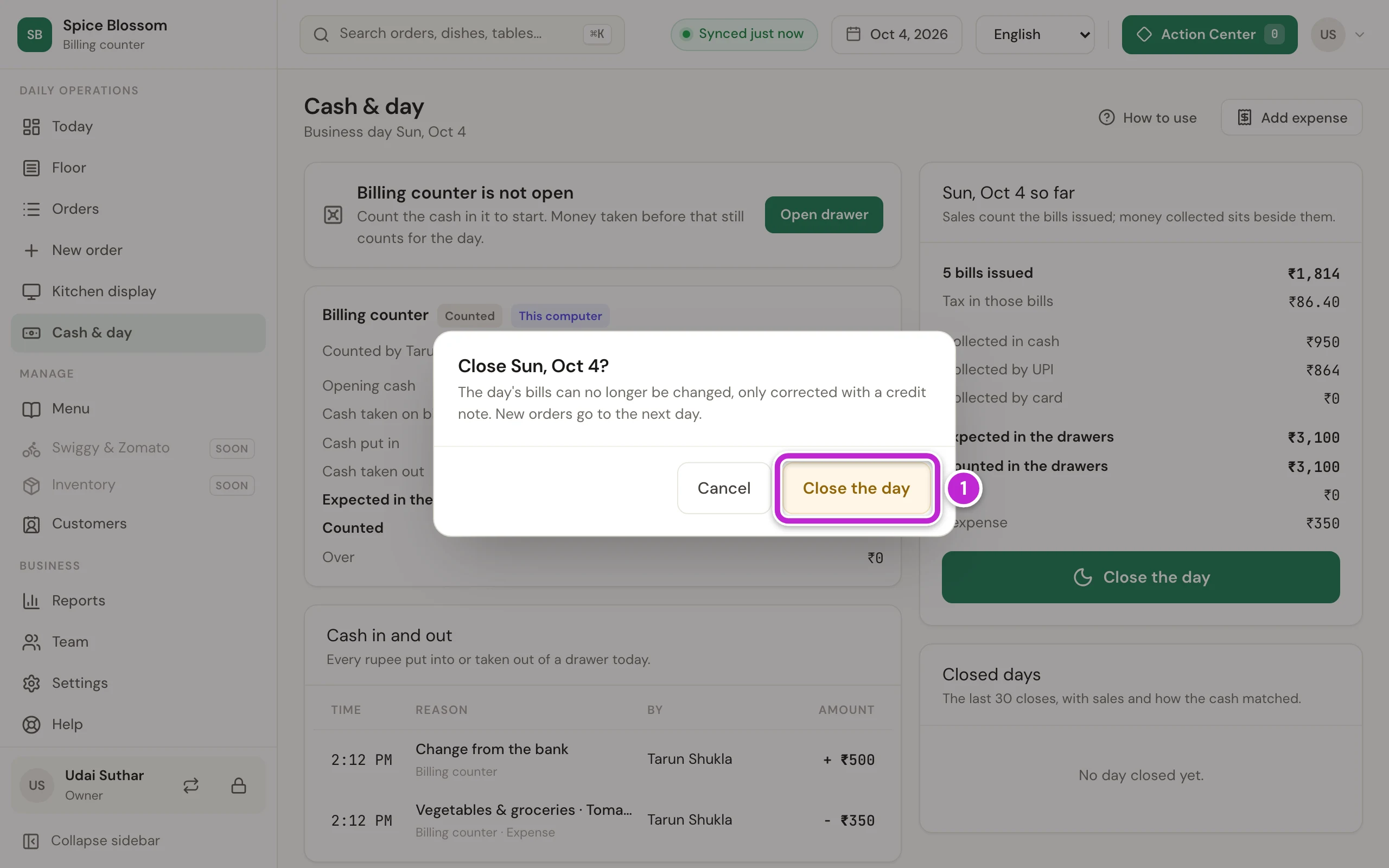
On Cash & day, check the day’s card: the bills issued, the money collected by cash, UPI and card, the cash expected and counted, and the expenses. Click Close the day (1).
-
Read the question, then click Close the day (1).
-
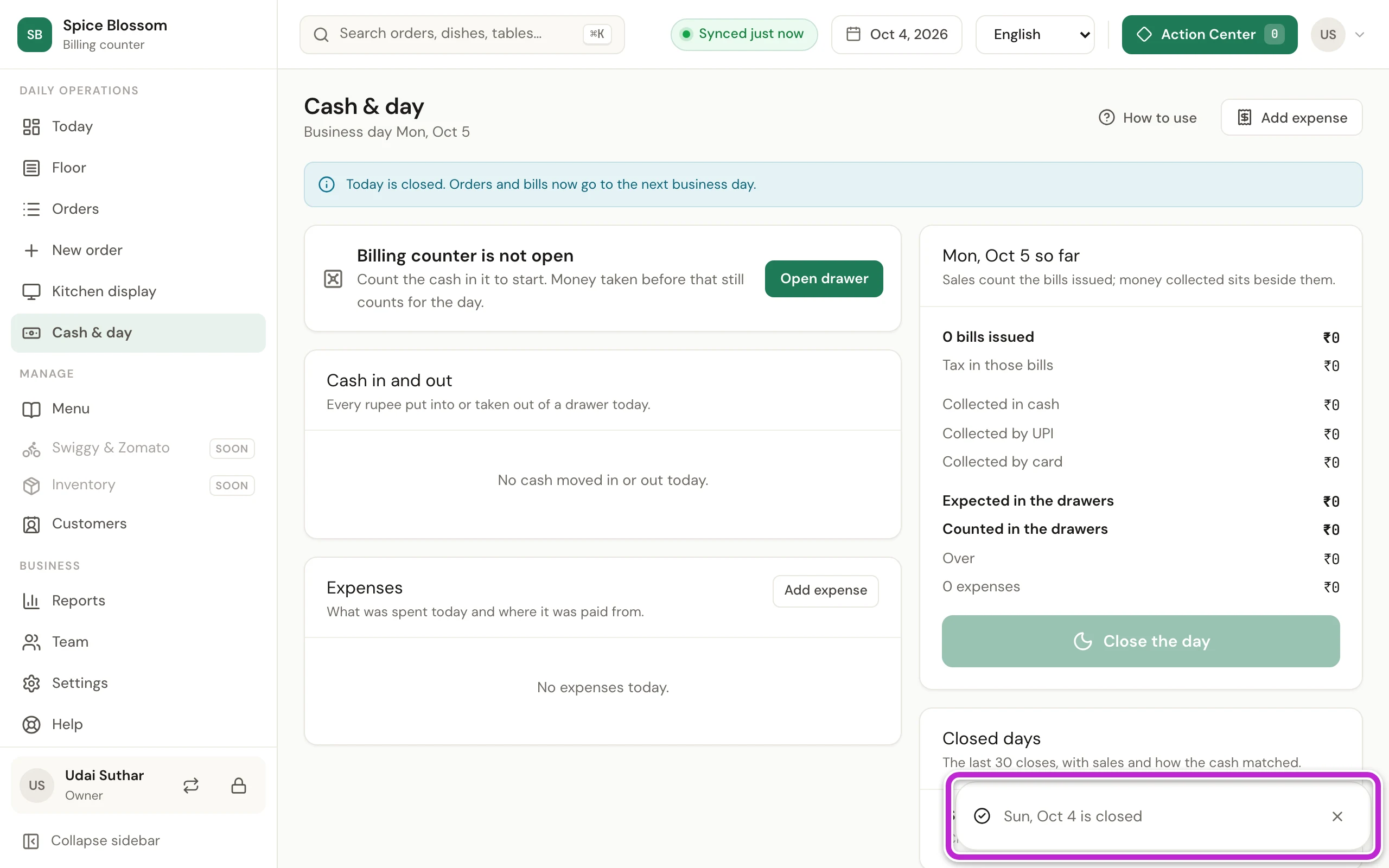
A message says the day is closed. From now on, new orders and bills go to the next business day. The closed day shows under Closed days, with its sales and how the cash matched.
If something goes wrong
Section titled “If something goes wrong”- Count every open drawer first. A drawer is still open. Click Count and close on it, then close the day.
- Settle every bill and visit first. A table is still open or a bill is not paid. Click it under Before closing the day and settle it.
- The count differs from what was expected. Say why. Type the reason in Why is it different?, then click Close the drawer again.
- Today is already closed. Someone closed the day already. New orders and bills go to the next business day.
- This drawer is already open. Someone opened this drawer already. Reload the page to see it.
- This computer is not registered at this place. This computer is not set up as a counter. Ask the owner to set it up (Set up the billing counter and printers).
- Cash is for cashiers and managers. Your role cannot use the drawer. Ask the owner if you need to open or count a drawer.
- You saved an expense by mistake. A manager or the owner clicks Void on it and gives a reason, while the day and the drawer are still open. Cash paid from the drawer goes back into it.