
Discounts, cancellations and approvals
Who does this: the cashier, a manager or the owner at the counter. A manager or the owner approves when the cashier is not allowed.
What you need:
- The table’s bill open on the counter (Print the bill and take the payment).
- For an approval: a manager or the owner who has their own PIN, or the owner’s phone.
Cancel a dish after its KOT
Section titled “Cancel a dish after its KOT”-
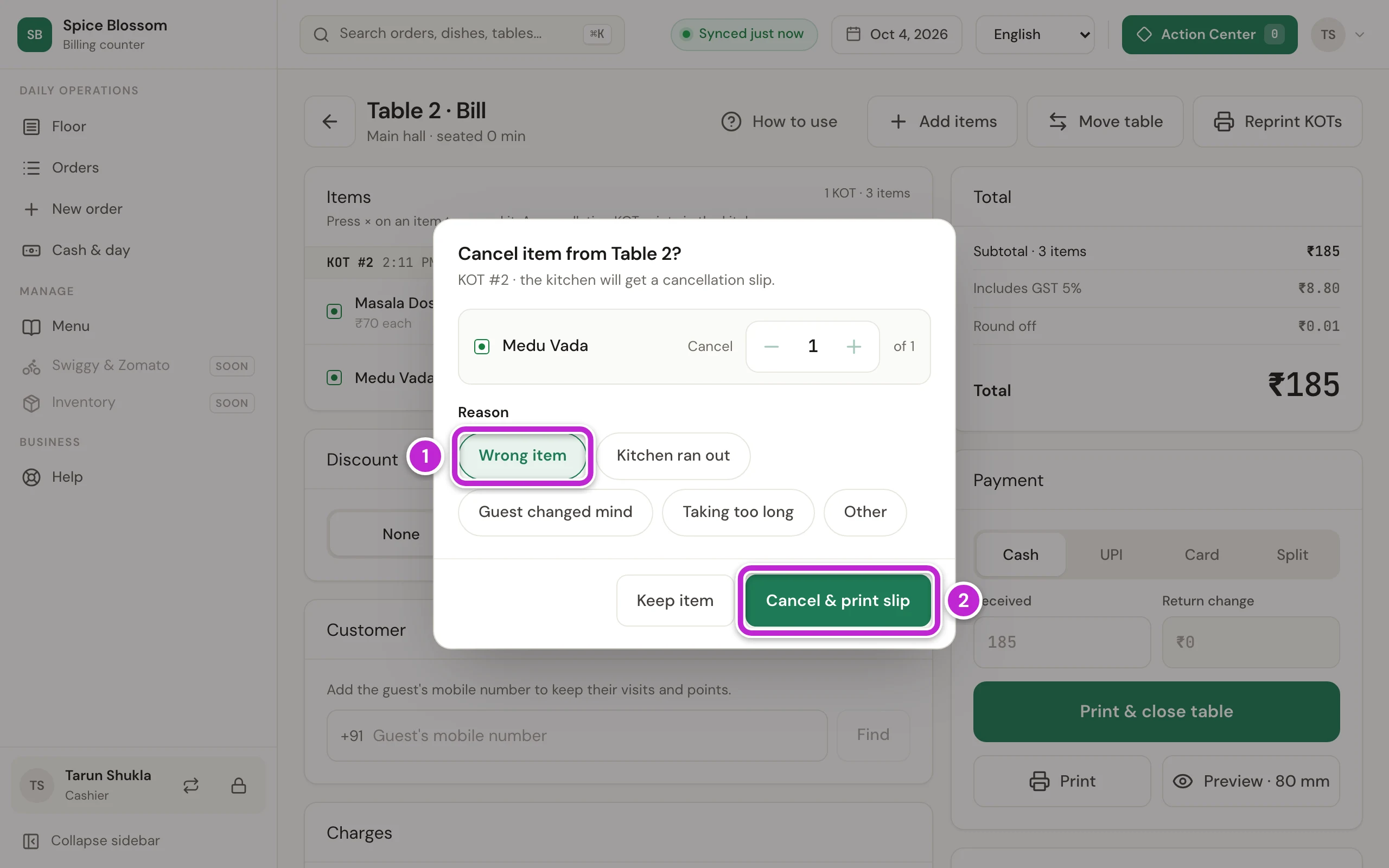
On the table’s bill, or in the table’s panel on the Floor, click × next to the dish you want to cancel. To cancel every dish on one KOT at once, click Cancel KOT on that KOT instead.
-
If your role cannot cancel dishes, the Approval dialog opens first. A manager or the owner approves with their PIN (see Approve with a PIN).
-
If the table has more than one of that dish, choose how many to cancel with − and +.
-
Choose the reason, for example Wrong item (1).
-
Click Cancel & print slip (2). A cancellation slip prints in the kitchen, so the cooks stop making the dish. On the bill, the dish is struck through and costs ₹0.
Cancel a whole order
Section titled “Cancel a whole order”-
On the table’s bill, click Cancel KOT on each KOT and choose the reason. Before the last one, the counter warns that the bill becomes ₹0.
-
When nothing is left, click Close table. The table is free again.
Give a discount
Section titled “Give a discount”-
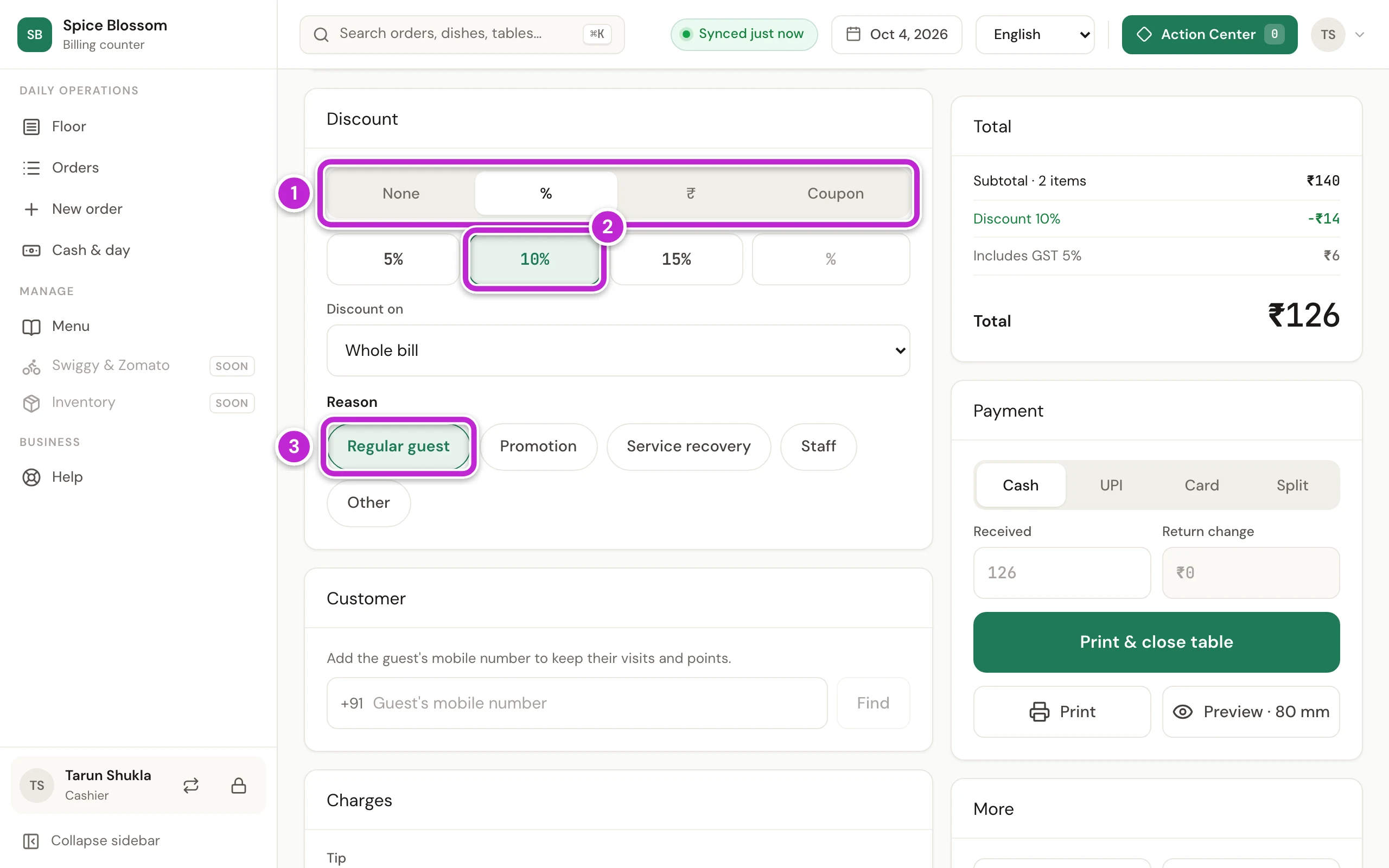
On the table’s bill, find Discount. Click % for a percentage, ₹ for a fixed amount, or Coupon for a coupon code (1).
-
Click the percentage, for example 10% (2). For another number, type it in the last box.
-
Choose the reason, for example Regular guest (3). Every discount needs a reason. The Total card shows the discount at once.
-
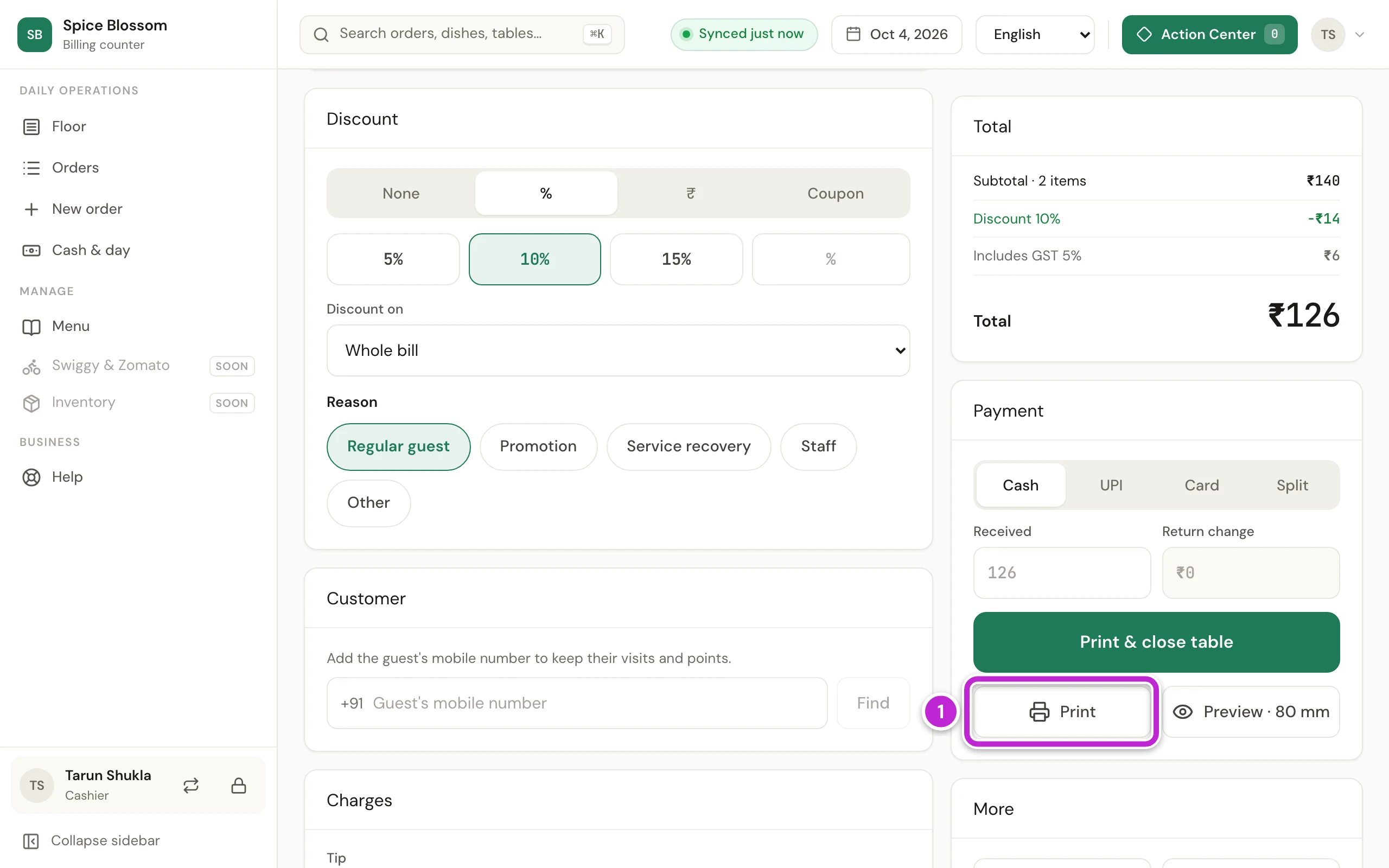
Click Print (1) to print the bill. If the guest pays now, you can click Save & print instead.
-
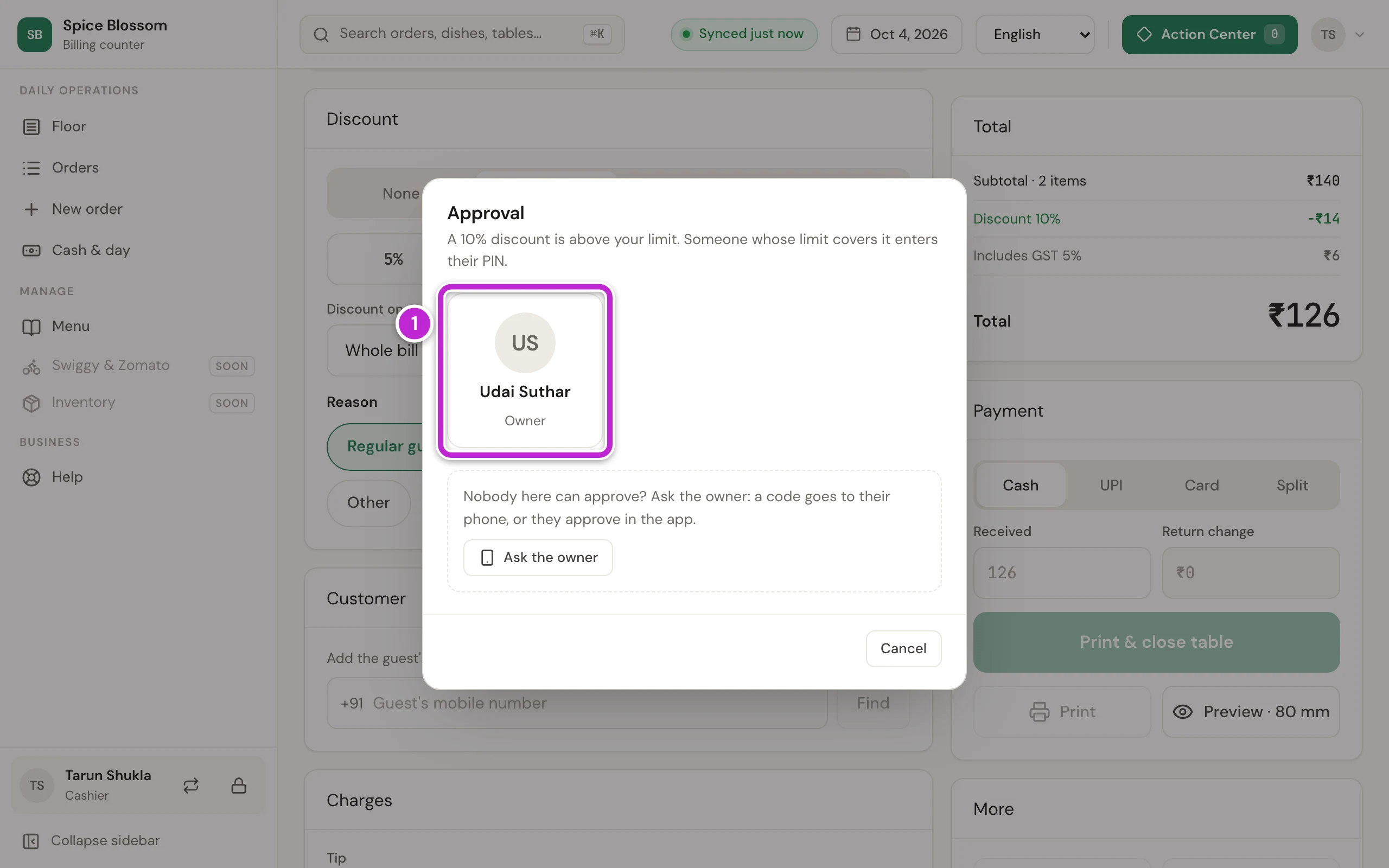
If the discount is within your limit, the bill prints. If it is above your limit, the Approval dialog opens. Go on with Approve with a PIN.
When a guest pays with their coins, the Discount card shows the coins instead of a discount, and nobody needs to approve them (Customers and coins).
Approve with a PIN
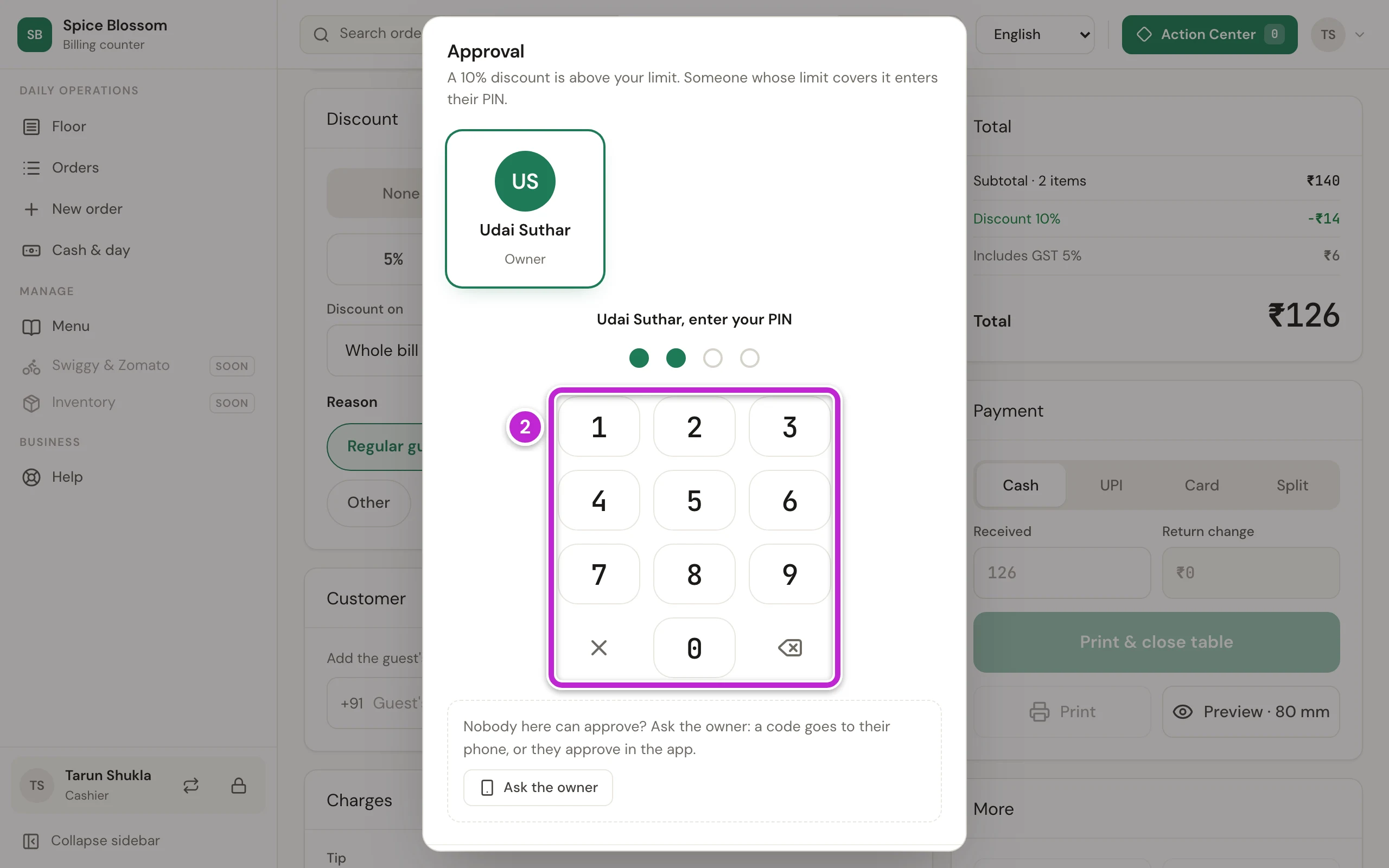
Section titled “Approve with a PIN”The dialog shows only the people who may approve this action. The person who approves must be at the counter and must not be the person asking.
-
The dialog says why an approval is needed. The manager or the owner clicks their own name (1).
-
They type their PIN on the pad (2). The dialog closes, and the bill prints.
-
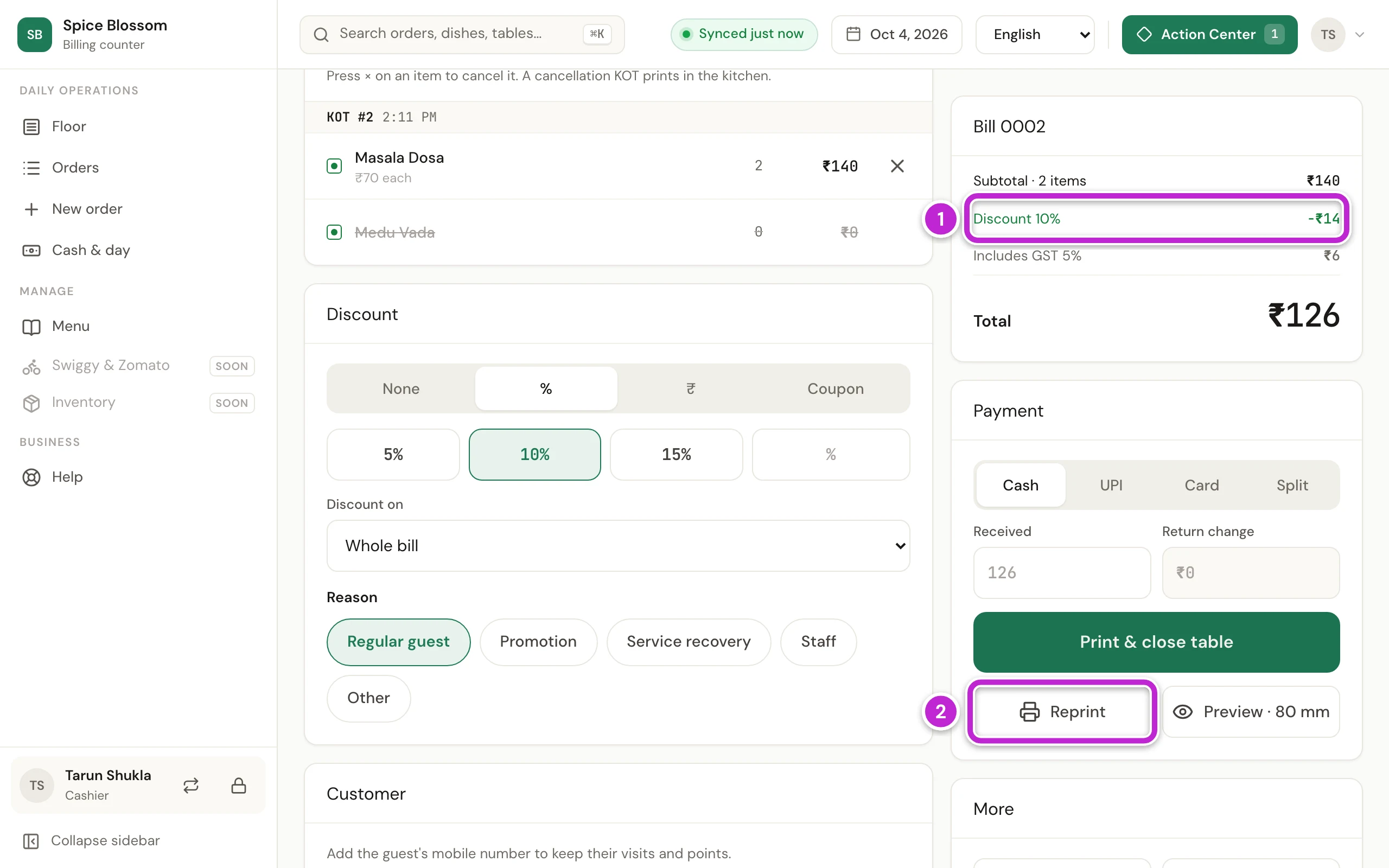
Check the bill. It shows the discount line (1). If you need another copy, click Reprint (2). Then take the payment (Print the bill and take the payment).
Ask the owner when nobody can approve
Section titled “Ask the owner when nobody can approve”If no manager is at the counter, the owner can approve from their phone.
-
In the Approval dialog, click Ask the owner. A code goes to the owner’s phone on WhatsApp, and the request shows in the owner’s Action Center.
-
If the owner tells you the code, type it in Code and click Use code.
-
Or wait while the owner opens Action Center on their phone and taps Approve or Decline. Your dialog follows their answer by itself.
The code works once, for 10 minutes.
If something goes wrong
Section titled “If something goes wrong”- This is not part of your role. Ask the owner. Your role cannot do this, even with an approval. Ask the owner.
- Nobody who can approve this has chosen their own PIN yet. The owner gives a starting PIN in Settings, Team. Ask the owner to give a manager a starting PIN in Settings, Team (Add your team).
- Wrong PIN. The approver typed the wrong PIN. Click Clear PIN and type it again.
- Too many wrong PINs. Try again in a few minutes. After 5 wrong PINs, that person is locked for 5 minutes. Wait, or ask someone else to approve.
- That person cannot approve this. The approver’s own role or limit does not cover this action. Ask someone with a higher limit, or the owner.
- Give the discount a reason and the business bill a name first. Choose a reason under Reason. If you turned on a business bill, type the business name too.
- Accept the order before cancelling its items. The dish is in a QR order that nobody has accepted yet. Open Orders and accept or reject it (Accept QR orders).
- No owner has a mobile number to send a code to. The owner’s mobile number is missing. Ask the owner to add it in Team.
- The owner declined this. The owner said no. Keep the bill without the discount, or talk to the owner.
- This request has expired. Ask again. The 10 minutes passed. Click Ask the owner again.