
Switch person and lock the counter
Who does this: everyone who works at the billing counter: cashiers, captains, managers and the owner.
What you need:
- A billing counter with DineSure Counter set up (Set up the billing counter and printers).
- Your 4-digit PIN. The first time, this is the starting PIN the owner gave you.
Many people use one counter. Each person switches in with their own PIN, so every order, discount and bill shows who did it. The owner switches in with a PIN too.
Switch in at the counter
Section titled “Switch in at the counter”-
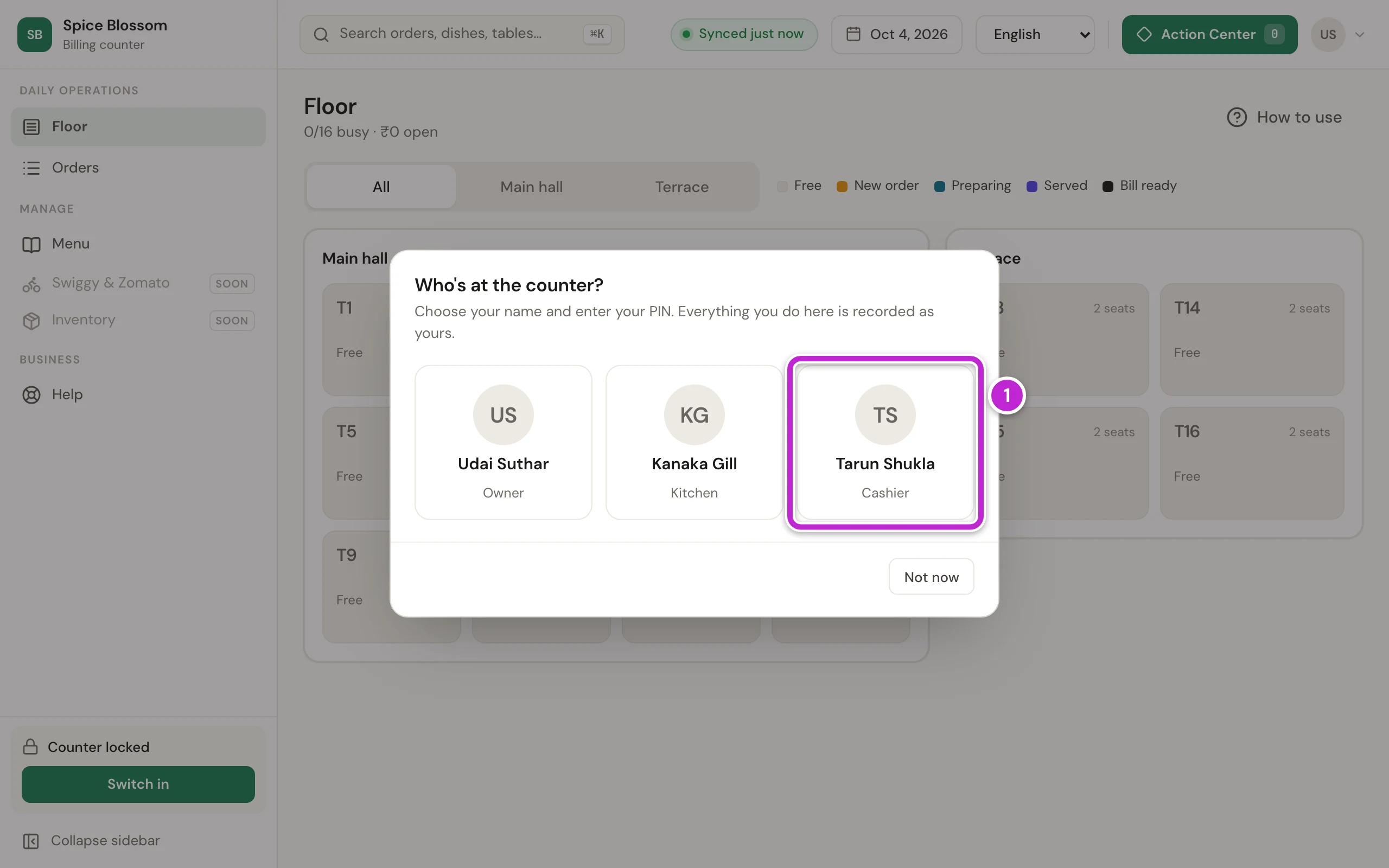
When nobody is switched in, the counter shows Who's at the counter?. If you do not see it, click Switch in at the bottom of the sidebar.
-
Click your name (1).
-
The counter shows Enter your PIN. Click the four digits of your PIN on the pad (2), or type them on the keyboard.
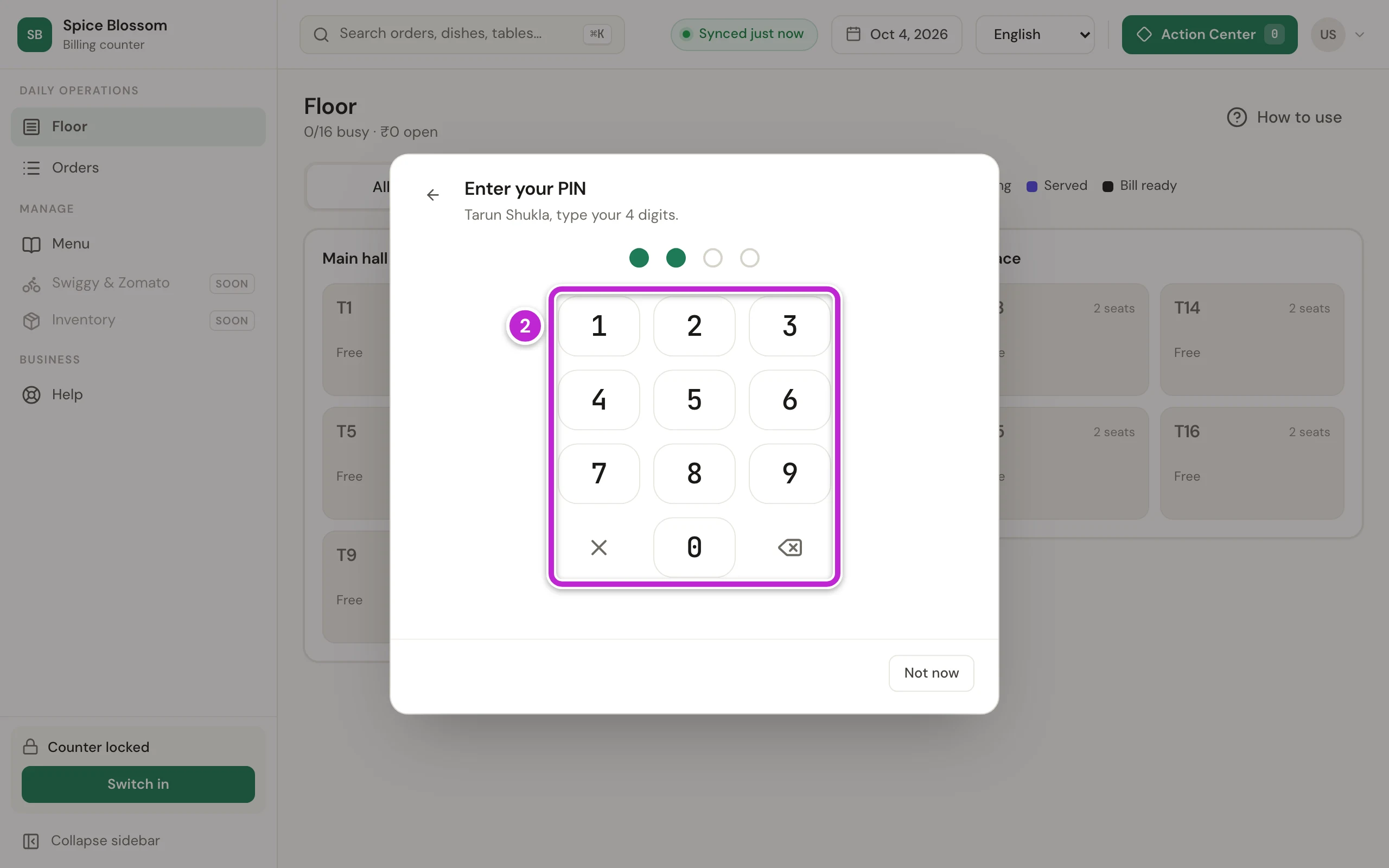
You are in. Your name and role show at the bottom of the sidebar.
Choose your own PIN the first time
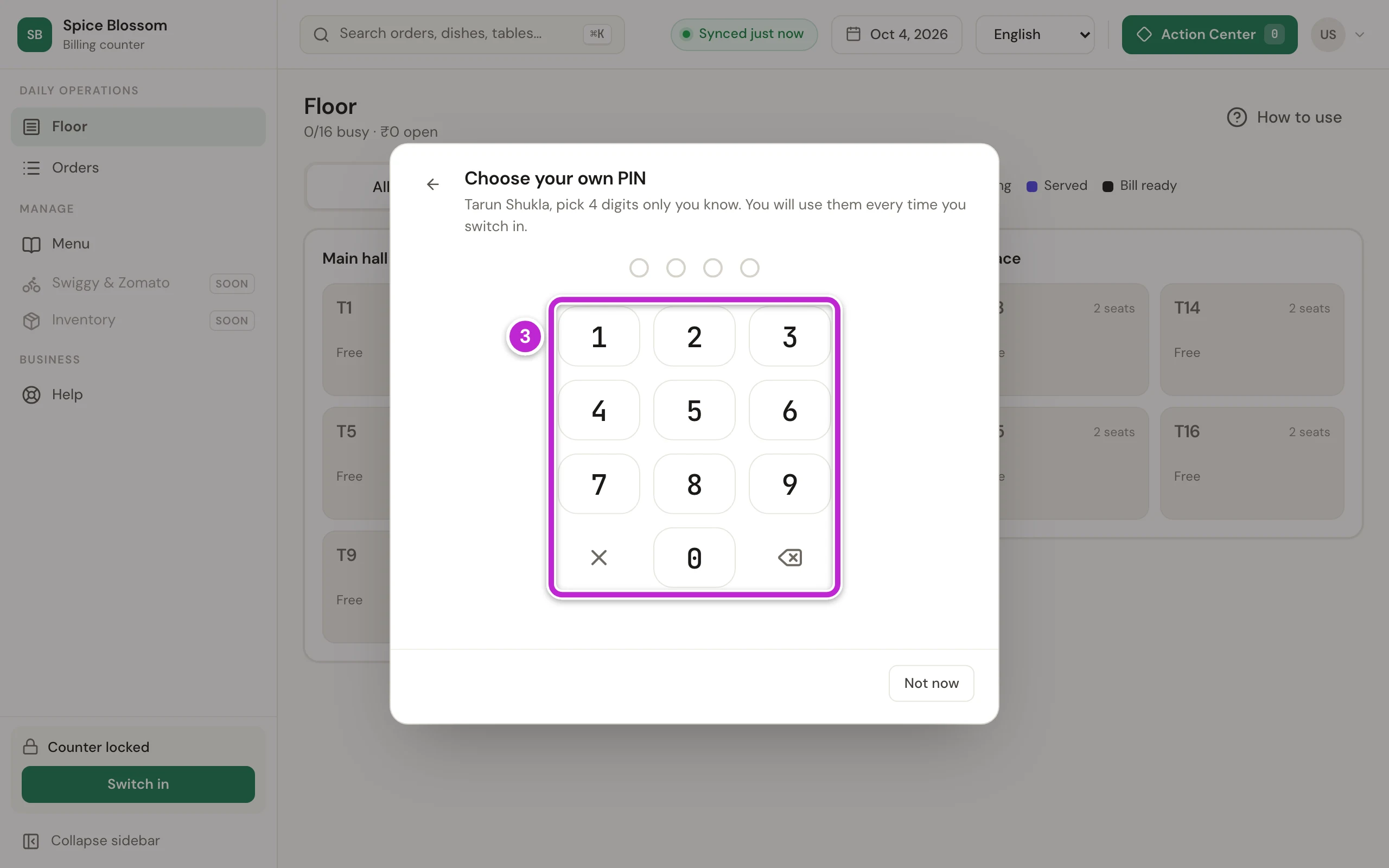
Section titled “Choose your own PIN the first time”The first time you switch in with a starting PIN, the counter asks you to choose your own. After that, nobody else knows your PIN.
-
The counter shows Choose your own PIN. Click four digits that only you know on the pad (3).
-
The counter shows Enter it again. Type the same four digits again.
From now on, use your new PIN every time you switch in.
Switch person or lock the counter
Section titled “Switch person or lock the counter”When you leave the counter, hand it to the next person or lock it.
-
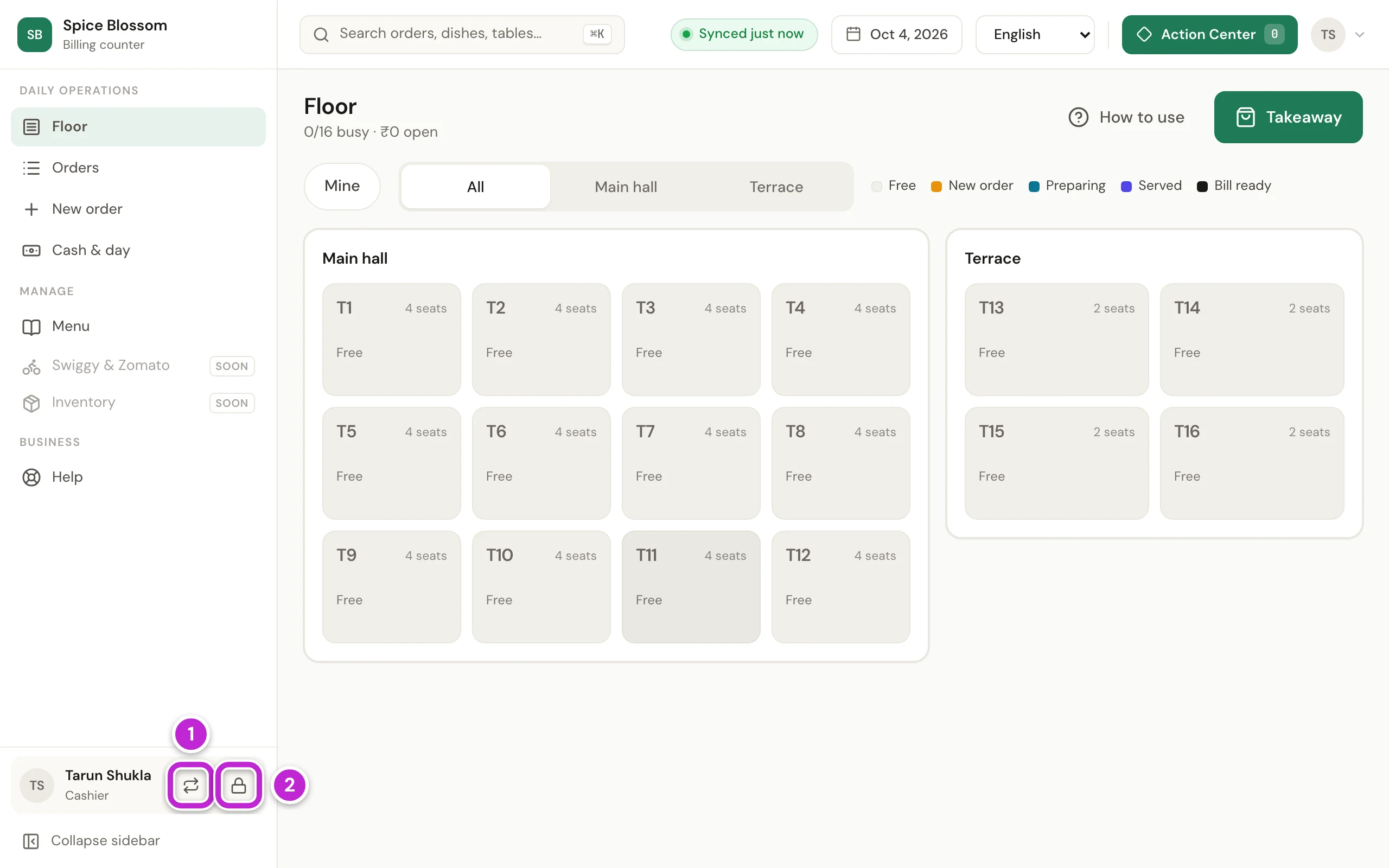
Find your name at the bottom of the sidebar.
-
To hand the counter to someone else, click the Switch person button (1). The counter shows Who's at the counter?, and the next person clicks their name.
-
To leave the counter with nobody switched in, click the Lock button (2).
The counter also locks itself after some minutes with no click and no key. The owner chooses how long in Settings, Computers and printers, under Counters lock after: 5, 10 or 30 minutes, or Never. It is 10 minutes at the start.
Change your PIN
Section titled “Change your PIN”-
Switch in with your PIN.
-
Click your initials at the top right of the screen. Your account opens.
-
Under Your PIN, type your PIN now in Current PIN.
-
Type four new digits in New PIN.
-
Click Change PIN.
The counter shows Your PIN is changed.
If something goes wrong
Section titled “If something goes wrong”- Wrong PIN. 2 tries left. Check the digits and type your PIN again. After 5 wrong tries, your name is locked for 5 minutes.
- Too many wrong PINs. Try again after 2:45 pm. Wait until the time the message shows, then try again. If your name locks 3 times in a row, your PIN is cleared. Ask the owner for a new starting PIN.
- You forgot your PIN. Ask the owner to give you a new starting PIN in Settings, Team (Add your team). You choose your own PIN again when you switch in.
- Nobody has a PIN yet. The owner gives each person a starting PIN in Settings, Team. The owner has not given anyone a starting PIN yet. The owner gives one in Settings, Team (Add your team).
- No PIN yet. The owner gives each person a starting PIN in Settings, Team. The owner has not given you a starting PIN yet. Ask the owner for one.
- The two PINs did not match. Choose again. The two PINs you typed were different. Type the same four digits both times.
- Switch in with your PIN to do that. The counter is locked. Click Switch in and enter your PIN.
- Your name is not on the list. Ask the owner to add you to the team (Add your team).